考前準備事項
- 4 張去背 Sprite(透明背景 PNG、解析度不要太差)+ 2 張 1920×1080 背景圖,考前放隨身碟/雲端,檔名不要有中文。
- 🚫 禁用老師上課的 3 個範例圖:飛鳥、小精靈、古色的小精靈,用了不給分。
- 準備好的腳本:隨身碟考試資料夾最上層的
btnClick2.cs(W5:累計次數+換 2 背景+換 4 Sprite,一支搞定;單純計數的 btnClick.cs 已刪除、不用)、StartMenuEvent.cs/ReturnButton.cs(W5 換場景)、tut_contr_script.cs(W7 角色控制,送 Speed/Direction)。都在本頁各題附原文,可一鍵複製。 - Mixamo 要能登入(Adobe 帳號);W6 的
Animations.zip、W7 的 Standard Assets(Standard Assets for Unity 2018.4.unitypackage,W7-06 教你備份位置)也先放隨身碟。 - 第 6、7 題的建模/動畫簡報 W3_動畫設計.pptx 在隨身碟
ZHONG/多媒體/W3_動畫設計.pptx(不在「多媒體考試資料」資料夾裡);Boy 建模在 W2_建模與燈光.pptx。範例專案Boy20230918(unity2019.3.6f1)wstaiBK.zip可參考數值(專案實際版本是 2021.3.6f1)。 - 練手速:老師說「會的同學不會做不完,先練習增加手速」。


⚠️扣分地雷總表
| 題 | 地雷 | 後果 |
|---|---|---|
| 第 2 題 | Sprite 用到飛鳥/小精靈/古色小精靈、沒去背、解析度糊 | 不給分 |
| 第 4 題 | 文字顏色跟背景太像(粉紅底配粉紅/白字)→ 老師看不到字 | 看不到 = 0 分 |
| 第 3+4 題 | btnClick2:btnCounter 第一個子物件要是 Text (TMP);Images Ary 打 4、Txeture Ary 打 2 都要放滿;On Click 選 btnClick2 → ButtonClick() | 報錯/沒反應 |
| 第 4 題 | 字型大小要 ≥ 考卷指定值;Auto Size 可能把字縮小到低於指定值 → 要把 Min 設 ≥ 指定值或不開 Auto Size | 扣分風險 |
| 第 6 題 | 模型是 W2 的 Boy(Create Empty 當父物件 + head/body/手/腳/鼻子);動畫要 選 Boy 物件 建 BoyAnimation,不是選 cloth 材質;Add Property 不要按 Filter by Selection | 做錯物件 |
| 第 6 題 | Animation 要 60 FPS(預設 60,60 格 = 1 秒)、最後一格 = N×60、頭尾同色、顏色 重複不斷 改變(Loop Time ✔) | — |
| 第 7 題 | Main Camera 要 拉遠(距離變大),做成拉近 = 不給分 | 不給分 |
| 第 7 題 | 鏡頭動畫 不要重複播:Animation Clip 的 Loop Time 取消勾選 | 扣分 |
| 第 7 題 | 音樂掛在 Boy(第 6 題 3D 物件)上,Audio Source Spatial Blend = 1 (3D),拉遠要聽得出變小聲;有第二個 Camera 要取消它的 Audio Listener | 扣分 |
| 第 8 題 | Mixamo 指定人物要有 原材質配色(Materials 頁 Use External Materials (Legacy) 或 Extract Textures/Extract Materials),白模/粉紅 = 沒分 | 10 分 |
| 第 9 題 | 1D「idle」(預設):StandHalfTurnLeft -1/HumanoidIdle 0/StandHalfTurnRight 1;1D「MoveBack」:WalkBackTurnLeft -1/WalkBack 0/WalkBackTurnRight 1;兩棵都 取消 Automate Thresholds、Parameter = Direction | 約 10 分 |
| 第 9 題 | 老師口述 MoveBack 還要「死掉 Dying」,你的設定沒有 → 考前跟老師確認 | 待確認 |
| 第 10 題 | 2D Freeform Cartesian「MoveFront」:X=Direction、Y=Speed;Walk 系列 Y=0.5、Run 系列 Y=1,X=-1/0/1 | 10 分 |
| 第 9+10 題 | 4 條轉換都 Has Exit Time 取消:idle→MoveBack Speed Less -0.1、MoveBack→idle Greater -0.1、idle→MoveFront Greater 0.1、MoveFront→idle Less 0.1 | 動作卡住/延遲 |
| 通用 | Animator 參數名 Speed/Direction 區分大小寫、不能多空格(W7-15) | 腳本抓不到 |
對照題目 ↔ 簡報頁
| 題 | 內容 | 簡報頁/圖 |
|---|---|---|
| 第 1 題 | 畫面設定 + 背景 RawImage | W2-10、W2-13、W4-11、W4-12、W4-13、W4-15、W5-05 |
| 第 4 題(前置) | TextMeshPro 文字 txtCounter + 中文字型 | W4-05、W4-07、W4-08、W4-09、W4-14;實拍 IMG_6573、6574、6575 |
| 第 2 題 | Sprite 精靈圖 + Image(birds) | W4-16、W4-17;實拍 IMG_6576、6577、6578、6579 |
| 第 3 + 4 題 | Button 變色 + 一次做好:累計次數 + 換 2 背景 + 換 4 Sprite(btnClick2) | W4-18、W4-19、W4-20、W4-21、W5-07、W5-11、W5-12、W5-13;實拍 IMG_6580、6581、6582(腳本:W5 課程素材 btnClick2.cs) |
| 第 5 題 | 按鈕跳到 game 場景 | W5-14、W5-15、W5-16、W5-17、W5-18(腳本:StartMenuEvent.cs、ReturnButton.cs) |
| 第 6 題 | game 場景:建 Boy 模型 + 材質 + 60 FPS 循環變色動畫 | 建模:W2-11、W2-12、W2-18、W2-19、W2-20、W2-21、W2-22、W2-23;動畫:W3-08、W3-13、W3-16、W3-17;範例專案 Boy20230918…wstaiBK(Boy.prefab) |
| 第 7 題 | Main Camera 拉遠動畫(不 Loop)+ 3D 距離音效 | W3-11、W3-14、W3-15、W3-16、W3-18、W3-19、W3-20 |
| 第 8 題(10 分) | Mixamo 下載指定人物 + 原材質配色 | W6-30、W6-31、W6-33、W6-34、W6-35、W6-36、W6-39 |
| 第 9 題 | 地板 + 控制腳本 + 兩個 1D Blend Tree(idle、MoveBack) | W6-38、W6-39、W7-05、W7-08、W7-09、W7-12、W7-13、W7-14、W7-15、W7-16、W7-17、W7-18、W7-19;你的 Animator 截圖 ×6 |
| 第 10 題(10 分) | 一個 2D Blend Tree「MoveFront」:向前走、左轉、右轉、向前跑 | W7-20、W7-21、W7-22、W7-24;你的 Animator 截圖 ×3 |
第 1 題畫面設定 + 背景 RawImage
錄音從第 2 題才開始,第 1 題題目沒錄到;這裡依你的筆記與 W4 推測為「建專案、Canvas、背景圖」。
- 右上角 Layout 選單切成
Tall(版面配置)。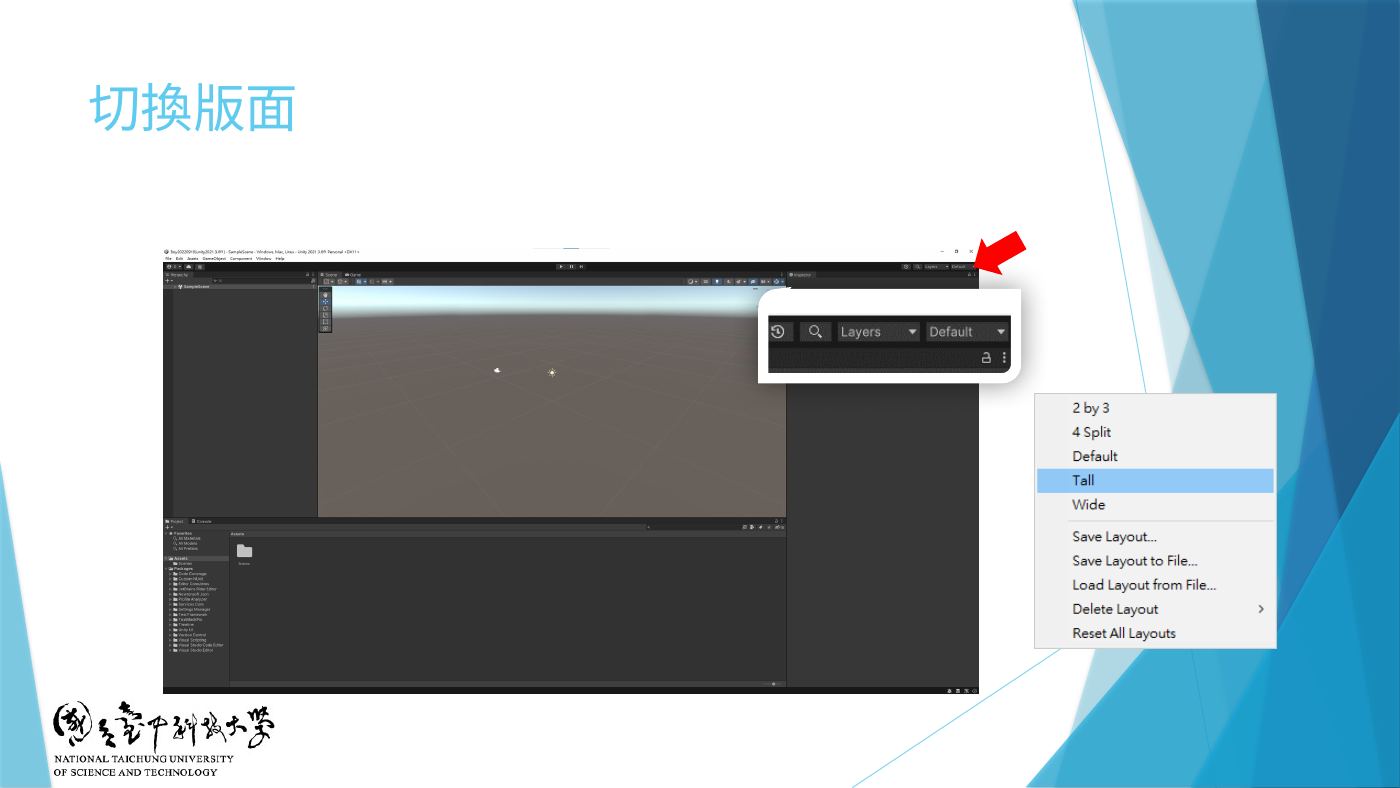
W2-10 切換版面:右上角 Layout 下拉選單 - 把 兩張 1920×1080 背景圖 拖進 Project 的
Assets(檔名不要中文)。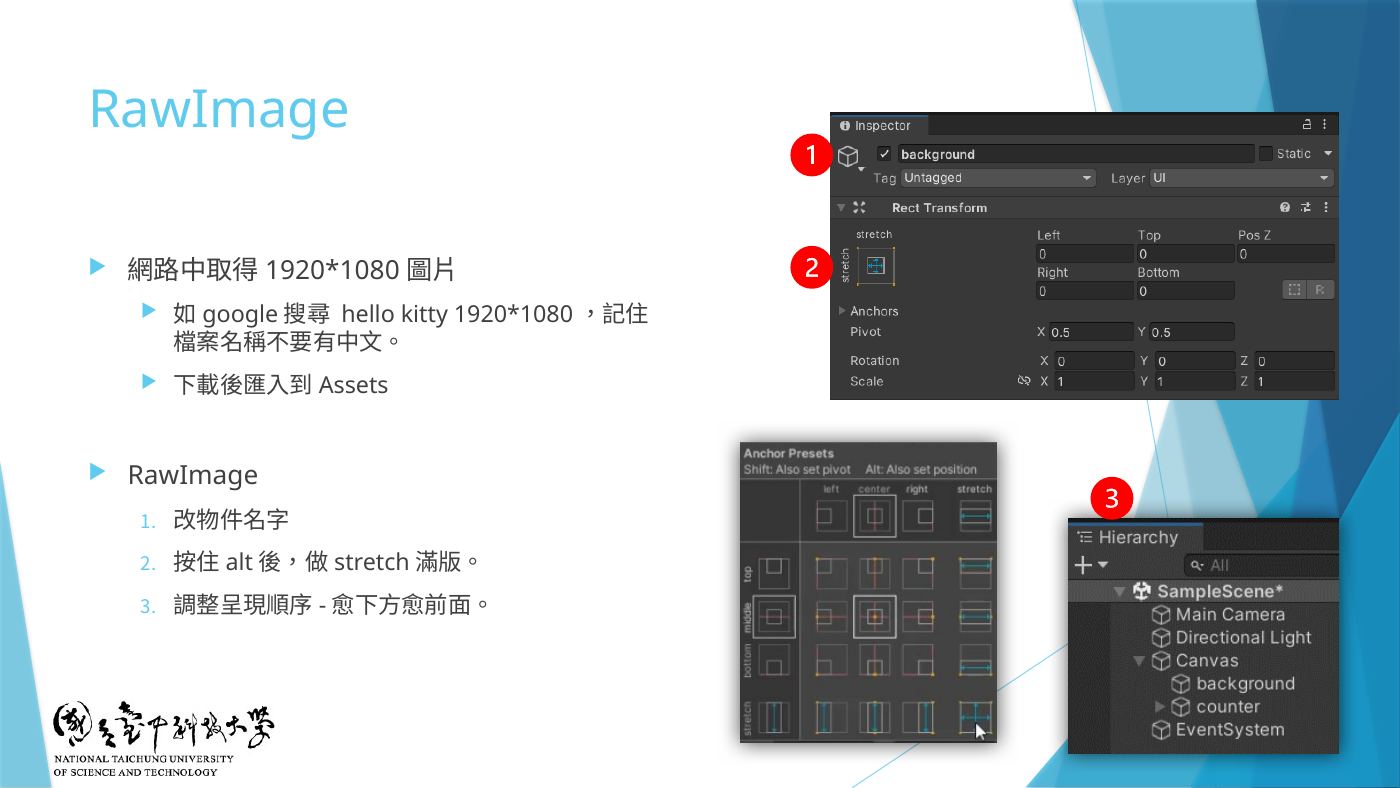
W4-15 RawImage:取得 1920*1080 圖片、匯入 Assets、stretch 滿版 - Hierarchy 空白處 右鍵 → UI → Raw Image(會自動產生 Canvas 和 EventSystem)。
- Scene 視窗工具列按
2D切成 2D 檢視(UI 是平面);在 Hierarchy 點兩下 Canvas 讓它置中。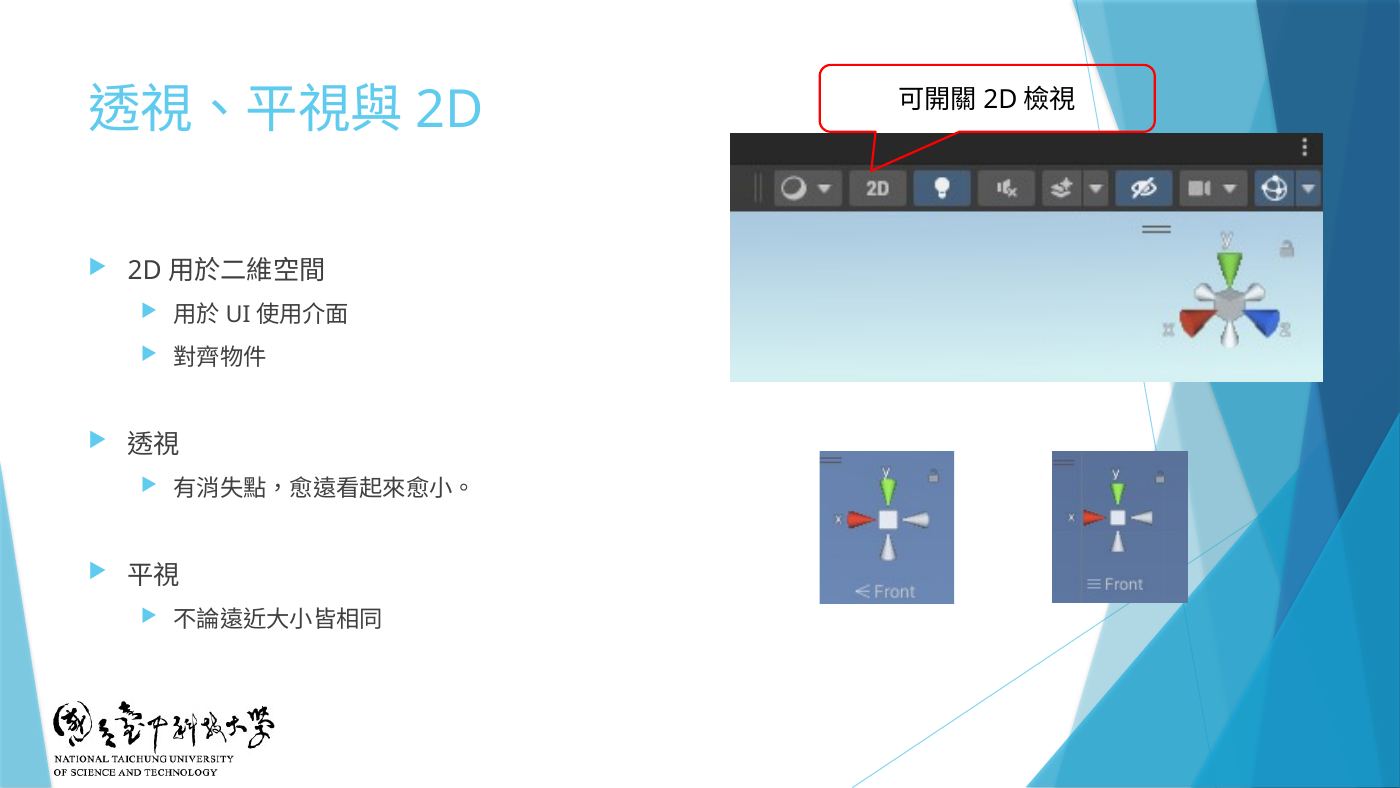
W2-13 「可開關 2D 檢視」按鈕位置 - Game 視窗 → 上方解析度下拉 → 選 Full HD (1920×1080);沒有就按 + 新增 Width 1920、Height 1080。學校電腦還原後要再設一次(W5-05)。
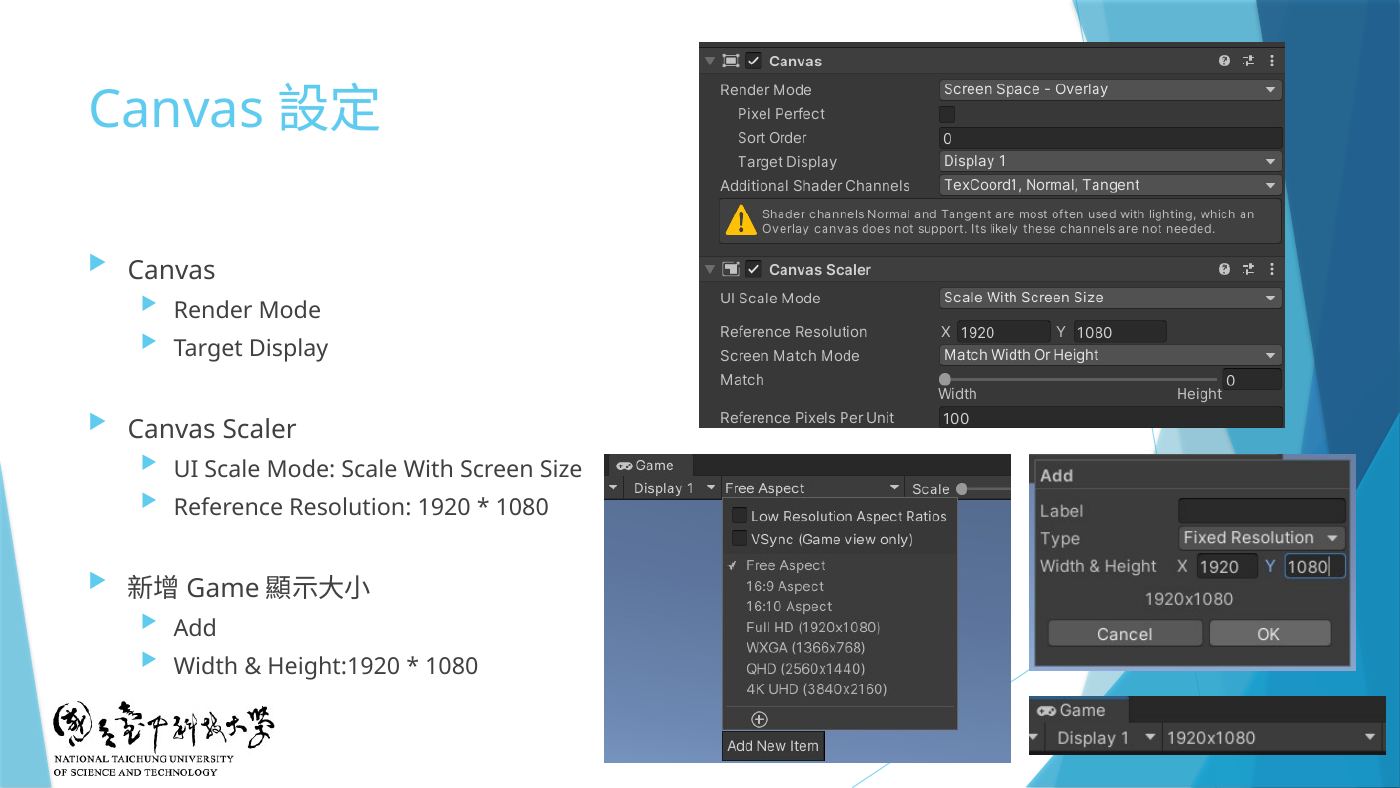
W4-11 Canvas Scaler:Scale With Screen Size、Reference 1920*1080;Game 視窗 Add 1920*1080 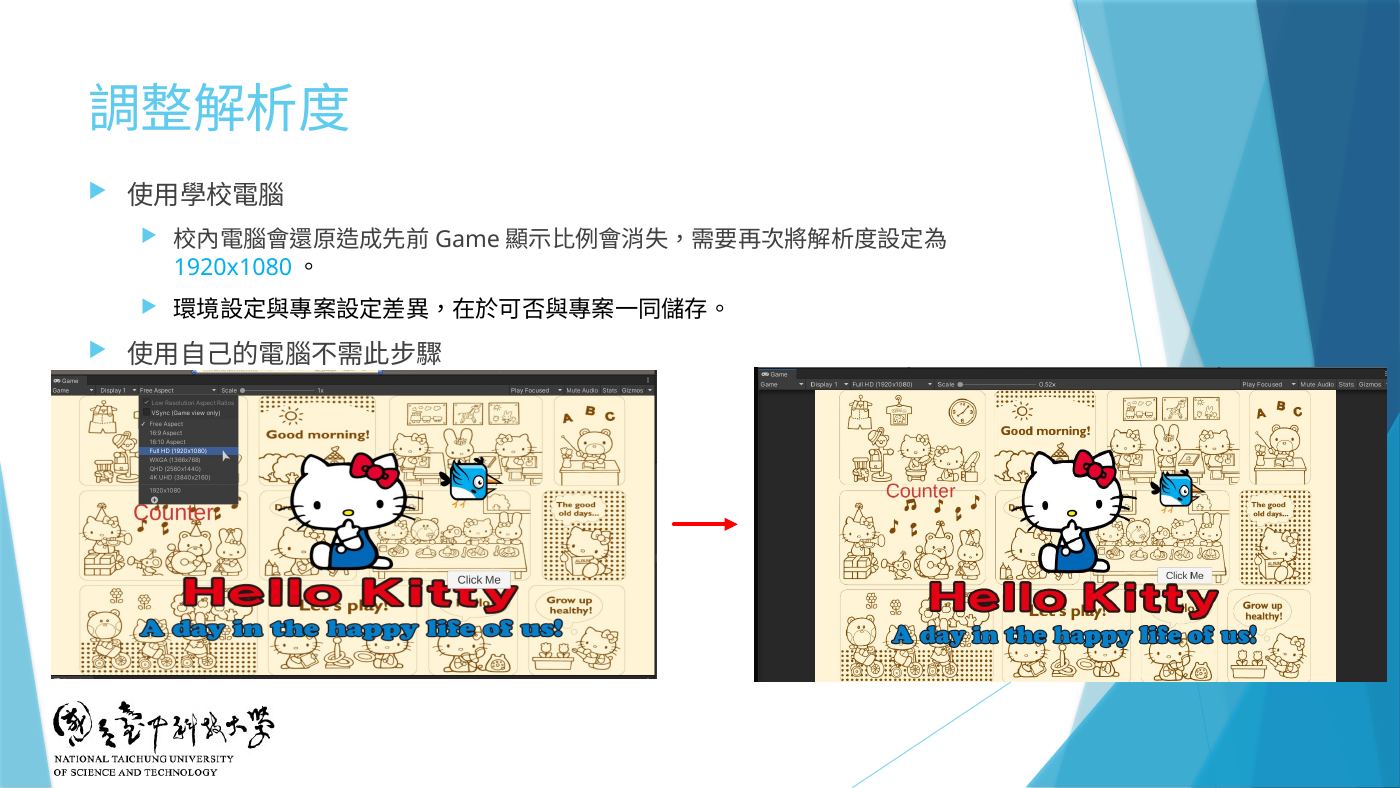
W5-05 學校電腦要重設 1920x1080 - (建議)選 Canvas → Inspector Canvas Scaler:UI Scale Mode =
Scale With Screen Size、Reference Resolution =1920 × 1080(W4-11)。 - 選 RawImage → Inspector 最上面名稱改成
background。 - 把 Assets 裡的背景圖 拖到 Raw Image 元件的
Texture欄位。 - Rect Transform 左上角的方框(Anchor Presets,預設 center/middle)點開,按住 Alt 點右下角的 stretch/stretch → 背景滿版。
W4-15 ②:按住 alt 選 stretch 滿版;③ 呈現順序愈下方愈前面 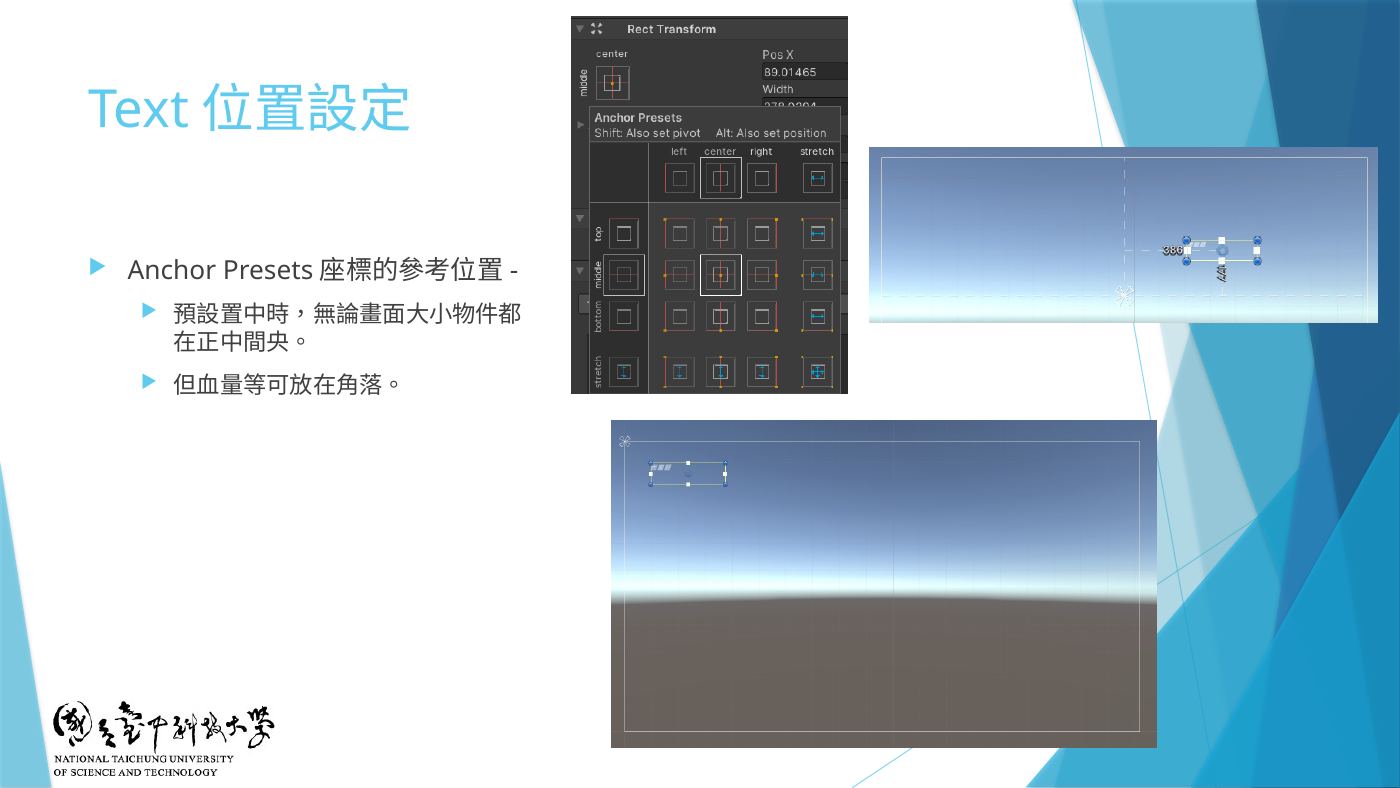
W4-12 Anchor Presets 參考位置 - 地雷Hierarchy 順序:愈下面愈前面,background 要放在 Canvas 底下的 第一個,不然會蓋住其他 UI。
- 放大畫面看 UI:Alt + 滑鼠滾輪放大時物件位置不會跑(W4-13)。
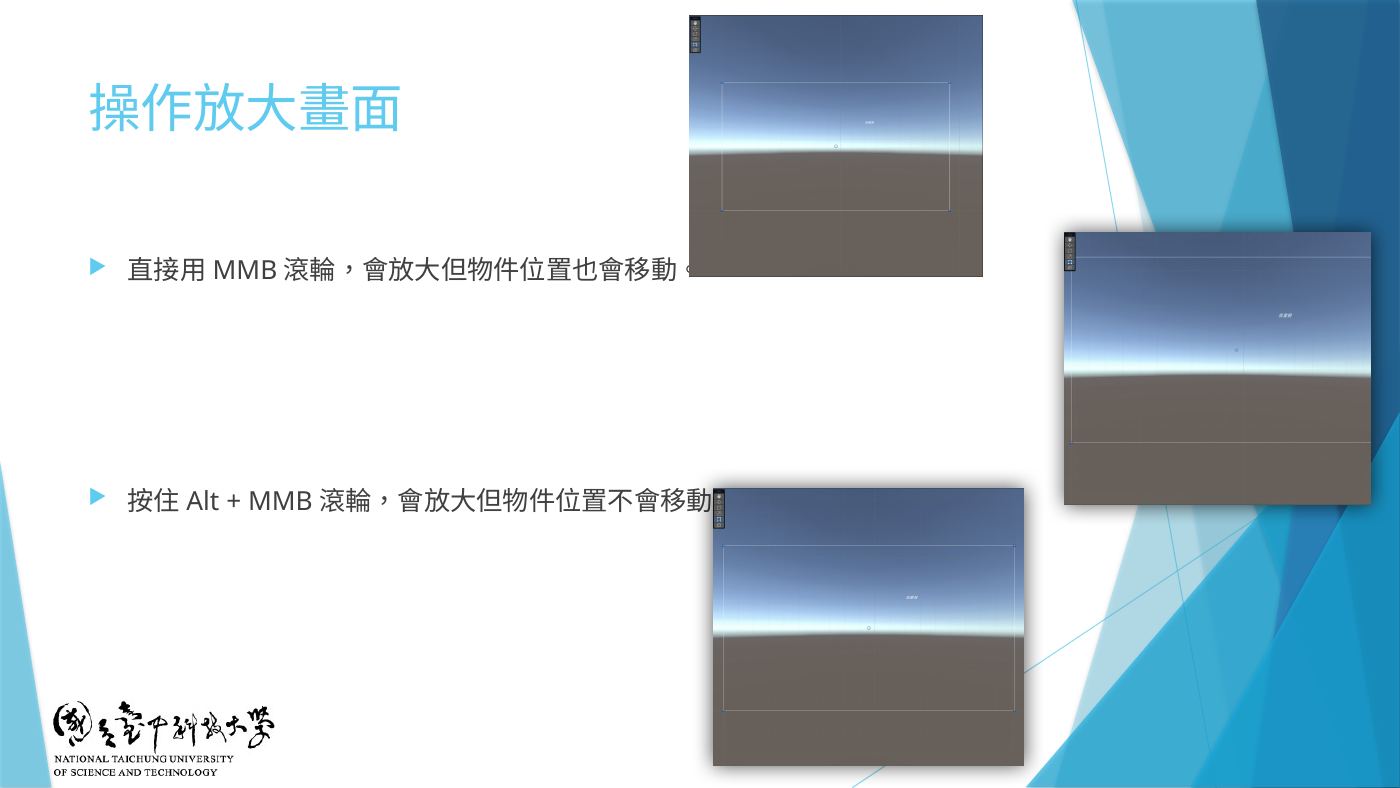
W4-13 操作放大畫面
第 4 題(前置)TextMeshPro 文字 txtCounter + 中文字型
計數用的文字在這一步先建好,累計次數在「第 3 + 4 題」由 btnClick2.cs 一起處理。
- Hierarchy 右鍵 → UI → Text - TextMeshPro;跳出 TMP Importer 視窗 → 兩個都 Import(Import TMP Essentials、Import TMP Examples & Extras)。
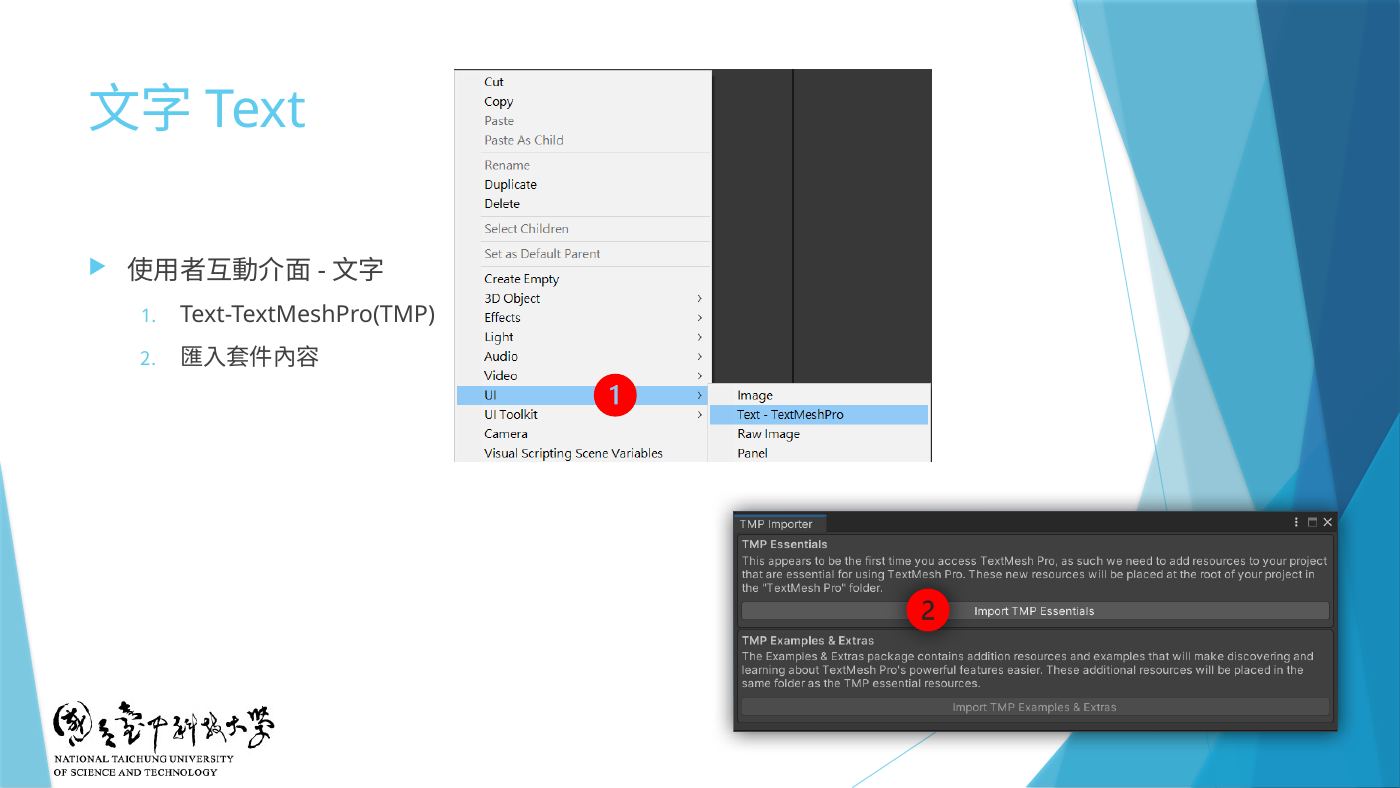
W4-05 ① UI > Text-TextMeshPro ② Import TMP Essentials - 剛建好的 Text 改名為
txtCounter。 - 要打中文字:檔案總管 → 本機 →
C:\Windows\Fonts→ 把 微軟正黑體 複製/拖到 Unity 的Assets > TextMesh Pro > Fonts。
⏳ 拖進去會卡住跑進度條是正常的,等它跑完,完成後會多出 msjh、msjhbd 等檔案。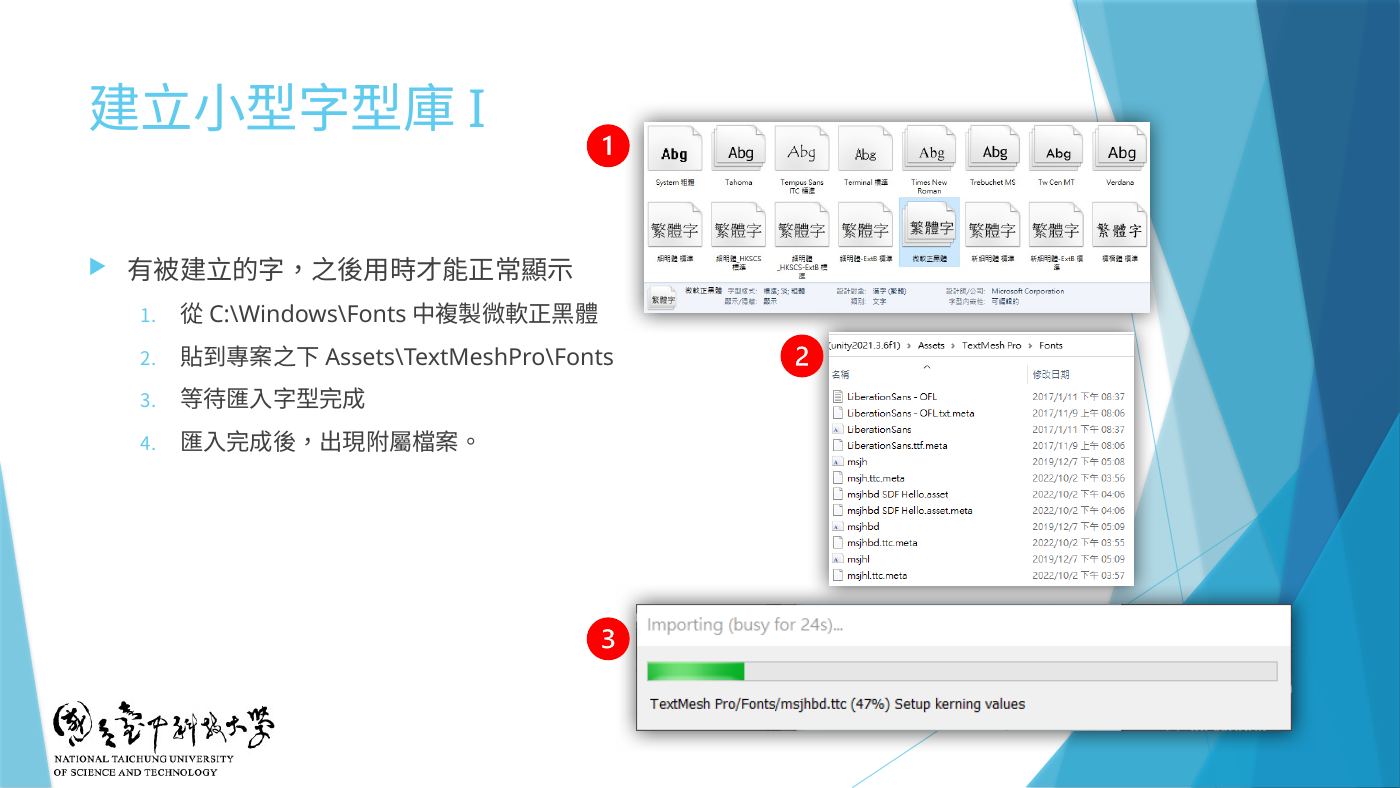
W4-07 ① C:\Windows\Fonts 複製微軟正黑體 ② 貼到 Assets\TextMeshPro\Fonts ③ 等待匯入完成 - 最上方選單 Window → TextMeshPro → Font Asset Creator:
• Source Font File 選msjh
• Character Set 選Custom Characters
• 下面框框輸入要用到的所有中文字(例:大家好 按一下 重新 回首頁,考卷上要顯示的字都要打進去)
• 按 Generate Font Atlas,等下面出現 Generation completed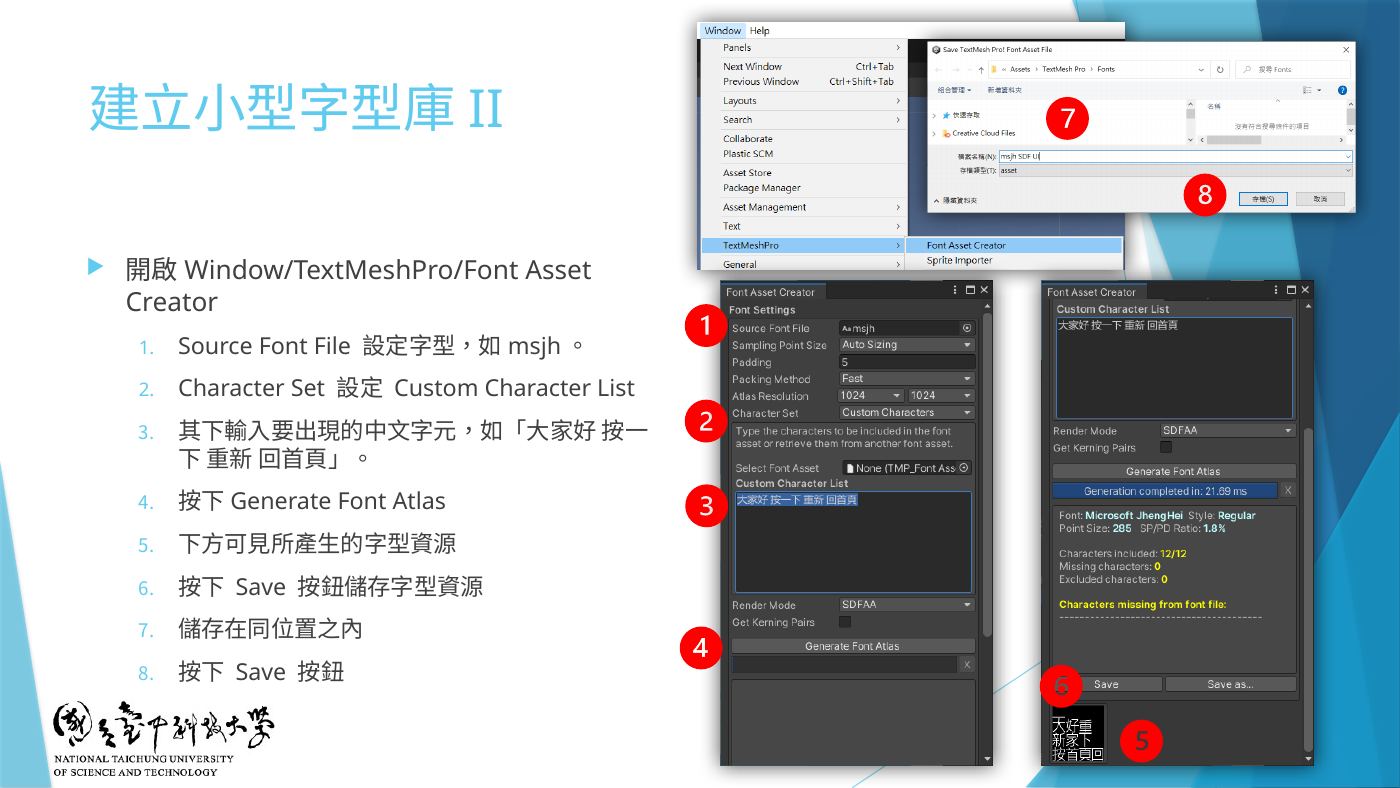
W4-08 建立小型字型庫 II:步驟 1~8 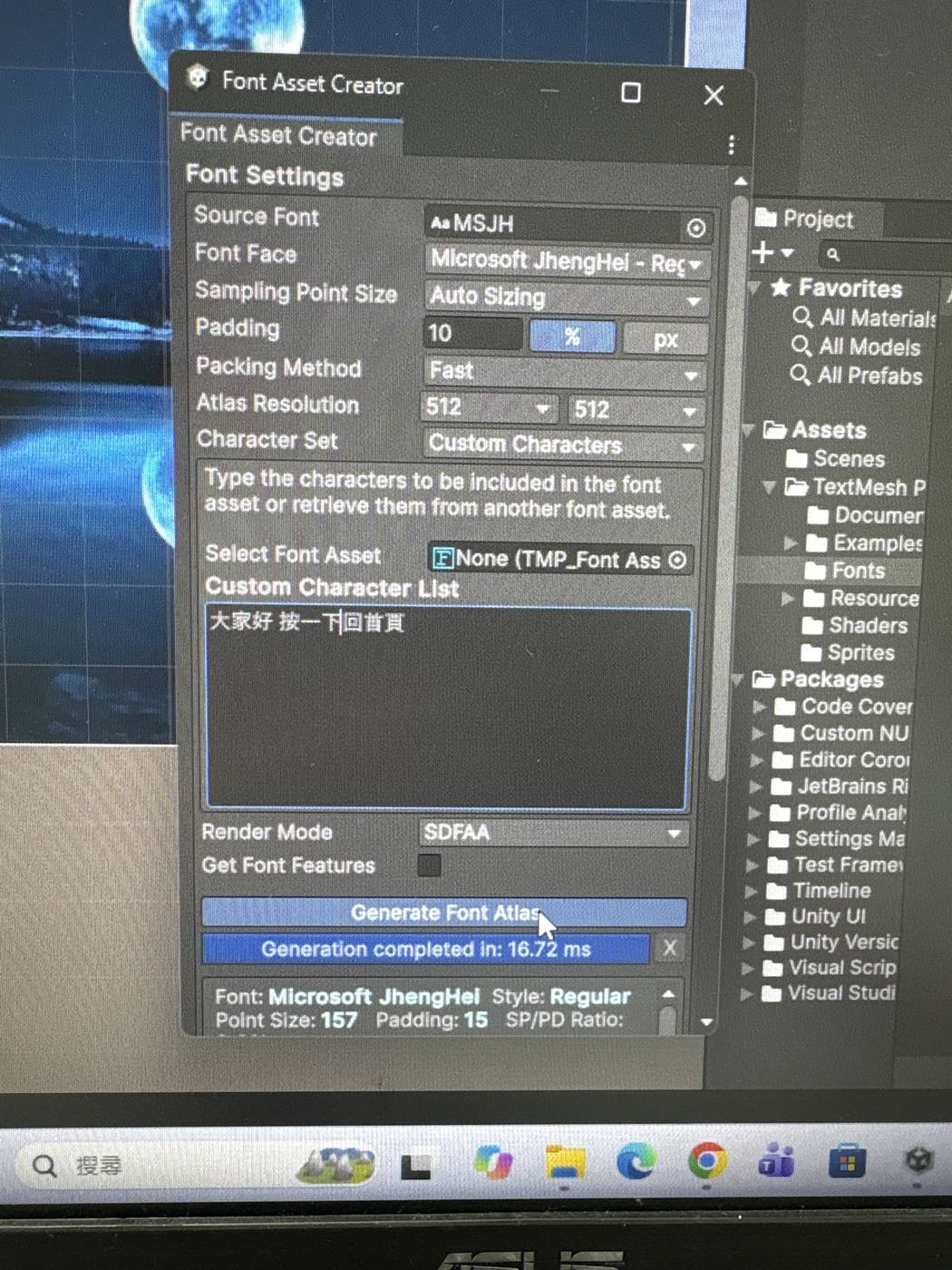
實拍 IMG_6573:Font Asset Creator — Source Font msjh、Character Set = Custom Characters、Generate Font Atlas 完成 - 按 Save → 檔名打
txt→ 存檔(存在同一個 Fonts 資料夾)。 - 選 txtCounter → Inspector TextMeshPro - Text (UI) → 把剛存的
txt字型拖進 Font Asset 欄位 → 中文就能正常顯示(沒在字型庫裡的字仍會變方框)。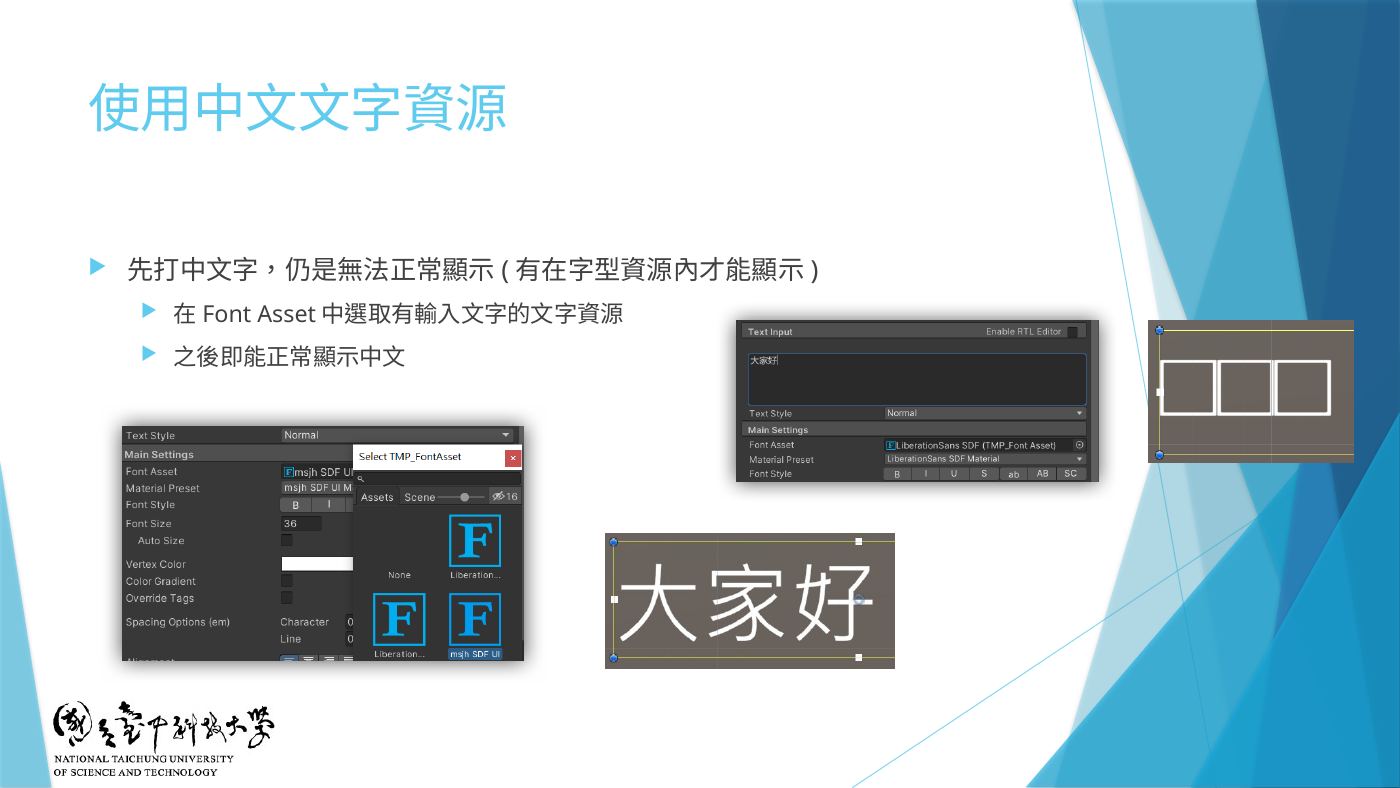
W4-09 在 Font Asset 選有輸入文字的文字資源 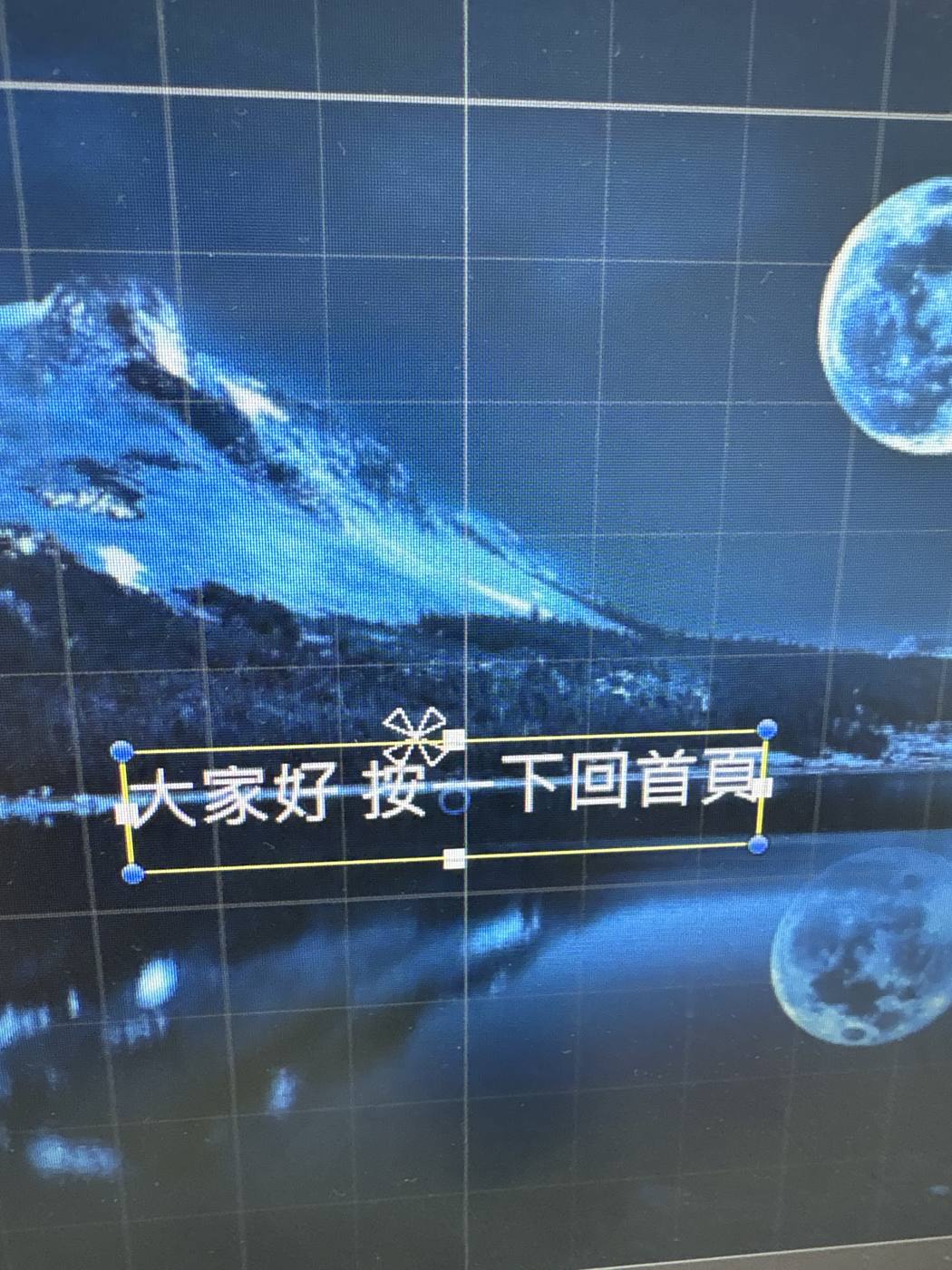
實拍 IMG_6575:中文 TMP 文字「大家好 按一下 回首頁」正常顯示 - Auto Size 打勾(Text 細部設定:Text Input 內容、Font Size、Auto Size、Vertex Color 顏色、Alignment 對齊…)。
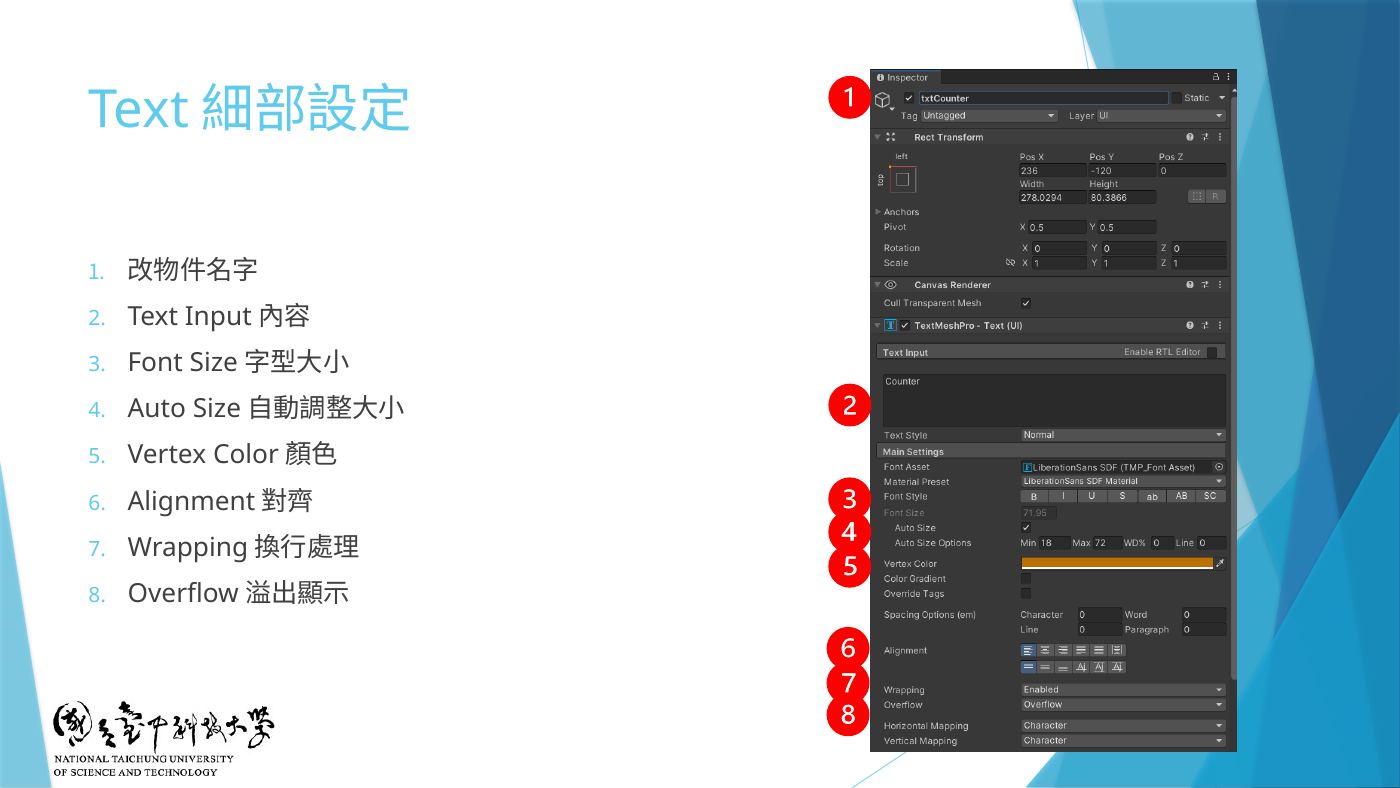
W4-14 Text 細部設定 1~8 對應欄位 - 補充地雷⚠️ 第 4 題「字型需某尺寸以上」:Auto Size 會自動縮字;請展開 Auto Size 把 Min ≥ 考卷指定字級,或乾脆不勾 Auto Size、直接把 Font Size 設成指定值以上。
- 地雷⚠️ Vertex Color(文字顏色)要跟背景差異明顯:兩張背景都要測,粉紅底不要粉紅/白字。看不到字 = 不給分。
- 文字框大小/位置:Scene 左上工具列選 Rect Tool(快捷鍵 T),拉四角的藍點改大小。
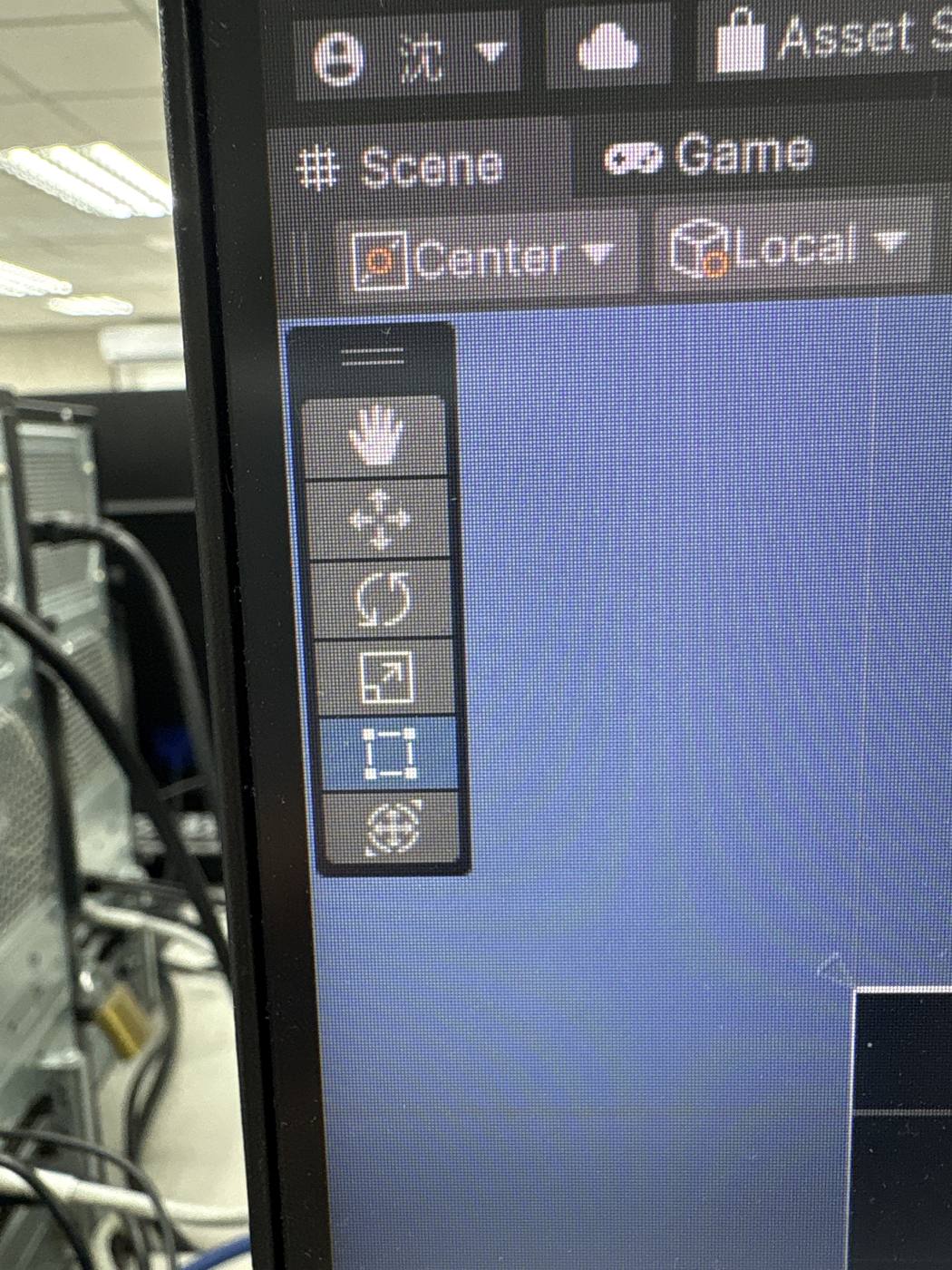
實拍 IMG_6574:Scene 工具列,最下面倒數第二個就是 Rect Tool
第 2 題Sprite 精靈圖 + Image(birds)
- 把準備好的 Sprite(去背 PNG/sprite sheet) 拖進
Assets。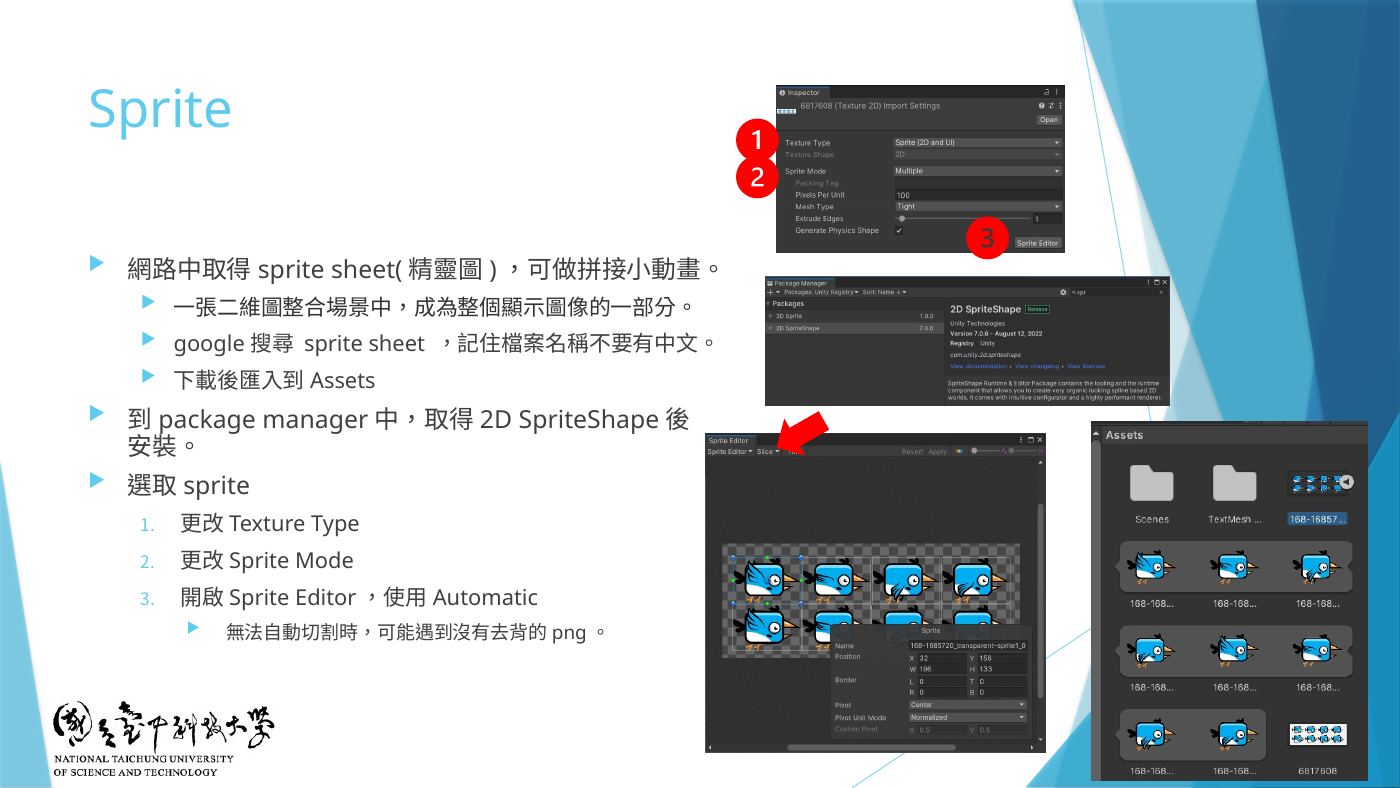
W4-16 Sprite:取得 sprite sheet、Package Manager 安裝、改 Texture Type/Sprite Mode、Sprite Editor Automatic - Hierarchy 右鍵 → UI → Image(選單最上面那個 Image),建完改名
birds。 - Window → Package Manager → 左邊選 Unity Registry → 搜尋框打
2D→ 選 2D Sprite → 按 Install。(簡報寫 2D SpriteShape,它會連帶裝 2D Sprite;Sprite Editor 是 2D Sprite 提供的)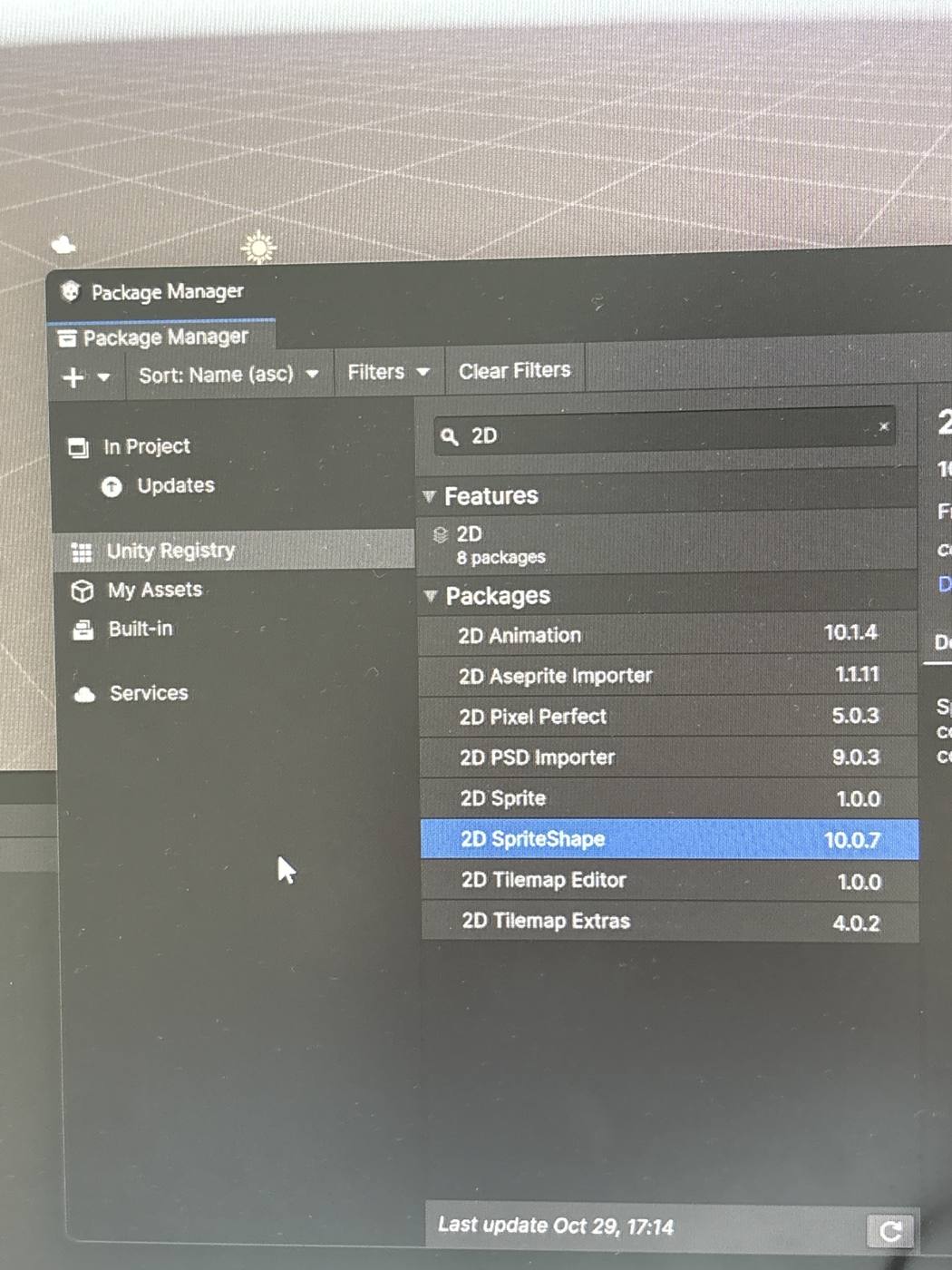
實拍 IMG_6576:Unity Registry 搜 2D,列表有 2D Sprite 1.0.0、2D SpriteShape 10.0.7 - Project 點一下剛剛的 sprite 圖 → Inspector:
• Texture Type =Sprite (2D and UI)
• Sprite Mode =Multiple(一張圖裡有很多格才選 Multiple;單張圖用 Single)
• 先按右下 Apply,再按 Open Sprite Editor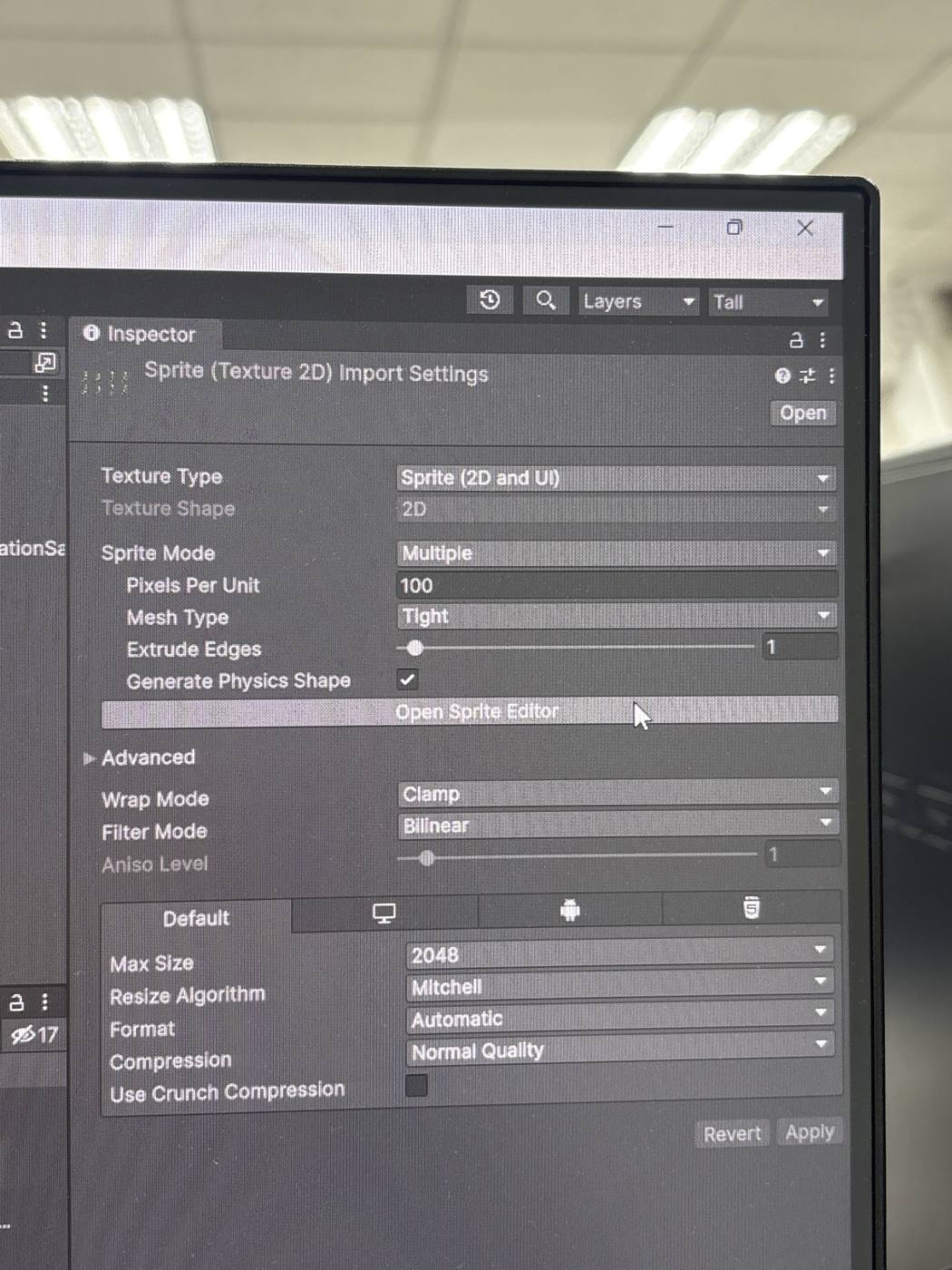
實拍 IMG_6577:Texture Type = Sprite (2D and UI)、Sprite Mode = Multiple、Open Sprite Editor - Sprite Editor 視窗左上 Slice ▾ → Type
Automatic、PivotCenter、MethodDelete Existing→ 按 Slice。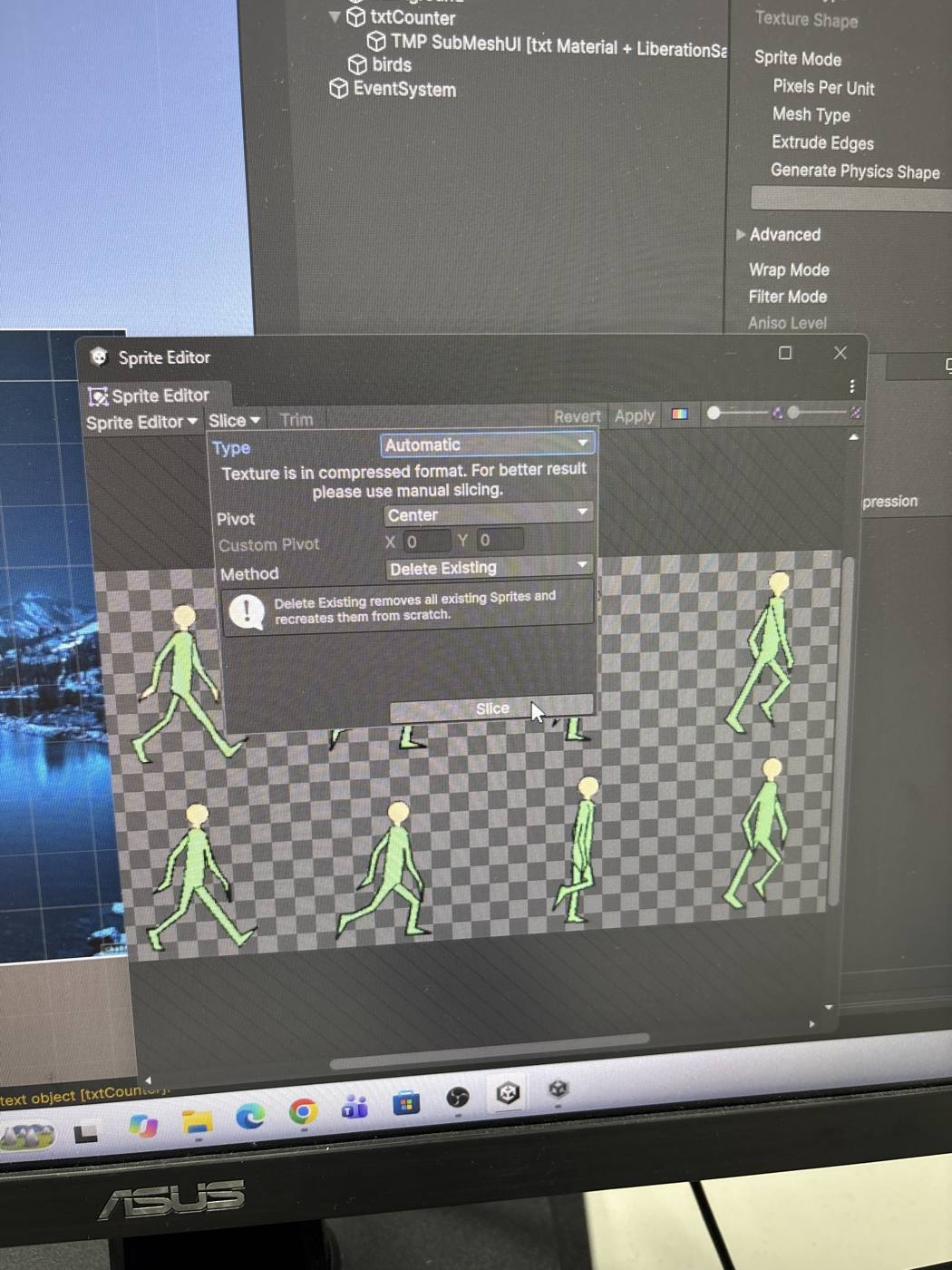
實拍 IMG_6578:Slice 選單 Automatic / Center / Delete Existing → Slice - 地雷每格出現白框 → 右上按 Apply → 關掉視窗。無法自動切割通常是 PNG 沒去背。
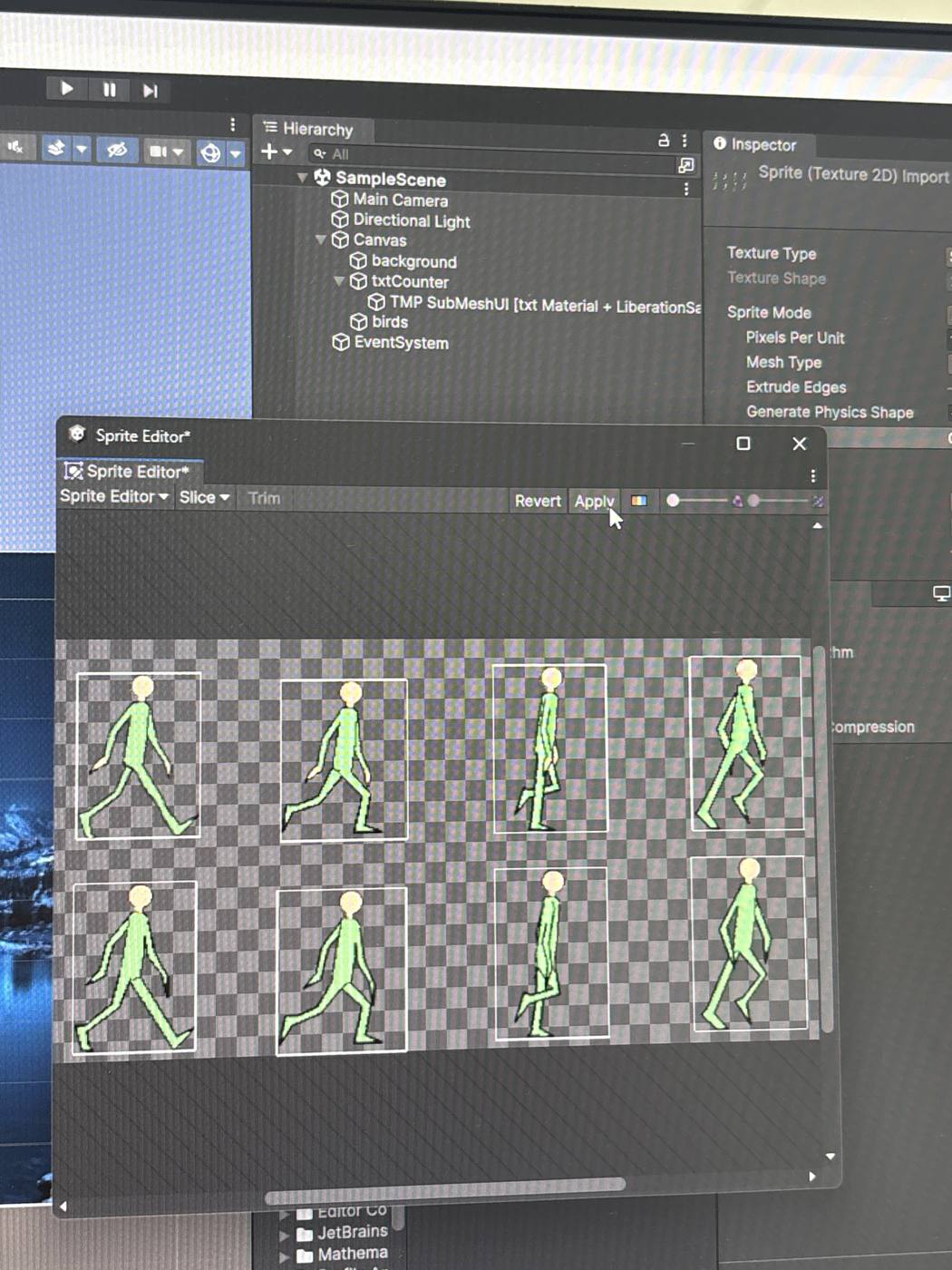
實拍 IMG_6579:切好 8 格後按 Apply - 回到 birds → Project 裡把 sprite 圖 左邊三角形點開 → 把
sprite_0(第一格)拖到 Image 元件的 Source Image。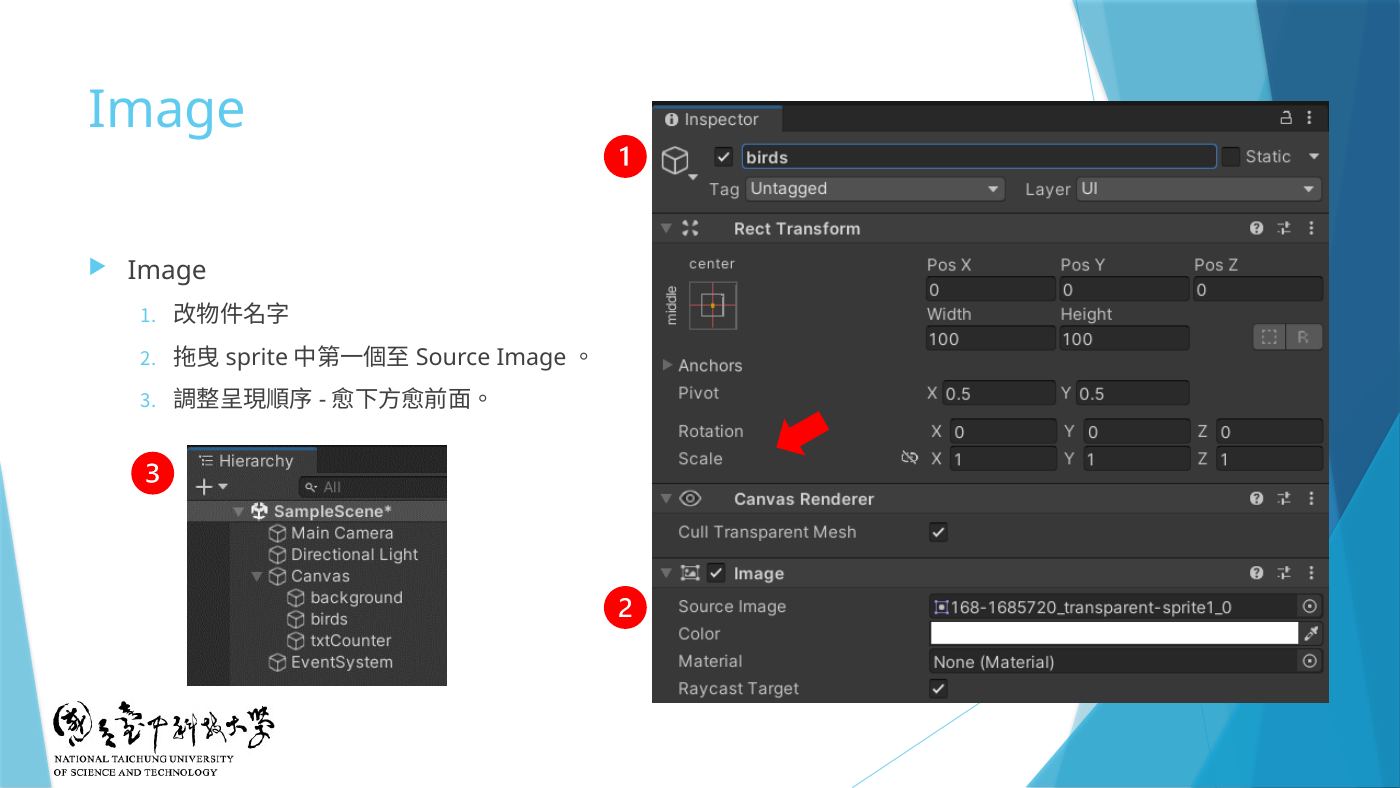
W4-17 Image:① 改名 ② 拖曳 sprite 第一個至 Source Image ③ 呈現順序 - 用 Rect Tool 調整大小、放到適合的地方(可勾 Image 的 Preserve Aspect 保持比例,補充)。
第 3 + 4 題Button 變色 + 一次做好:累計次數 + 換 2 背景 + 換 4 Sprite(btnClick2)
跳過 W4 只會計數的 btnClick.cs,直接用 W5 的 btnClick2.cs:按一次 = txtCounter 累計次數 +1、background 換下一張背景、birds 換下一張 Sprite。前面要先做好 background(第 1 題)、txtCounter(第 4 題前置)、birds(第 2 題)。
- Assets 準備好 2 張背景圖(1920×1080,Texture Type 保持 Default)和 4 張 Sprite(Texture Type = Sprite (2D and UI);sprite sheet 切好後點開三角形就看得到 sprite_0、sprite_1…)。
- Hierarchy 右鍵 → UI → Button - TextMeshPro,改名為
btnCounter。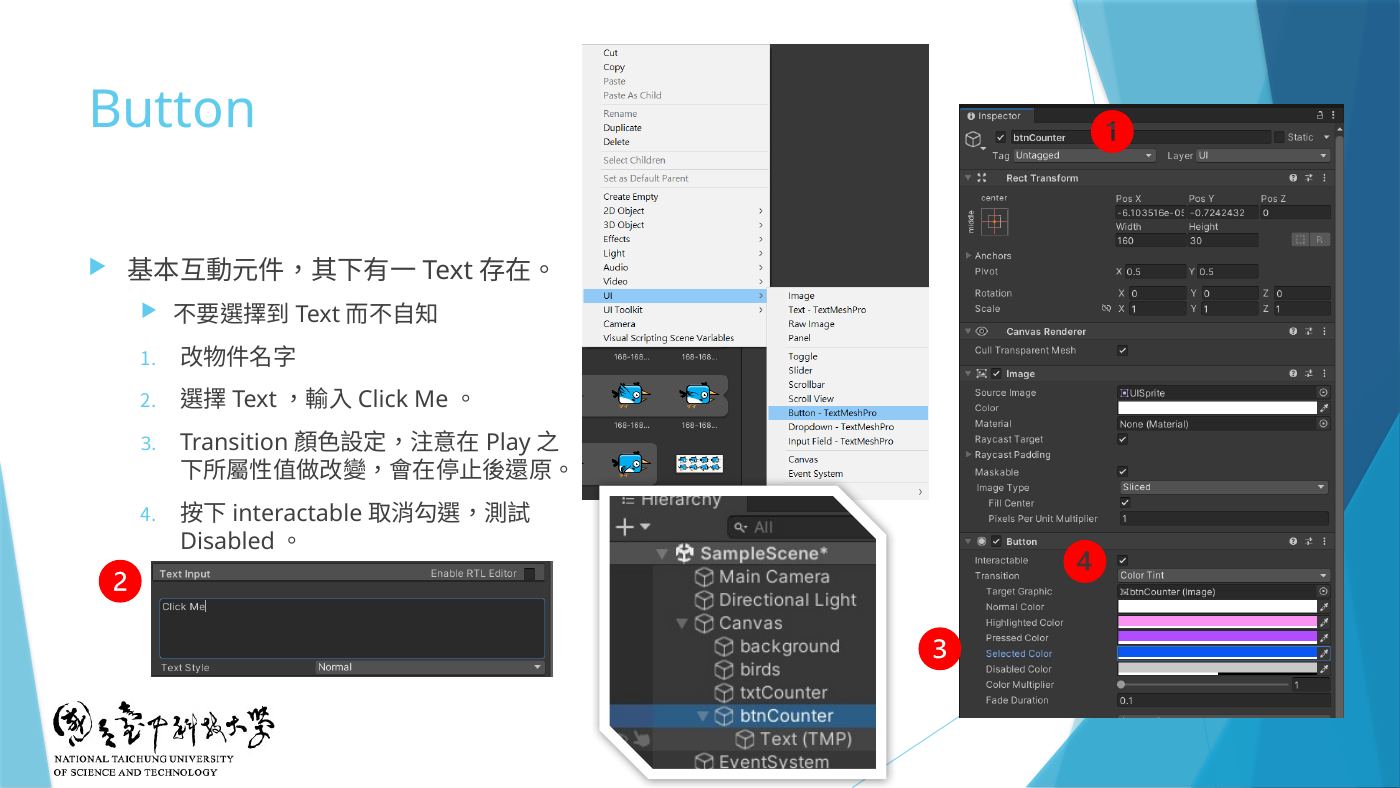
W4-18 Button:① 改名 ② 選子物件 Text 輸入 Click Me ③ Transition 顏色 - 點開 btnCounter 底下的 Text (TMP),Text Input 改成
Click me(執行後腳本會把它改成Show 0/Show 1)。 - 地雷⚠️ btnCounter 底下的 第一個子物件必須是 Text (TMP):腳本
Start()用GetComponentsInChildren<Transform>()[1]抓按鈕文字,順序錯會報錯。 - 回到 btnCounter → Button 元件 Transition = Color Tint:Highlighted Color(滑鼠經過)、Pressed Color(點擊)各換一個顏色(實拍範例:Highlighted 紅、Pressed 黃、Selected 橘)。調整位置與大小(Rect Tool 拉藍點)。
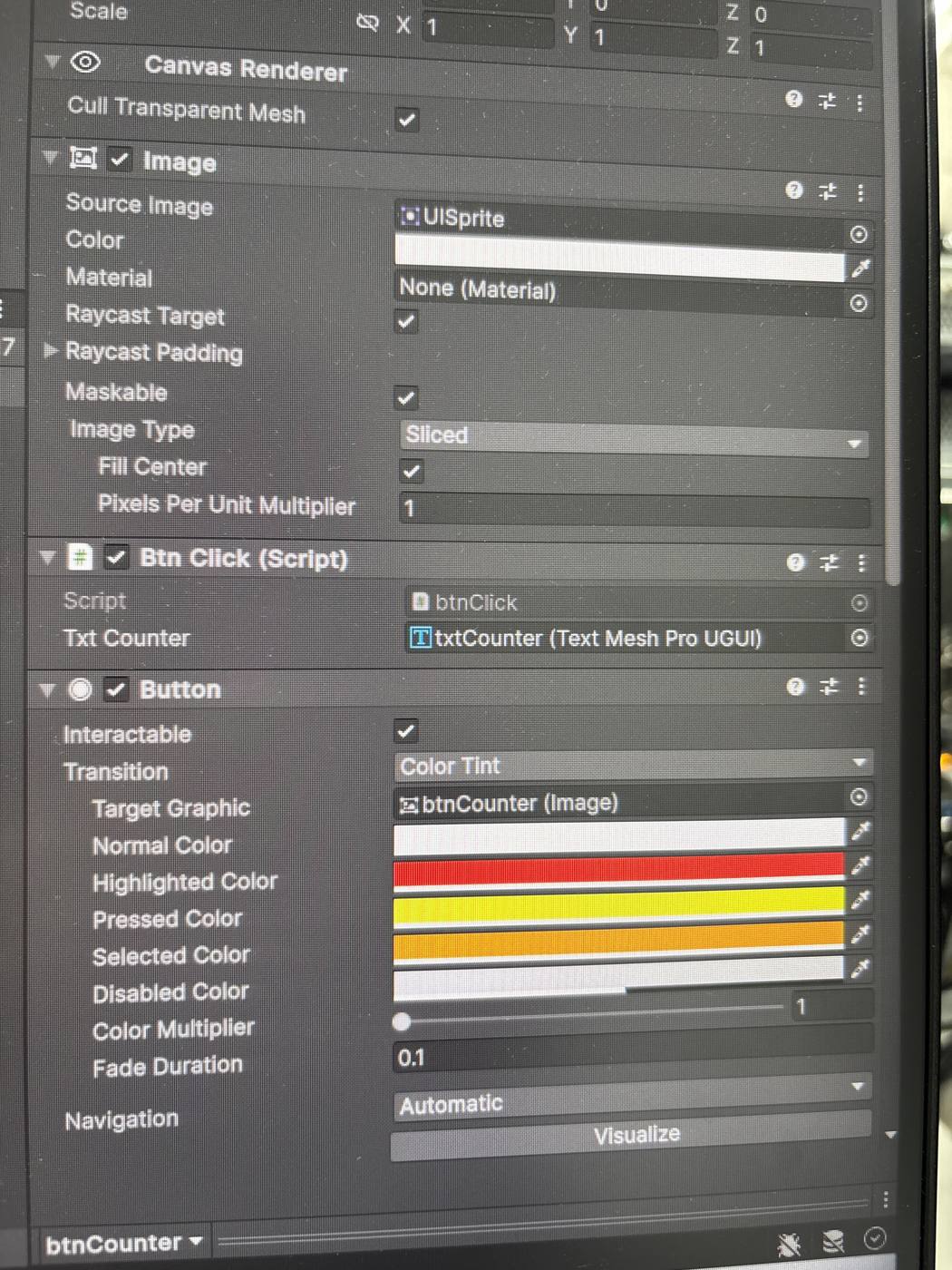
實拍 IMG_6581:Button Transition Color Tint 各狀態顏色 - 地雷⚠️ 在 Play 模式下改的屬性,停止後會還原;顏色要在停止狀態改。
- 把
btnClick2.cs拖進Assets(不要用檔案總管直接複製到專案資料夾,W5-07)。檔名和class btnClick2要一樣(W4-19)。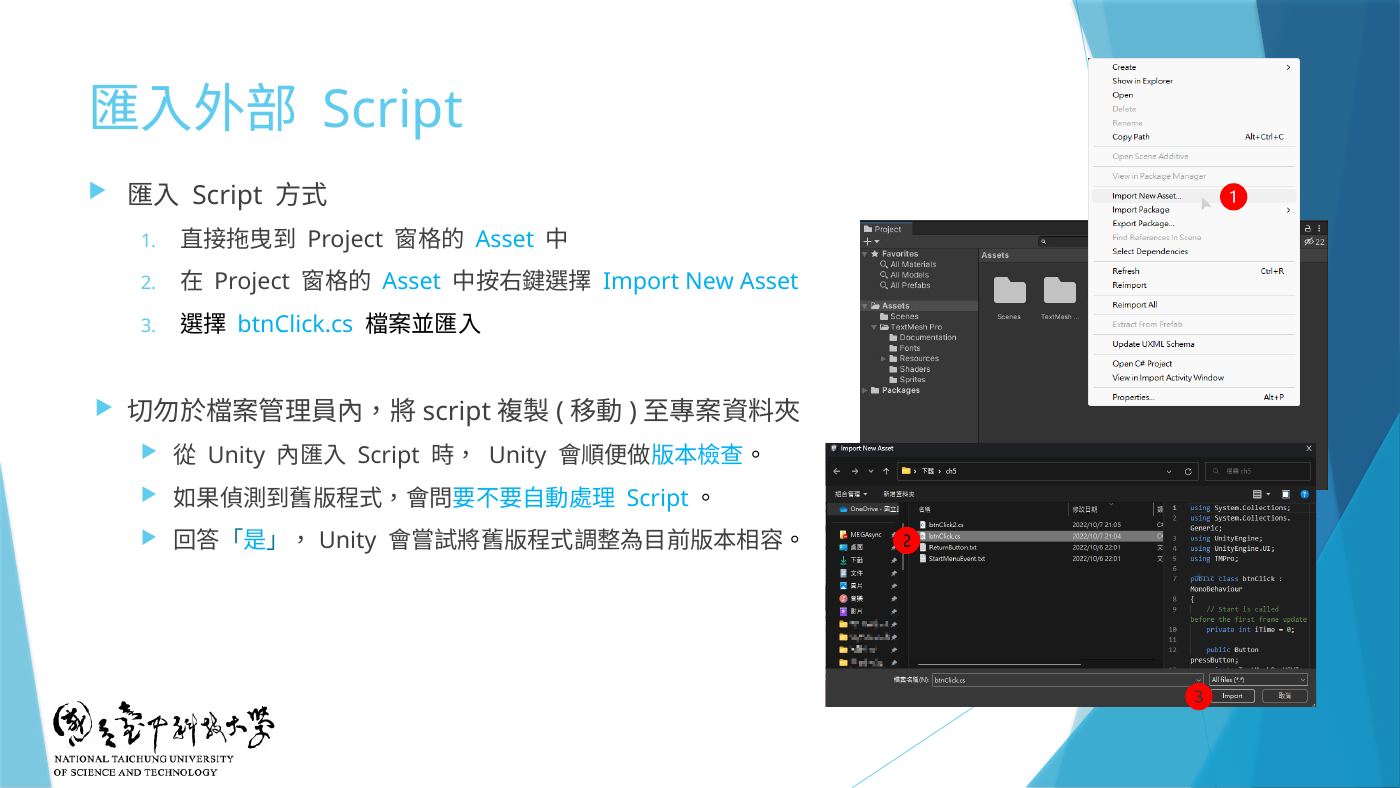
W5-07 匯入外部 Script 的方式 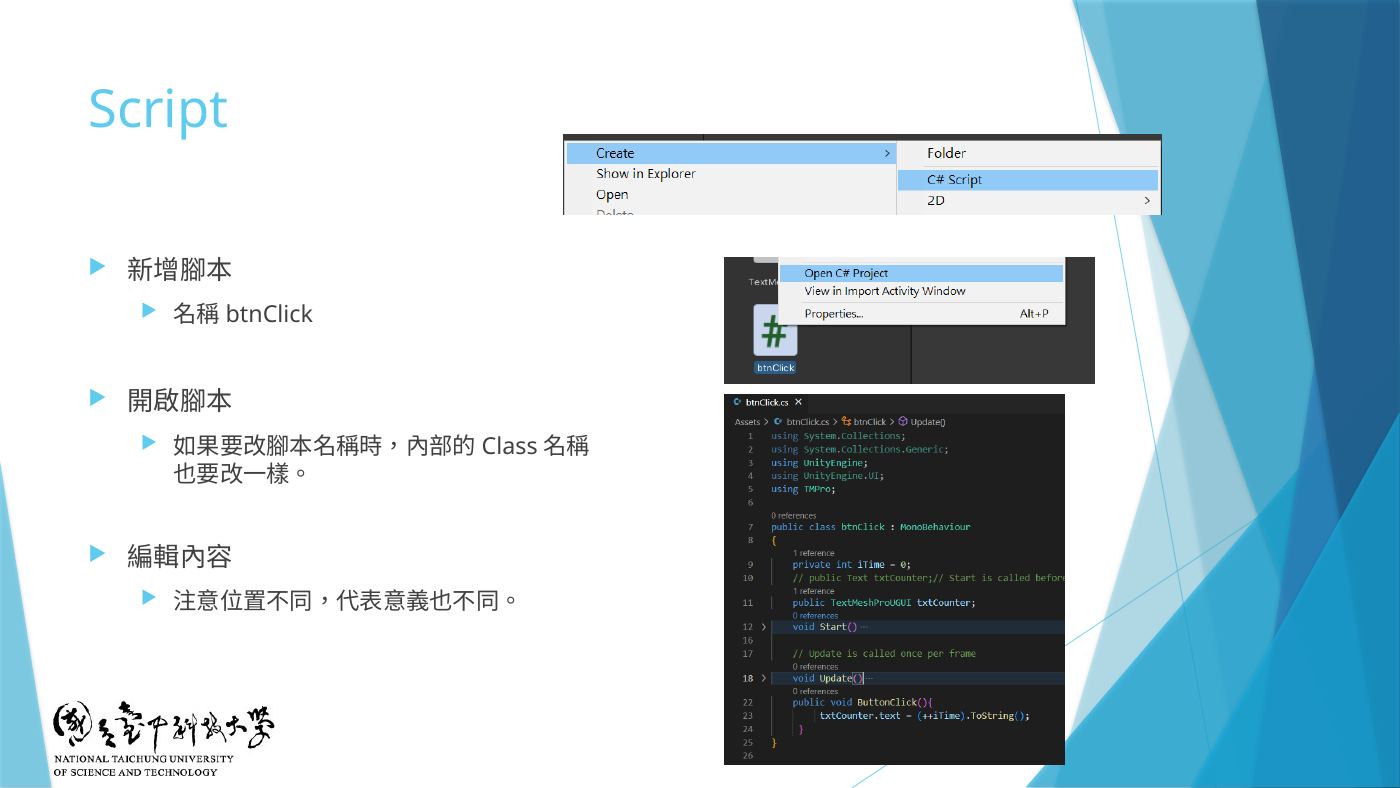
W4-19 腳本檔名與類別名稱要一樣 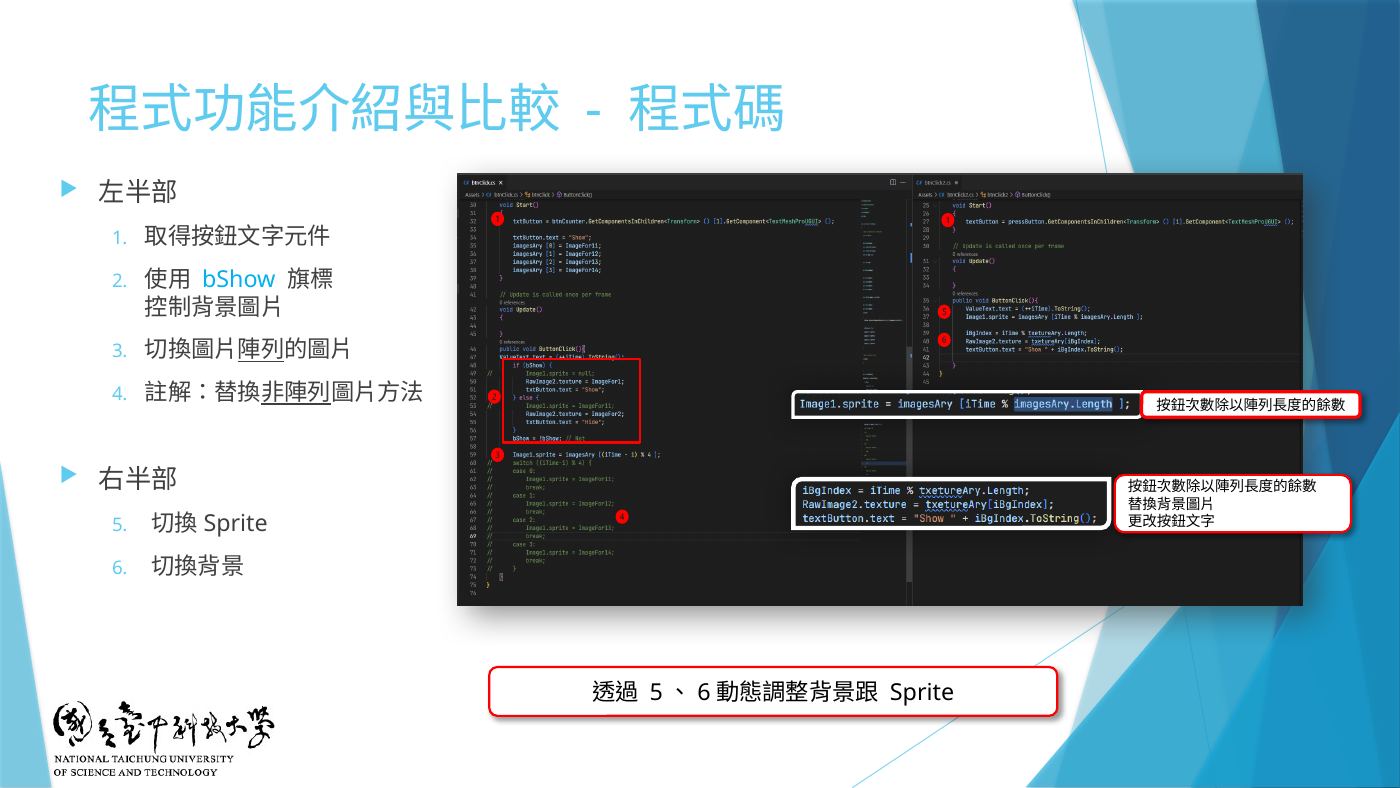
W5-11 btnClick2 程式碼說明:取得按鈕文字、切換 Sprite、切換背景 using System.Collections; using System.Collections.Generic; using UnityEngine; using UnityEngine.UI; using TMPro; public class btnClick2 : MonoBehaviour { // Start is called before the first frame update private int iTime = 0; public Button pressButton; private TextMeshProUGUI textButton; public TextMeshProUGUI ValueText; // private bool bShow = false; private int iBgIndex = 0; public Image Image1; public RawImage RawImage2; public Sprite[] imagesAry; public Texture[] txetureAry; // public Texture ImageFor2; void Start() { textButton = pressButton.GetComponentsInChildren<Transform> () [1].GetComponent<TextMeshProUGUI> (); // textButton.text = "Show"; } // Update is called once per frame void Update() { } public void ButtonClick(){ ValueText.text = (++iTime).ToString(); Image1.sprite = imagesAry [iTime % imagesAry.Length ]; iBgIndex = iTime % txetureAry.Length; RawImage2.texture = txetureAry[iBgIndex]; textButton.text = "Show " + iBgIndex.ToString(); // if (bShow) { // // Image1.sprite = null; // RawImage2.texture = ImageFor1; // textButton.text = "Show 2"; // } else { // // Image1.sprite = ImageFor11; // RawImage2.texture = ImageFor2; // textButton.text = "Show 1"; // } // bShow = !bShow; // Not // switch ((iTime-1) % 4) { // case 0: // Image1.sprite = ImageFor11; // break; // case 1: // Image1.sprite = ImageFor12; // break; // case 2: // Image1.sprite = ImageFor13; // break; // case 3: // Image1.sprite = ImageFor14; // break; // } } } - 選 btnCounter → 把 Assets 裡的 btnClick2 拖到右邊 Inspector 元件之間的縫隙(出現藍色橫線就放開)。
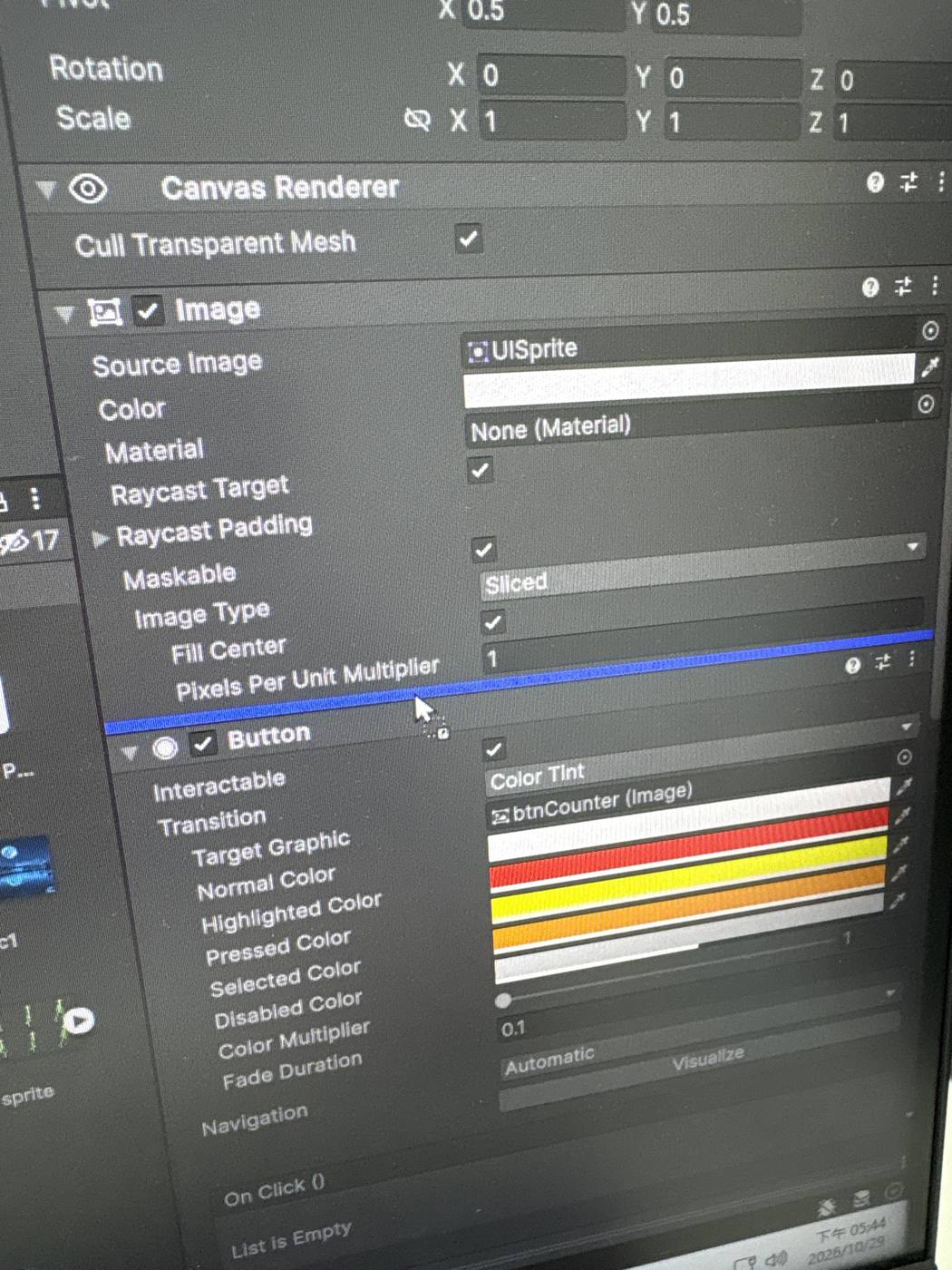
實拍 IMG_6580:把腳本拖到 Image 與 Button 元件中間,出現藍線 - 在 Btn Click 2 (Script) 元件把欄位拖好(全部從 Hierarchy/Project 拖進去):
• Press Button ← Hierarchy 的btnCounter
• Value Text ← Hierarchy 的txtCounter(顯示累計次數)
• Image 1 ← Hierarchy 的birds
• Raw Image 2 ← Hierarchy 的background
• Images Ary:右邊數字框打 4 → Element 0~3 從 Project 拖 4 張不同 Sprite
• Txeture Ary(原文拼字就是 txeture):右邊數字框打 2 → Element 0、1 從 Project 拖 2 張背景圖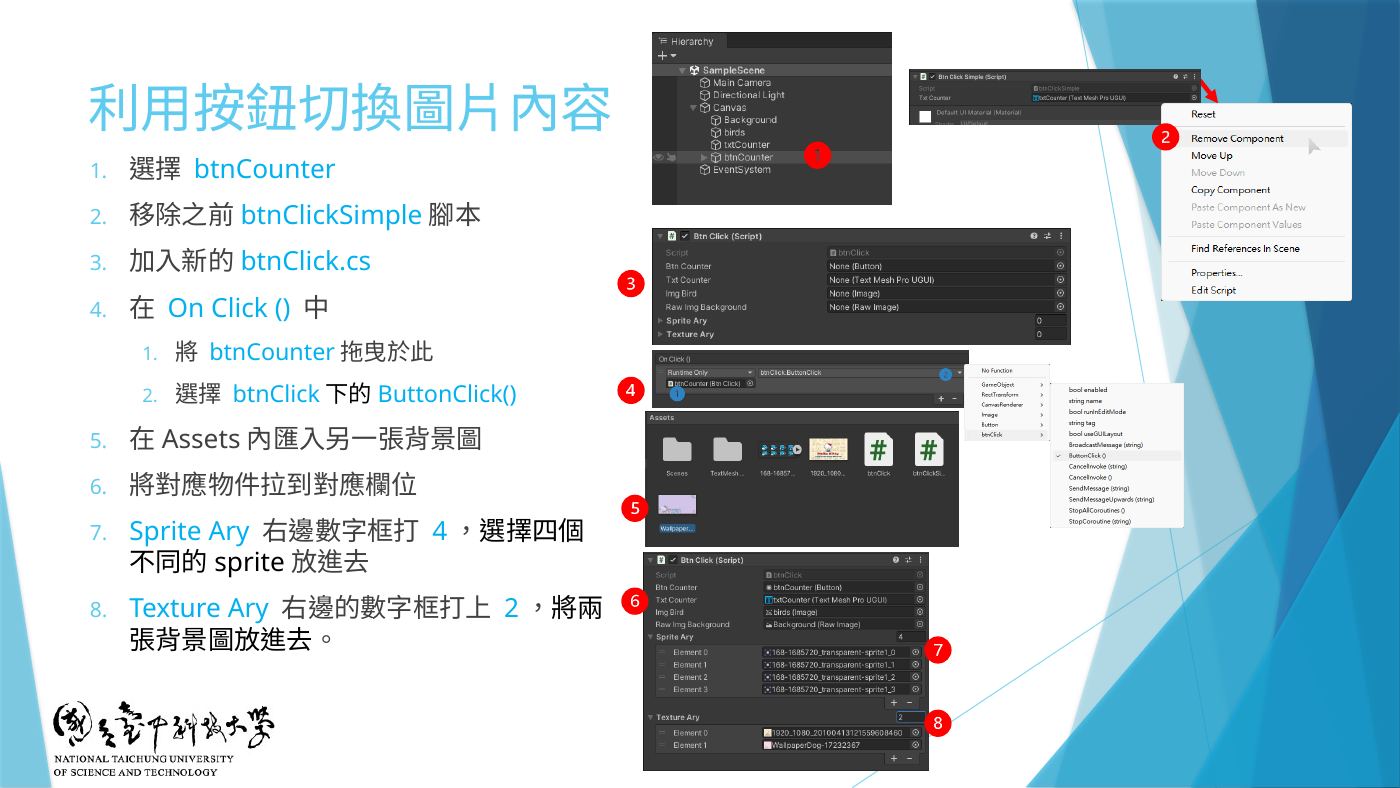
W5-13 利用按鈕切換圖片內容:拖對應物件、Sprite Ary 打 4、Texture Ary 打 2 實拍 IMG_6581:腳本元件欄位拖入 txtCounter 的樣子(W4 版,欄位名不同但操作一樣) - 往下滑到 On Click () → 按 + → 把 Hierarchy 的 btnCounter 拖進 None (Object) 那格。
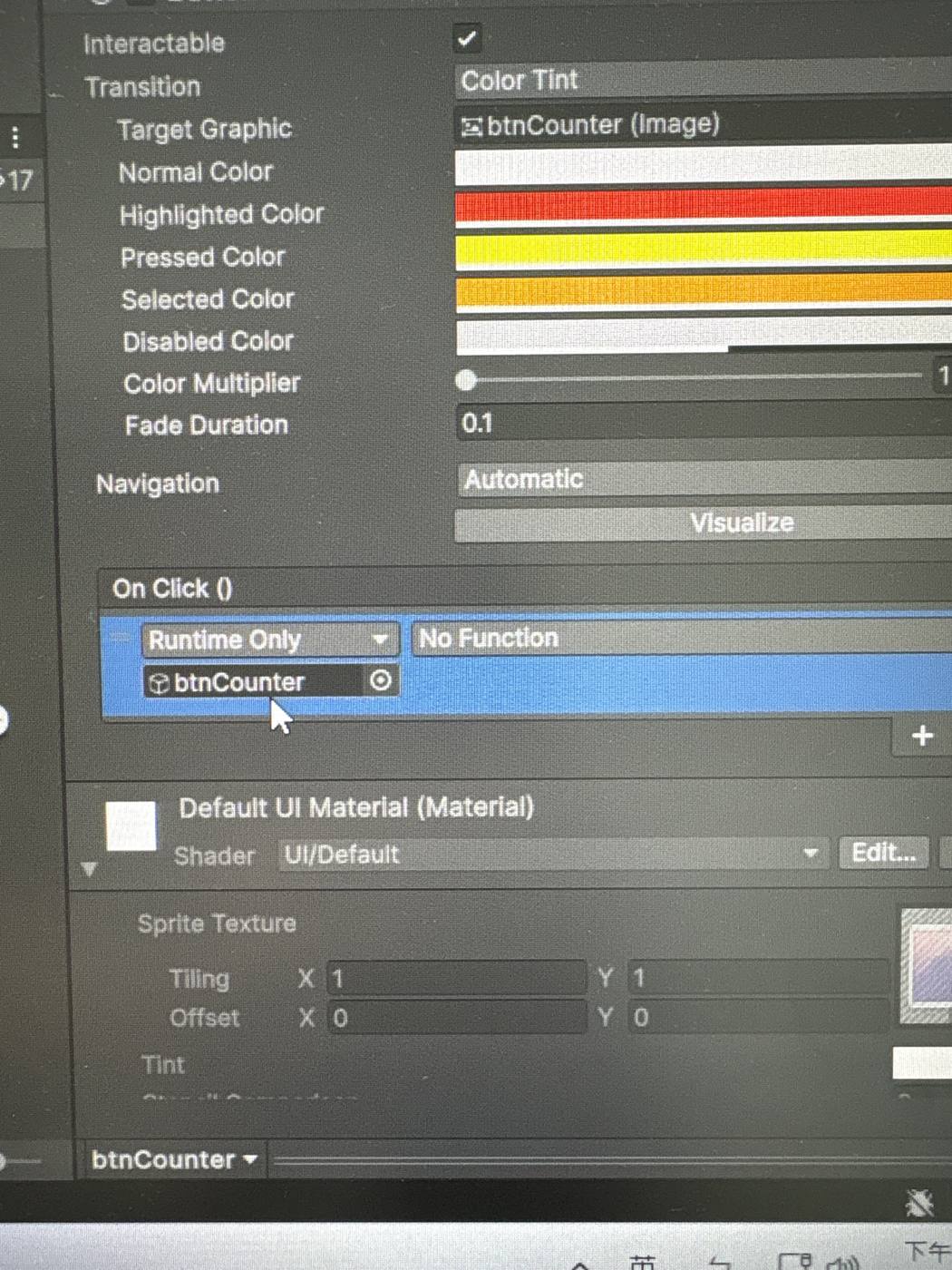
實拍 IMG_6582:On Click() 拖入 btnCounter,右邊還是 No Function 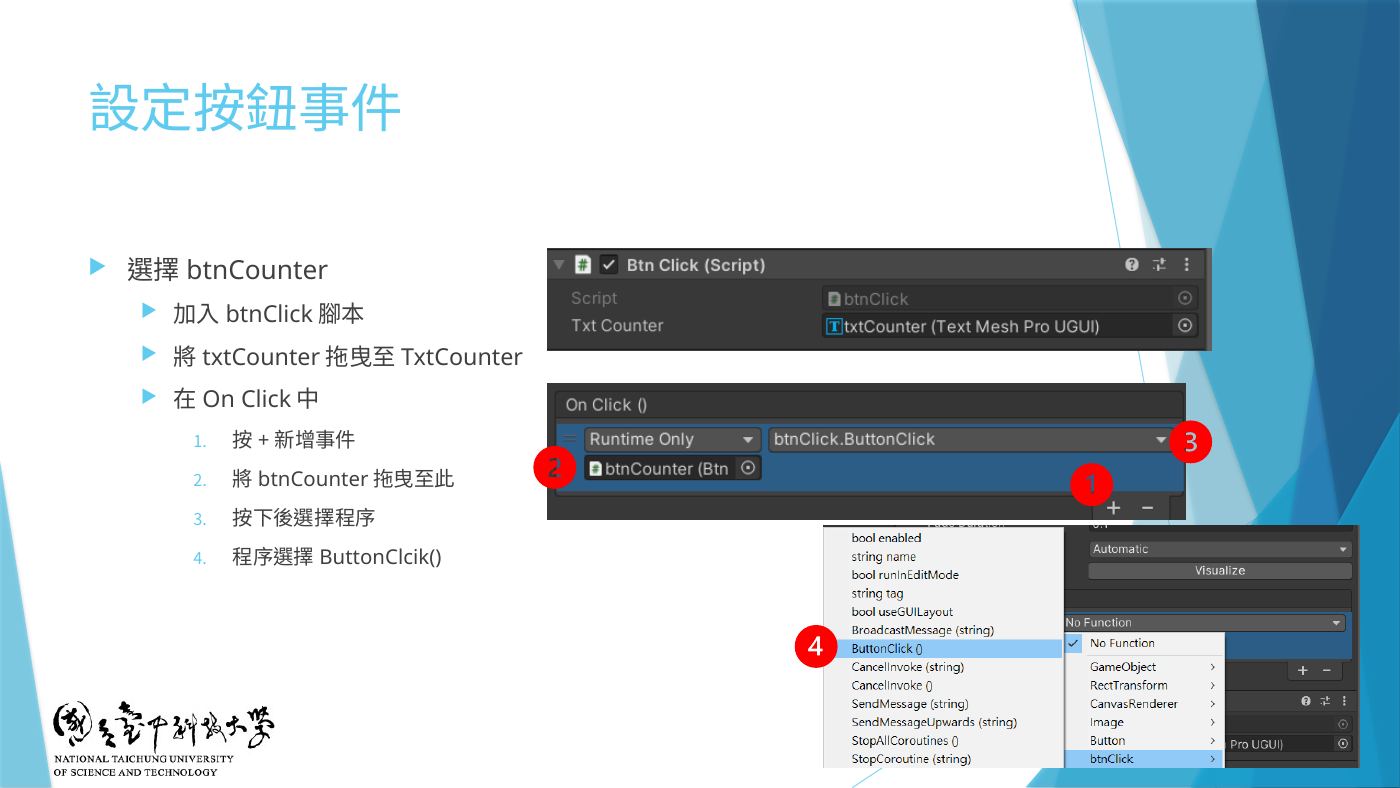
W4-20 設定按鈕事件:①+ ② 拖 btnCounter ③ 選程序 ④ 選函式 - 地雷按 No Function → btnClick2 → ButtonClick ()。⚠️ On Click 裡只能有這一條;選錯成別的腳本或出現 Missing 要刪掉。
- (選做)W5-12 把變數改名(pressButton→btnCounter、ValueText→txtCounter、Image1→imgBird、RawImage2→RawImgBackground、imagesAry→spriteAry、txetureAry→textureAry),要用 VSCode 的 F2 Rename Symbol 才會連動;考試不改也能用。
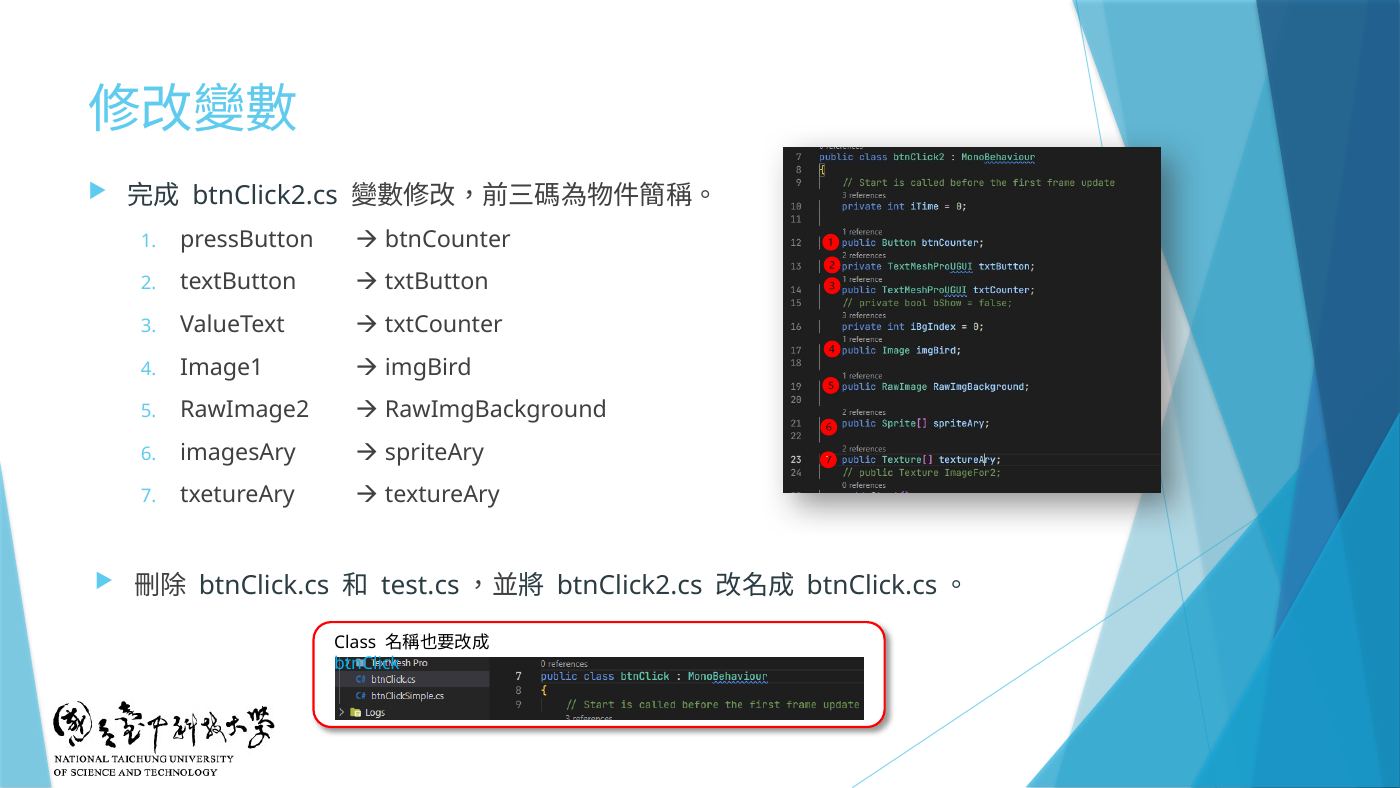
W5-12 修改變數對照 - 地雷▶ Play 測試:每按一次 → txtCounter 數字 +1(1、2、3…)、background 在 2 張背景間切換、birds 在 4 張 Sprite 間輪流、按鈕文字顯示 Show 0/Show 1;滑過/按下按鈕會變色。⚠️ 兩張背景上 txtCounter 的字都要看得清楚(第 4 題對比)。
W4-21 測試清單
第 5 題按鈕跳到 game 場景
- 地雷File → New Scene(Ctrl+N)→ 選 Basic → Create → Ctrl+S 存到
Scenes資料夾,檔名game(老師口述是 game;簡報寫 Game,名稱要跟腳本一致)。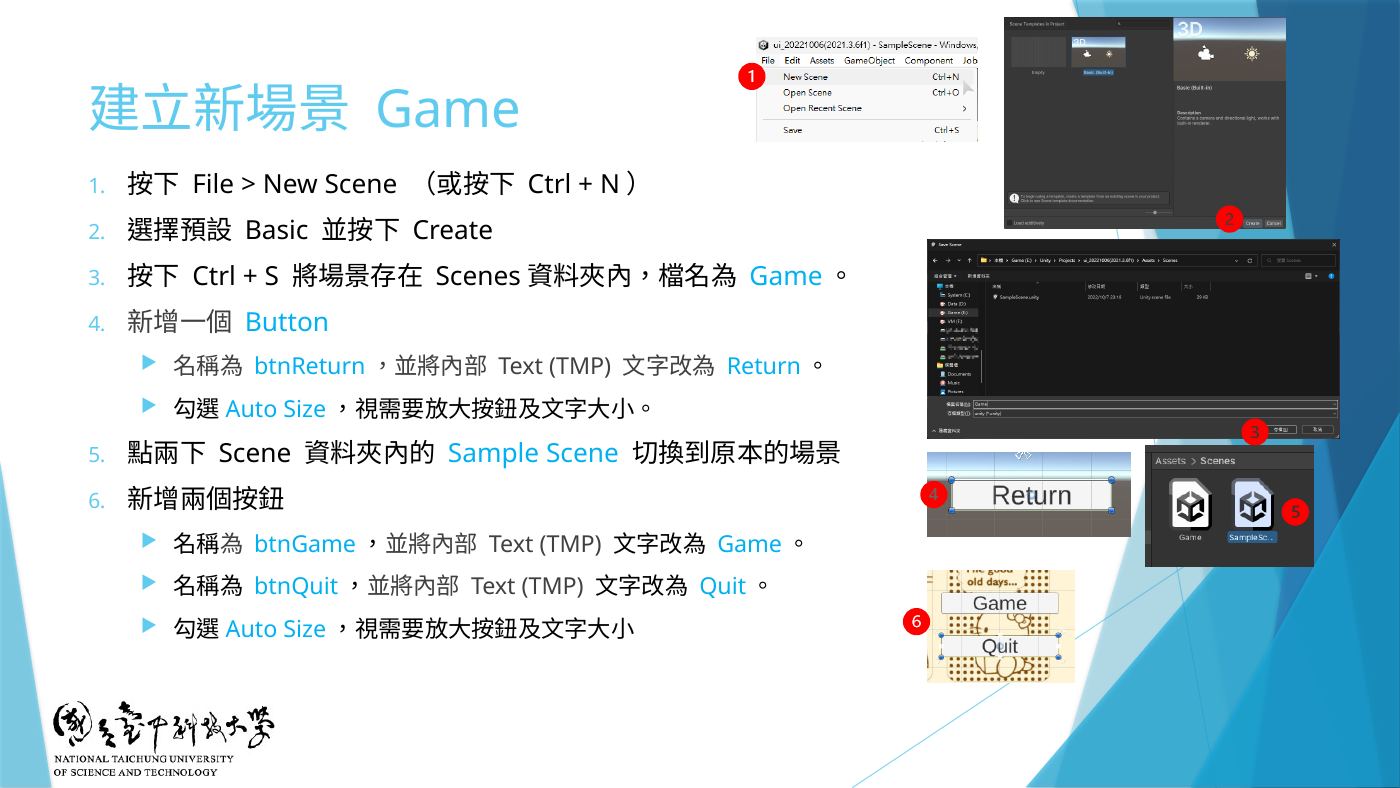
W5-14 建立新場景 Game、btnReturn、btnGame、btnQuit - (選做)在 game 場景加 Button
btnReturn,文字 Return,掛 ReturnButton.cs,On Click → ReturnButton → ButtonClick()(回到第 0 個場景)。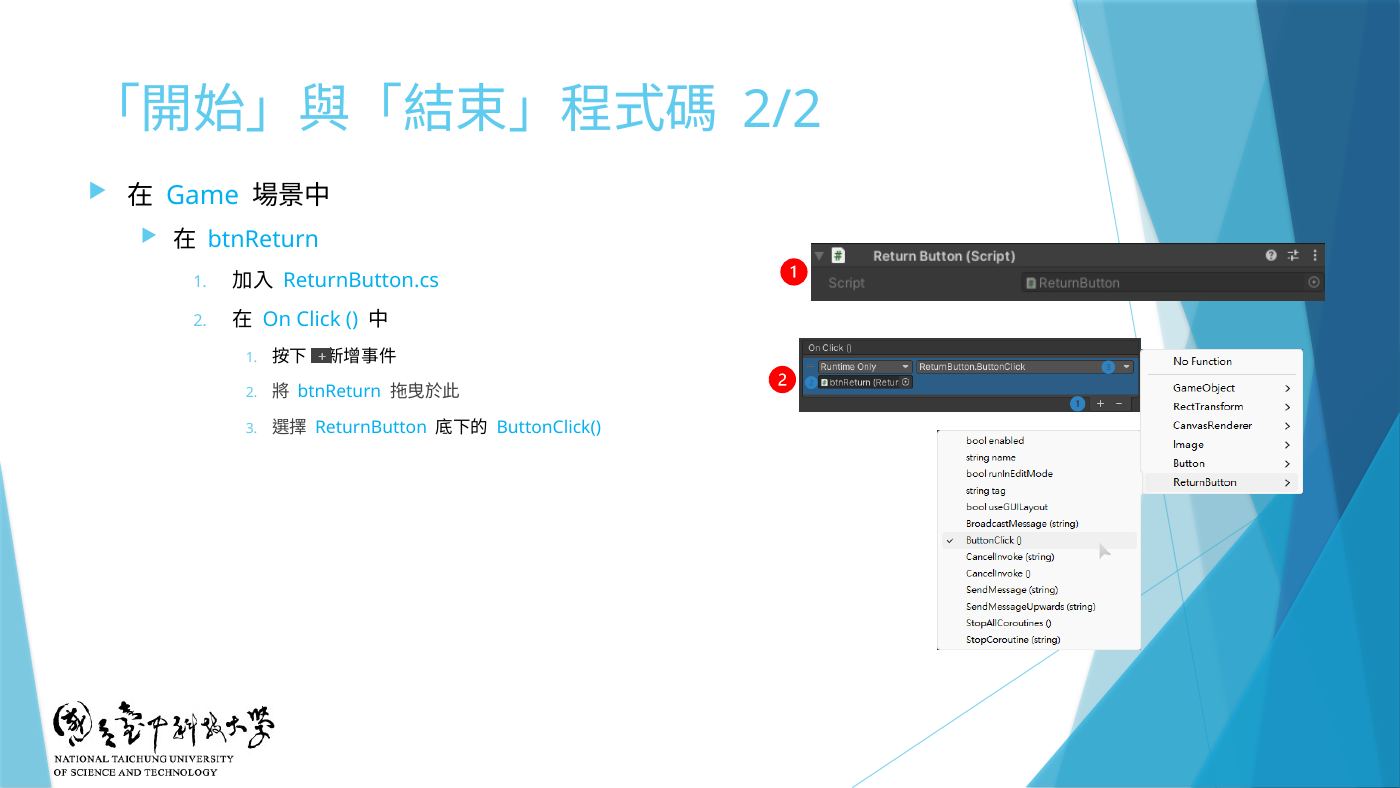
W5-16 btnReturn 加 ReturnButton.cs using System.Collections; using System.Collections.Generic; using UnityEngine; using UnityEngine.SceneManagement; public class ReturnButton : MonoBehaviour { public void ButtonClick(){ SceneManager.LoadSceneAsync(0); } } - 雙擊
Scenes/SampleScene回 UI 場景 → 新增 ButtonbtnGame,文字改Game,勾 Auto Size。 - 匯入 StartMenuEvent.cs → Hierarchy 空白處右鍵 Create Empty(GameObject)→ 把 StartMenuEvent 加到這個 GameObject。
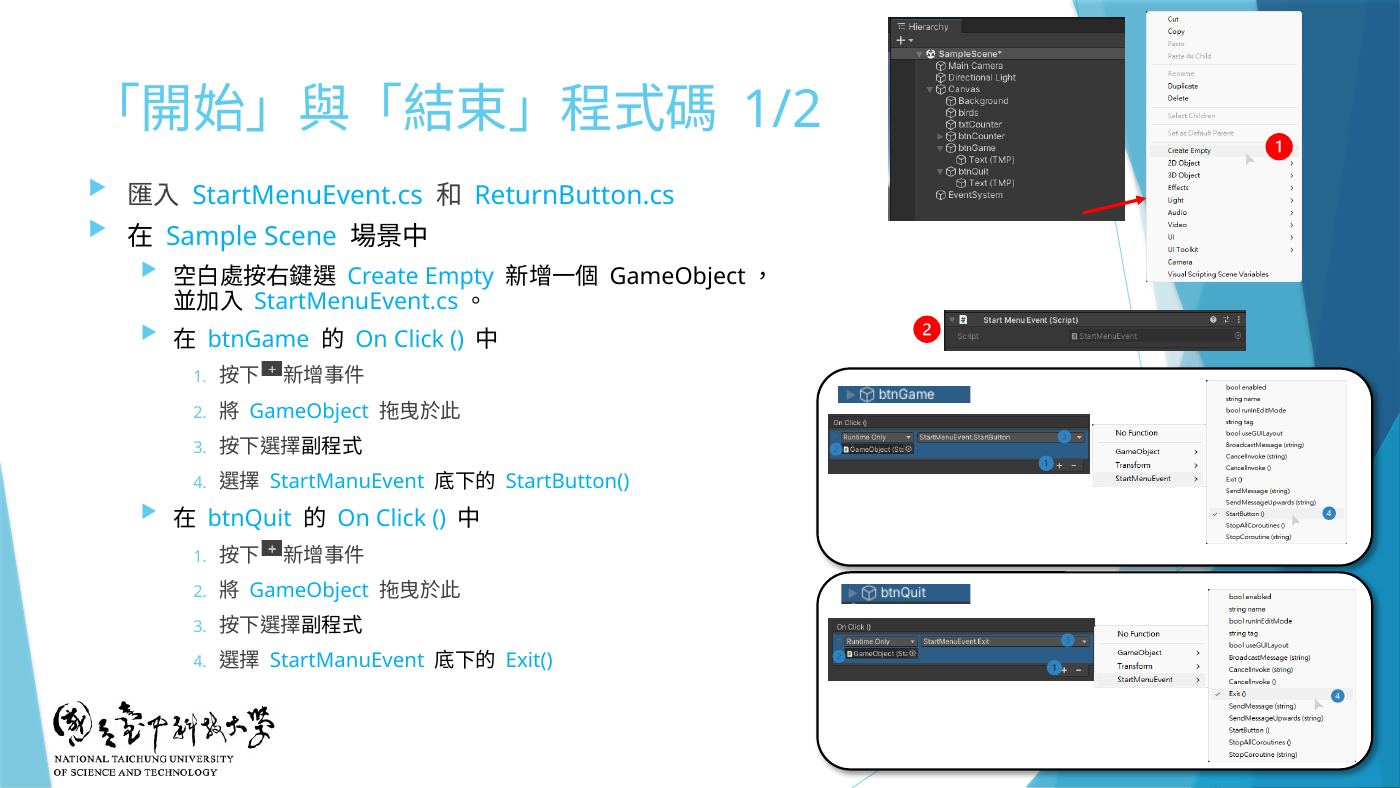
W5-15 「開始」與「結束」程式碼:GameObject 掛 StartMenuEvent、btnGame/btnQuit 的 On Click using System.Collections; using System.Collections.Generic; using UnityEngine; using UnityEngine.SceneManagement; public class StartMenuEvent : MonoBehaviour { public void StartButton(){ SceneManager.LoadSceneAsync(1); } public void Exit(){ Application.Quit(); } } - 選 btnGame → On Click () → + → 把 GameObject 拖進去 → StartMenuEvent → StartButton ()。
- 地雷File → Build Settings → 把兩個場景拖進 Scenes In Build,順序:
Scenes/SampleScene = 0、Scenes/game = 1。
⚠️LoadSceneAsync(1)用的是這裡的編號,沒加或順序錯就跳不過去。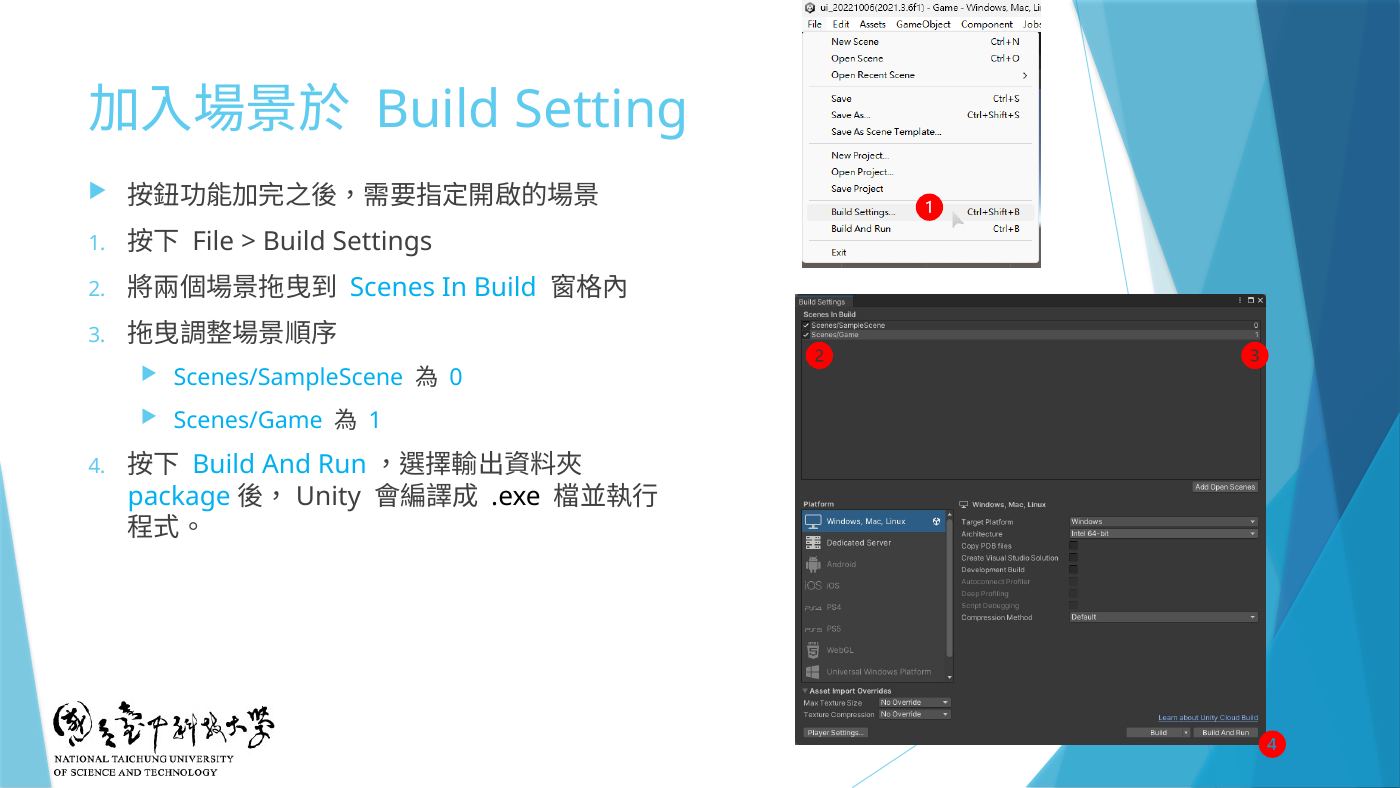
W5-17 加入場景於 Build Setting:拖進 Scenes In Build、調整順序 - 補充用場景名稱也可以:
SceneManager.LoadSceneAsync("game")(W5-18)。下面是用名稱的補充版腳本。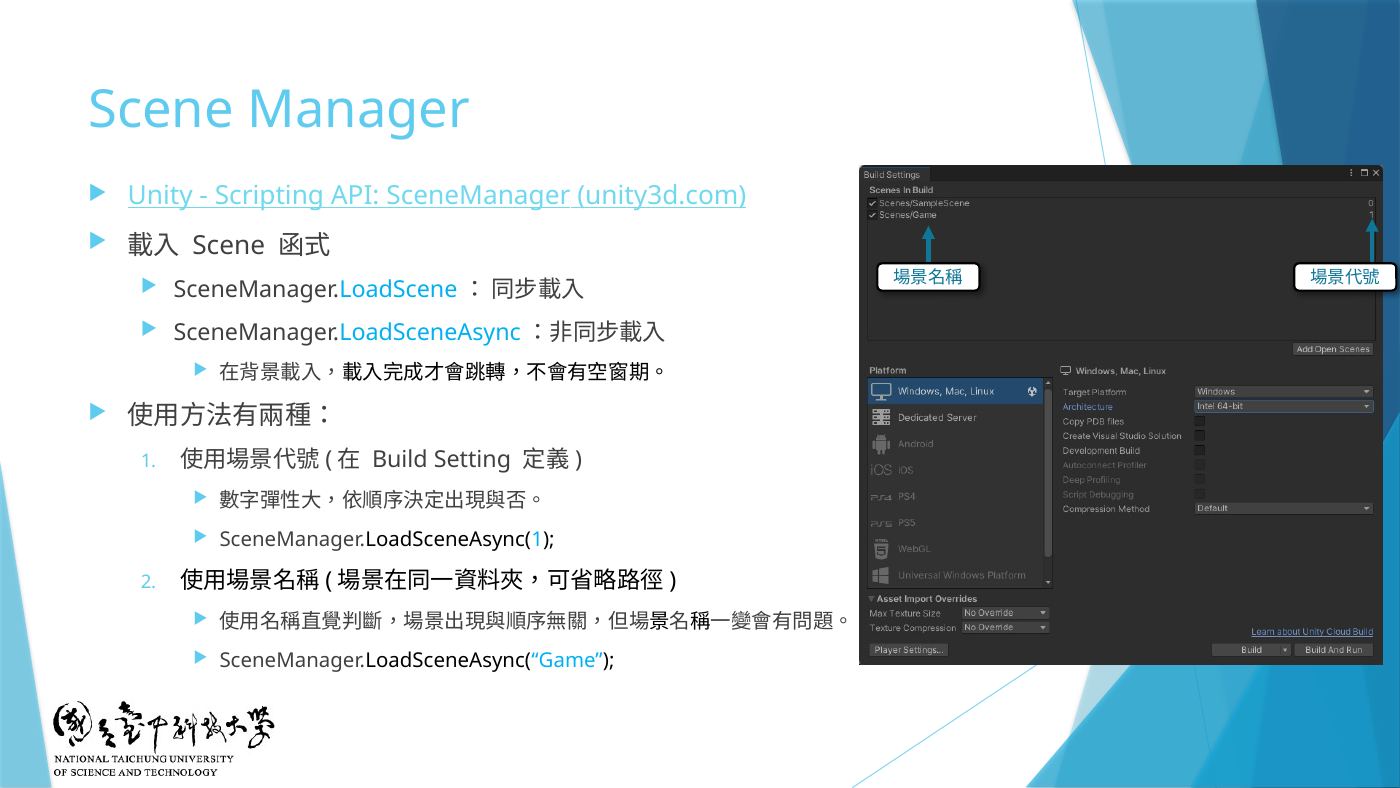
W5-18 Scene Manager:場景代號 vs 場景名稱 using UnityEngine; using UnityEngine.SceneManagement; // 換場景一定要加這行 // 【補充】用「場景名稱」切換,對應老師口述的 game 場景 // 掛在任一物件(或按鈕本身)上,OnClick() 選 GoToGame > LoadGame public class GoToGame : MonoBehaviour { public string sceneName = "game"; // 要和 Scenes 資料夾裡的場景檔名一模一樣(大小寫也要一樣) public void LoadGame() { SceneManager.LoadScene(sceneName); // 場景要先加進 File > Build Settings > Scenes In Build } } - ▶ 從 SampleScene 開始 Play → 按 btnGame → 進到 game 場景。
第 6 題game 場景:建 Boy 模型 + 材質 + 60 FPS 循環變色動畫
老師口述的「某個 3D 模型」就是 W2 用基本物件拼的 Boy,W3-17 再讓 Boy 的衣服(body)顏色循環變化;第 7 題的音樂也是加在 Boy 上(W3-18)。下面括號內的數值取自範例專案的 Boy.prefab,可照抄。
- 父物件 Boy:Hierarchy 右鍵 Create Empty → 改名
Boy(F2,或點兩下名稱)→ Transform 按 ⋮ Reset,放在原點。Empty 只當容器,場景中看不到(W2-11)。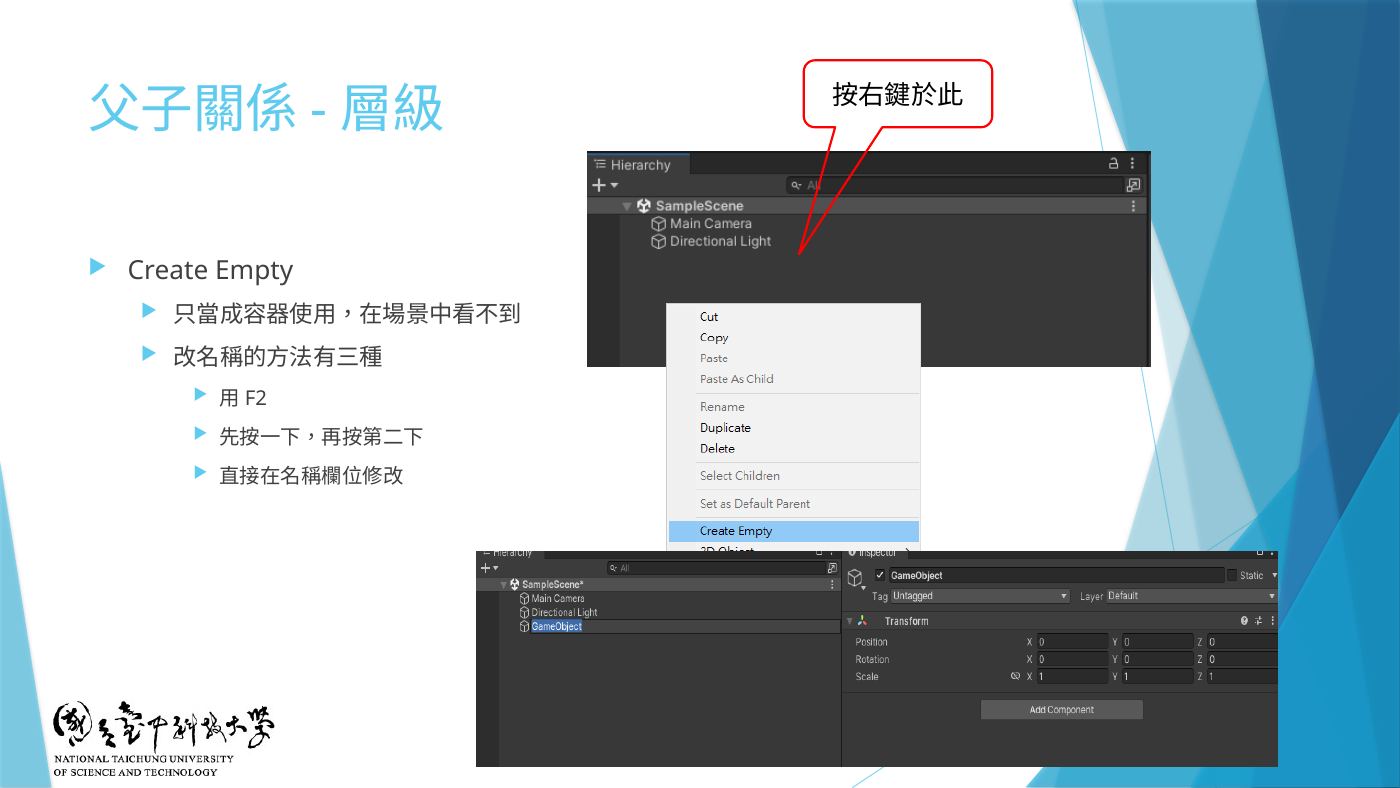
W2-11 父子關係-層級:Create Empty、改名的三種方法 - 父子關係:之後的身體零件都要當 Boy 的子物件 → 對 Boy 右鍵直接新增,或把物件 拖到 Boy 上。父子一起移動/旋轉/縮放。Ctrl+S 存檔、Ctrl+Z 還原(W2-12)。
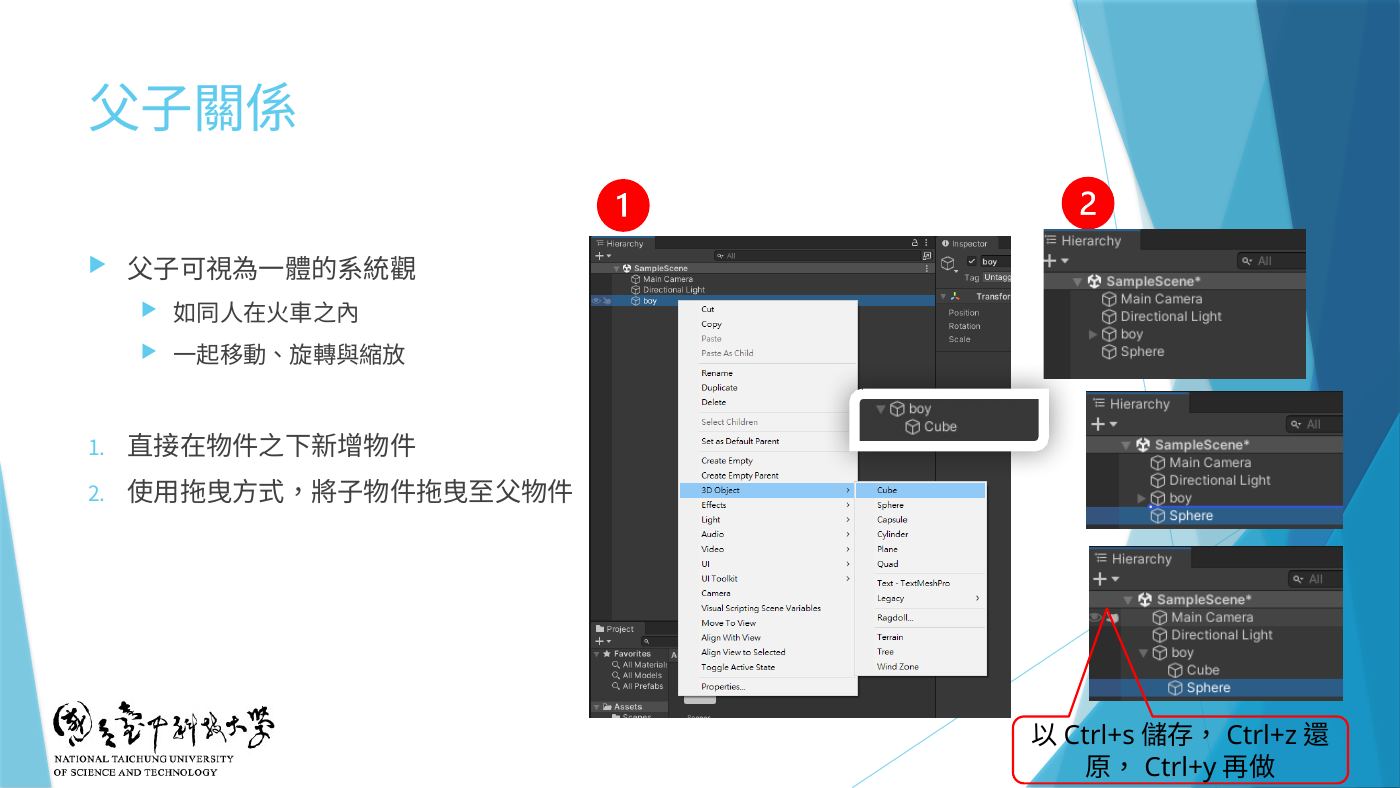
W2-12 父子關係:直接在物件下新增、拖曳成子物件 - 頭和身體(W2-18):關閉格線吸附;在 Boy 底下新增
• Sphere →head(範例:Position 0, 0.713, 0;Scale 0.687 ×3)
• Capsule →body(範例專案用的是 Cube:Position 0, -0.326, 0;Scale 1, 1.565, 0.388)
用 W 移動、R 縮放、E 旋轉;臉(Front, +Z)朝向光源,左鍵點兩下物件可聚焦。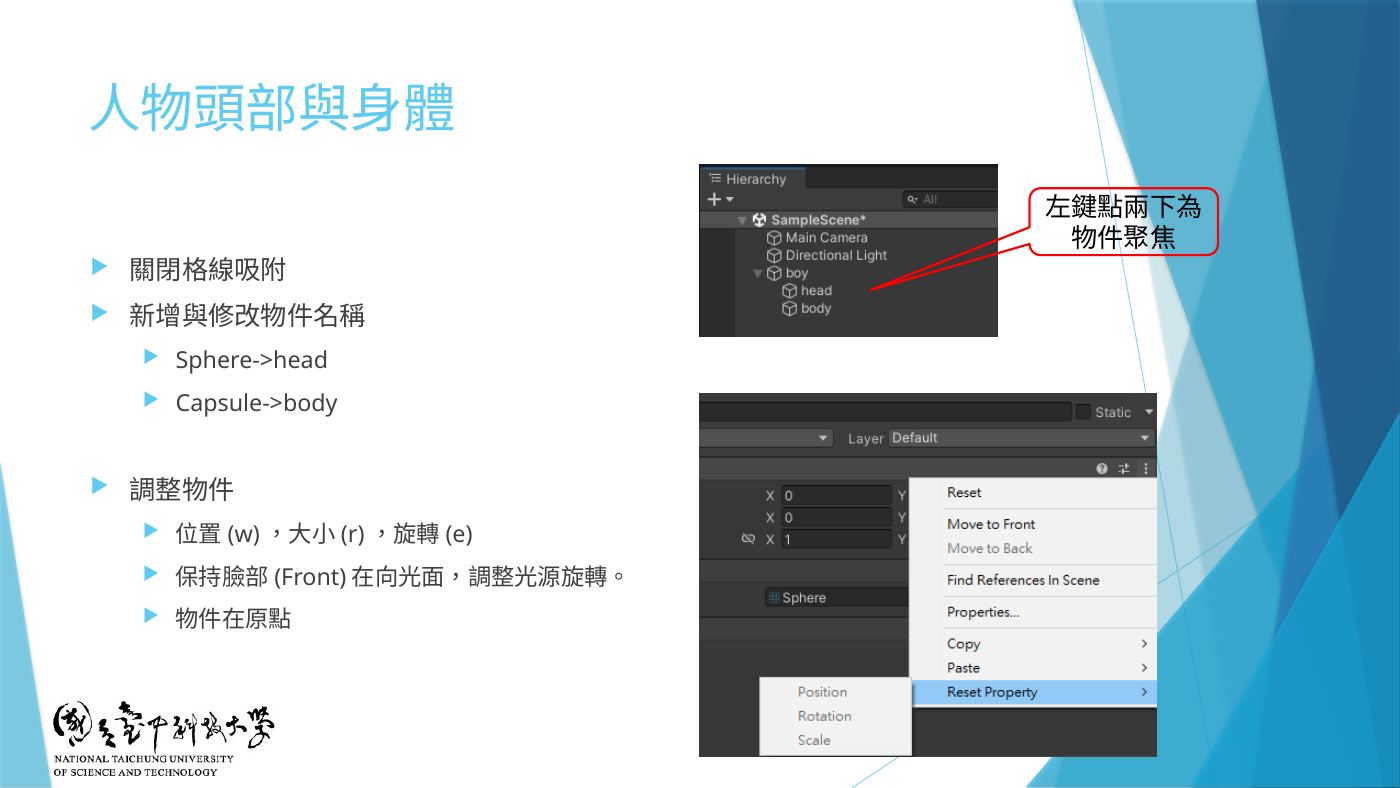
W2-18 人物頭部與身體:Sphere→head、Capsule→body、W/R/E - 鼻子與雙手(W2-19):可切 Wireframe 看物件內部。
• Capsule →R_hand(範例:Position 0.694, -0.329, 0;Rotation Z ≈ 24.3;Scale 0.381, 0.659, 0.381)
• 選 R_hand Ctrl+D 複製 → 改名L_hand→ Position X、Rotation Z 改負值(-0.694、-24.3)
• Cylinder →nose(範例專案用 Sphere:Position 0, 0.72, 0.337;Scale 0.222, 0.306, 0.222)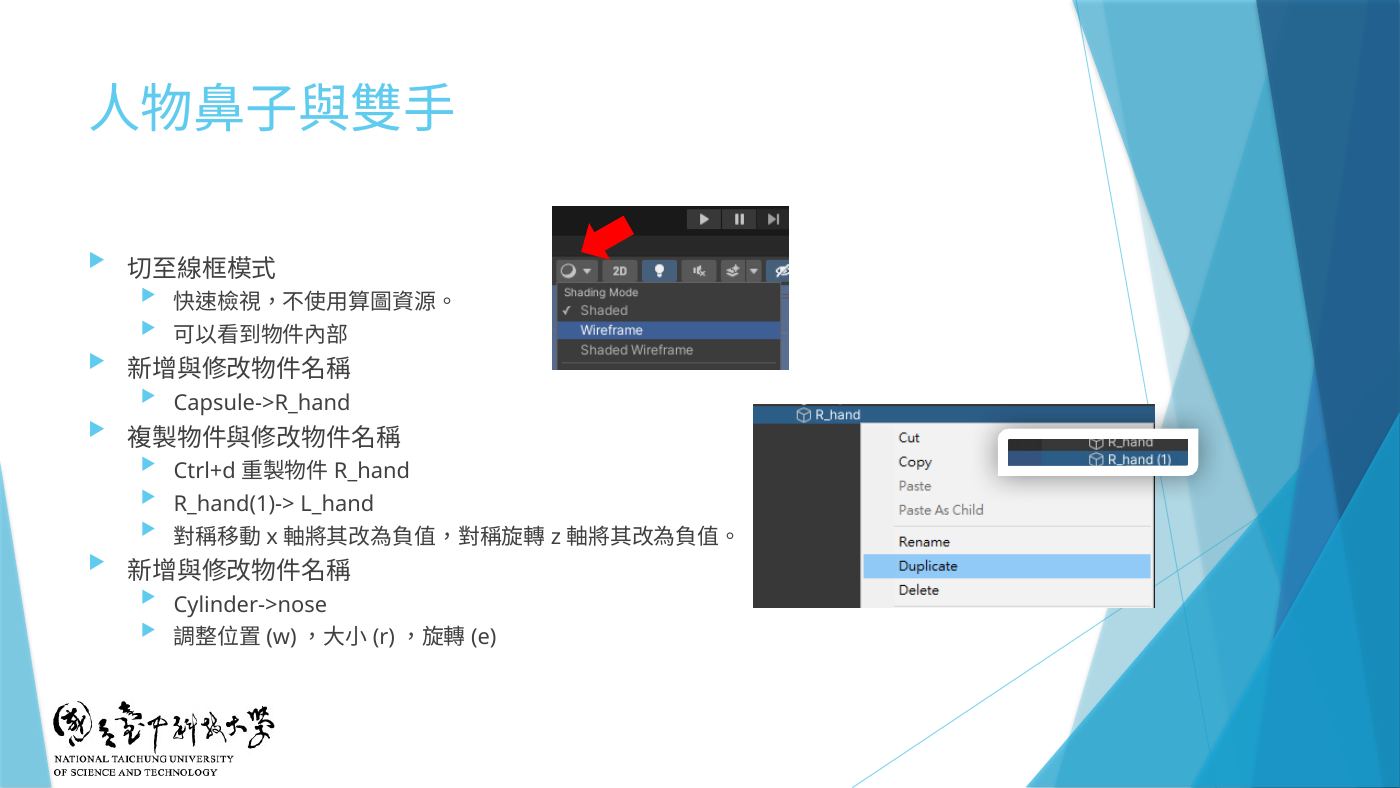
W2-19 人物鼻子與雙手:Wireframe、Capsule→R_hand、Ctrl+D→L_hand、Cylinder→nose - 雙腳(W2-20):R_hand Ctrl+D → 改名
R_leg→ Rotation Z 改 0、移到下方(範例 Position 0.254, -1.554, 0)→ 再 Ctrl+D →L_leg,Position X 改負值(-0.254)。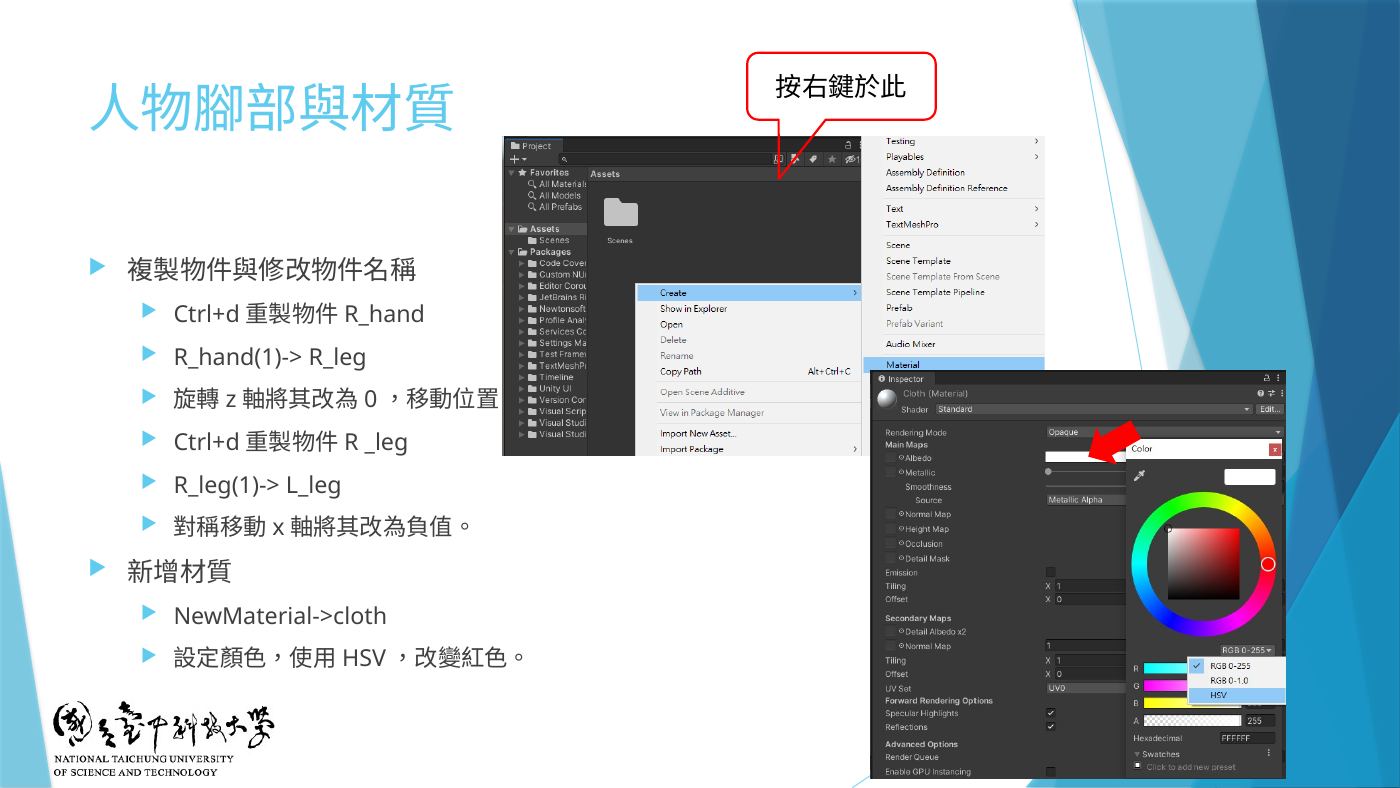
W2-20 人物腳部與材質:R_leg、L_leg、新增材質 cloth - 材質:Project 空白處右鍵 Create → Material:
•cloth:Albedo 用 HSV 調成紅色 → 給 body
•skin:黃/膚色 → 給四肢、鼻子(範例專案頭也用 skin)
• (W2-22 選做)hair:head Ctrl+D 改名 hair、黑色、移到頭頂
把材質 拖到場景物件、Hierarchy 物件或 Inspector 上就套用(W2-21)。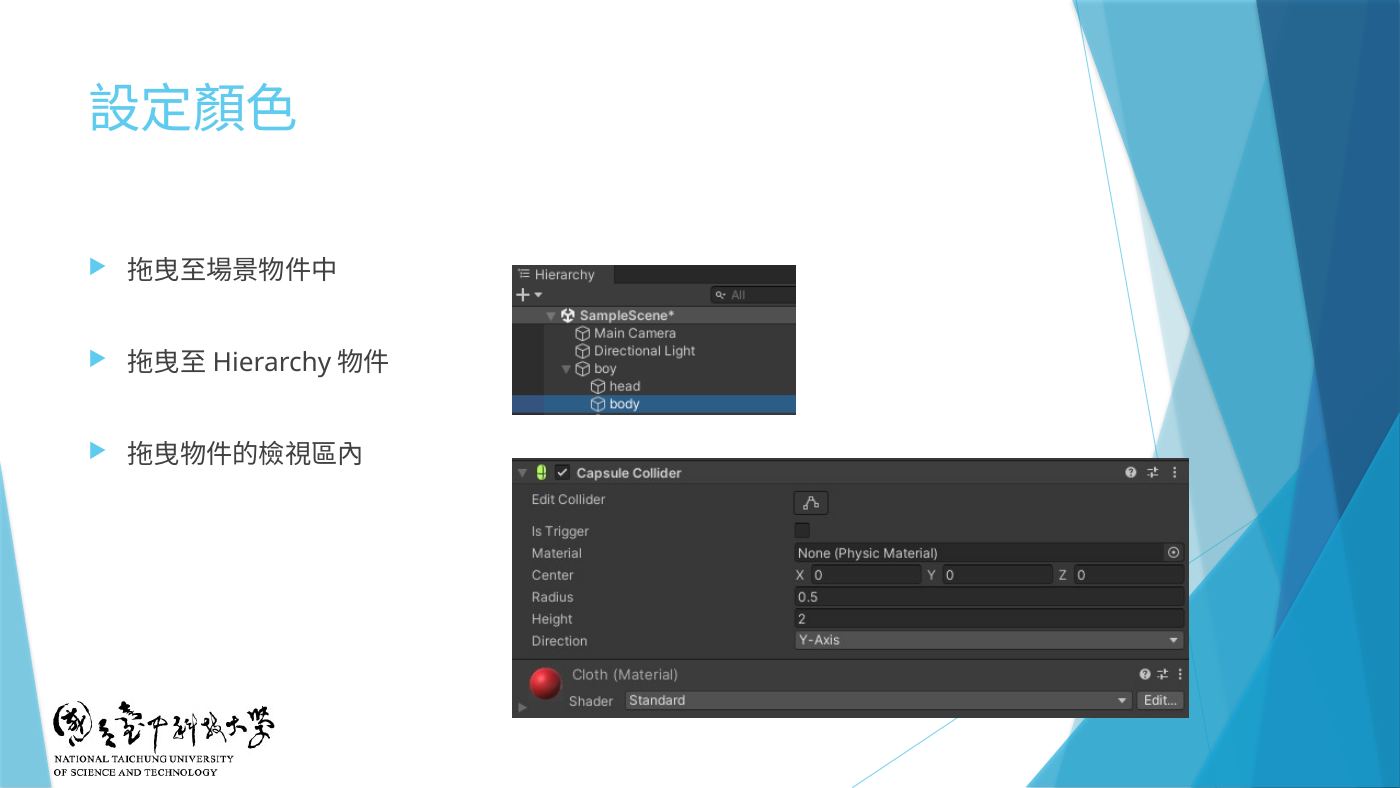
W2-21 設定顏色:拖曳至場景物件、Hierarchy 物件或檢視區 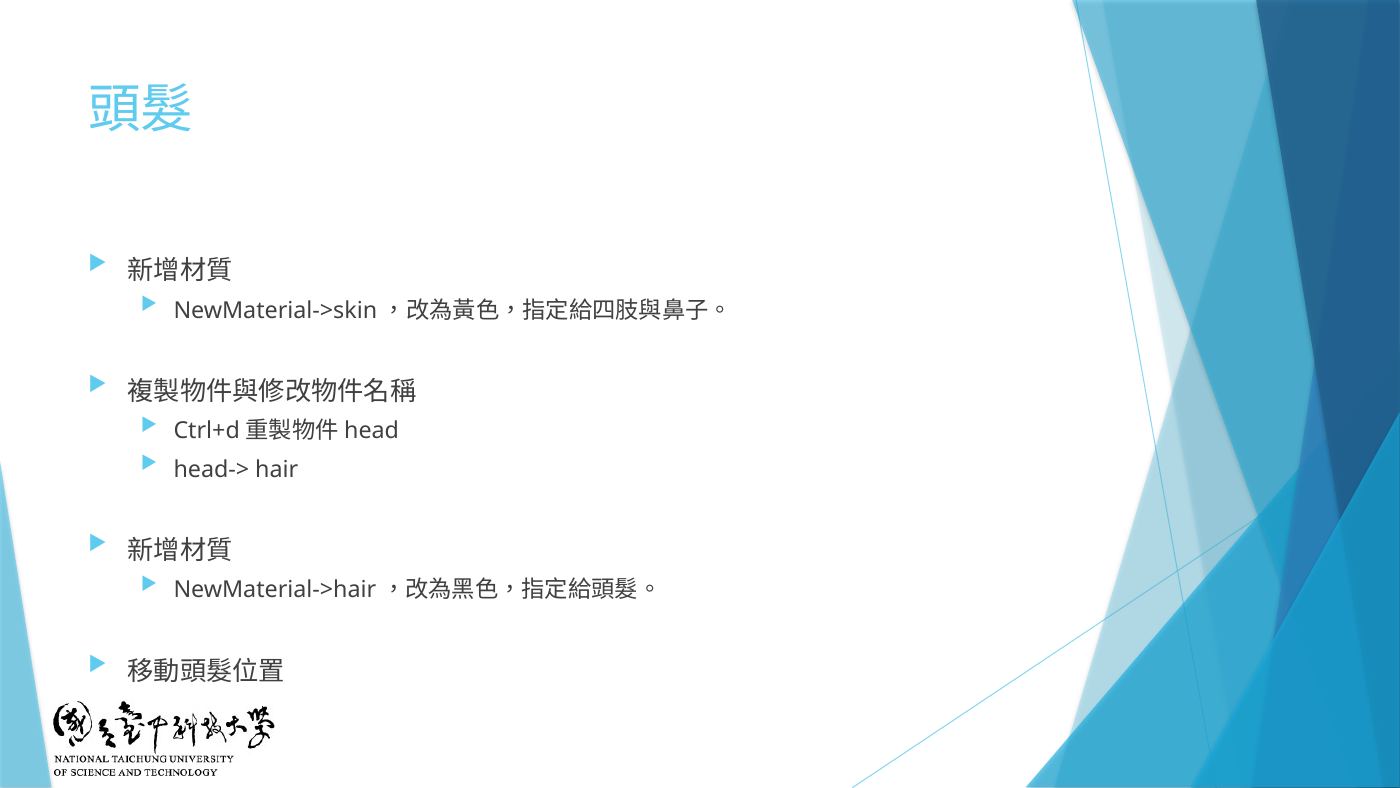
W2-22 頭髮:skin、hair 材質 - (選做)把 Boy 拖到 Assets 變成 Prefab,之後可重複使用(W2-23)。
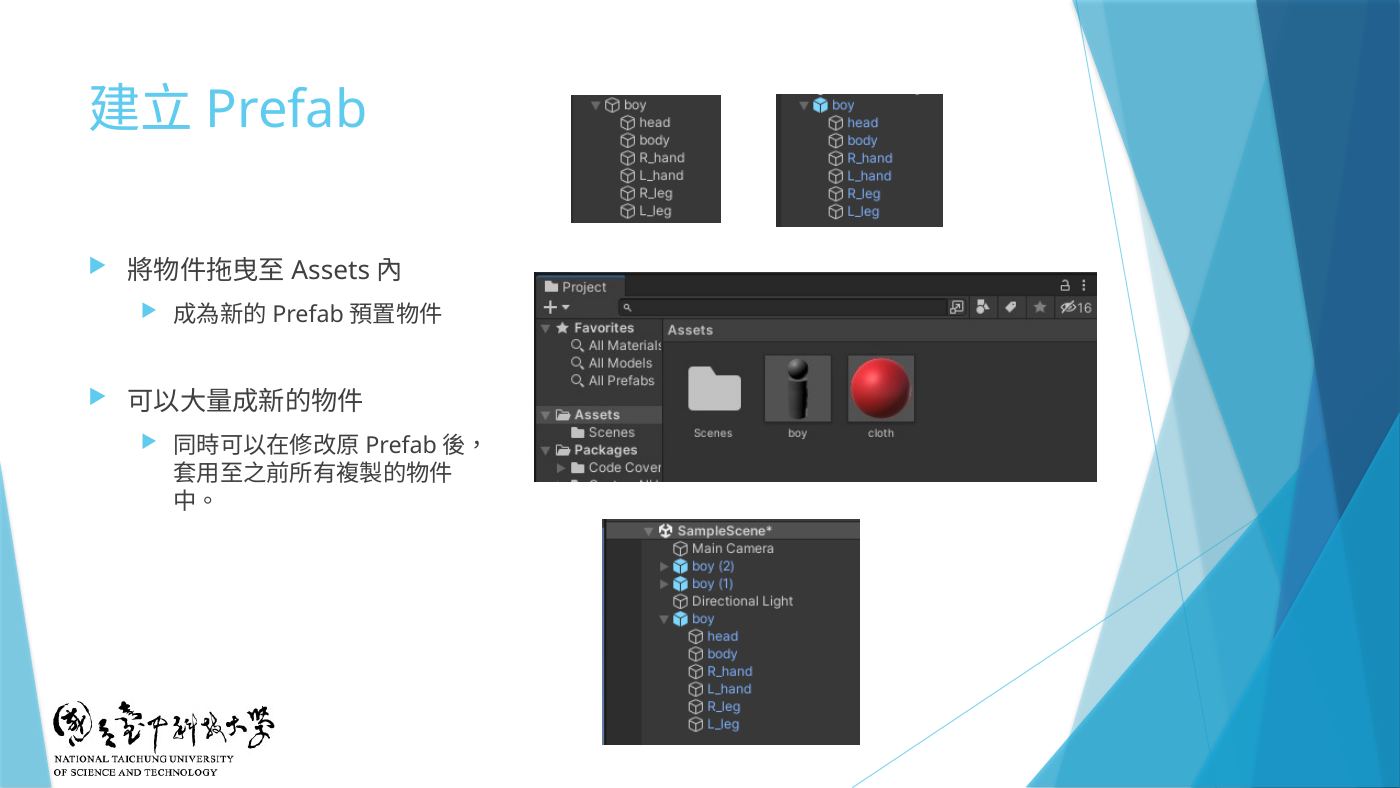
W2-23 建立 Prefab - 開 Animation 視窗:Window → Animation → Animation(Ctrl+6)。Animation 找不到 Animator 時會自動幫物件加一個(W3-08)。
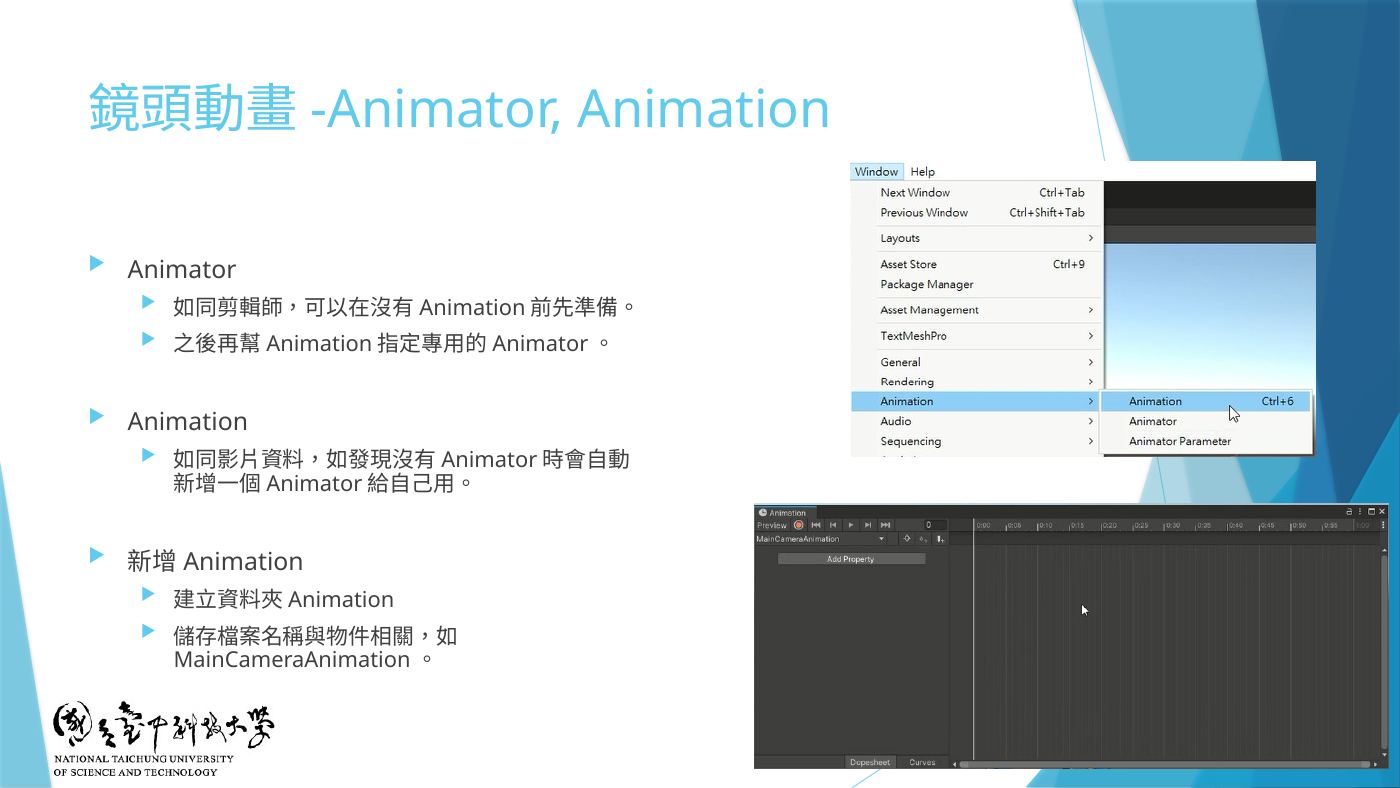
W3-08 Window > Animation > Animation、Animation 與 Animator - 地雷⚠️ 選 Boy 物件(不是選 cloth 材質)→ Animation 視窗按 Create → 先建資料夾
Animation,檔名BoyAnimation(W3-17 ①②)。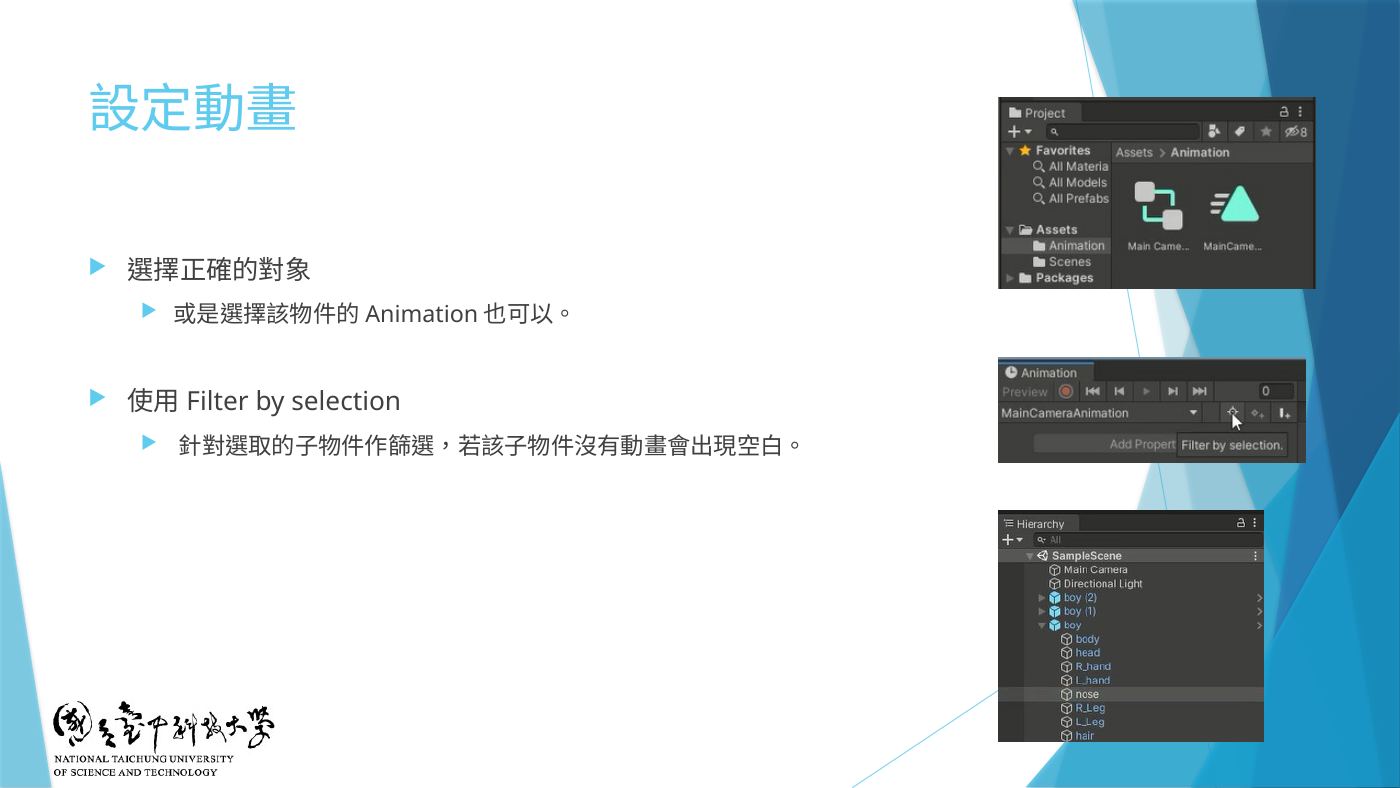
W3-13 設定動畫:選擇正確的對象、Filter by selection - 地雷Add Property → 展開 body → Mesh Renderer →
Material._Color→ 按 +。⚠️ 不要按 Filter by Selection(W3-17 ③④)。URP 專案名稱會是_BaseColor。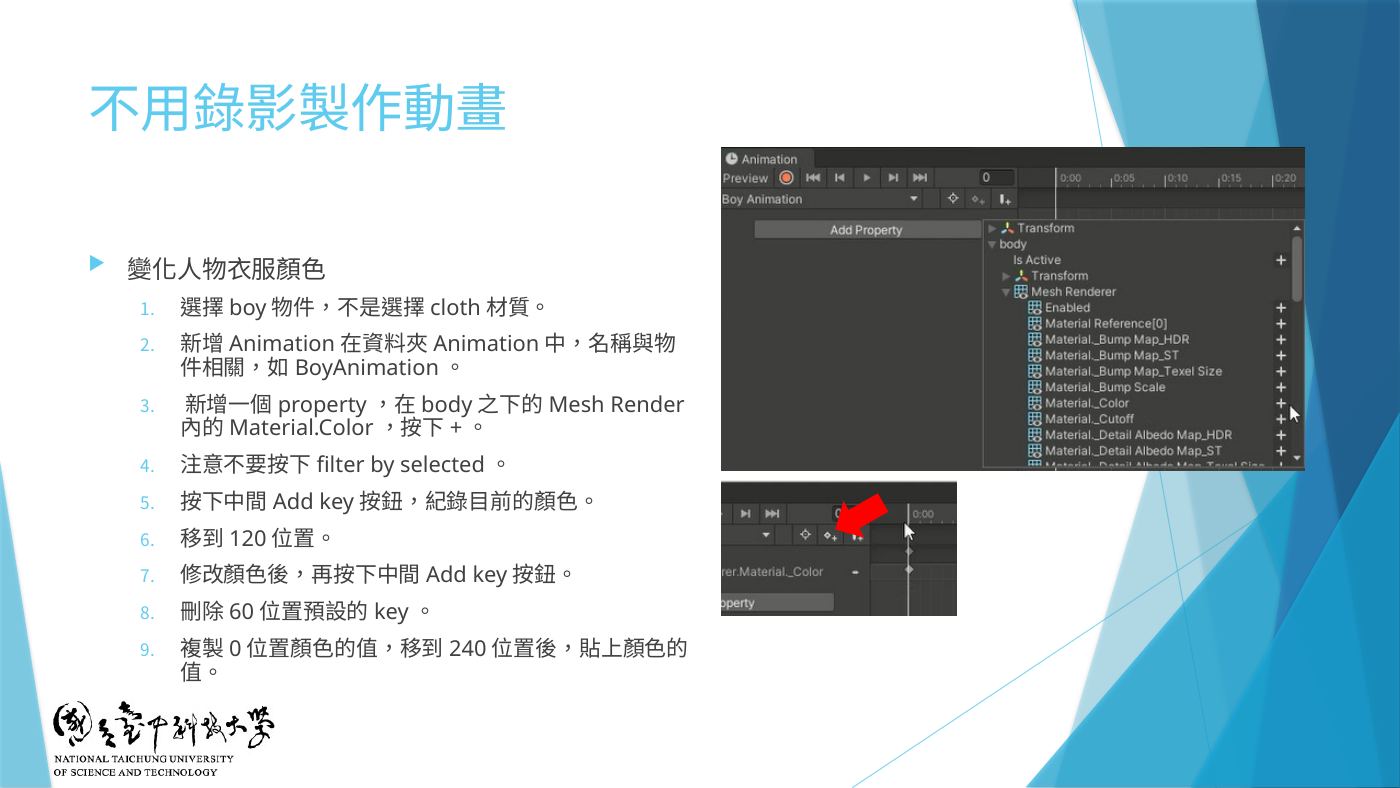
W3-17 不用錄影製作動畫:Add Property body > Mesh Renderer > Material._Color、Add key - 地雷⚠️ 60 FPS:Unity 動畫預設就是 60 FPS(W3-14:「300 影格在 FPS 60 之下為五秒」),所以 60 格 = 1 秒。2023.2 要確認可按 Animation 視窗右上 ⋮ → Show Sample Rate,看 Samples = 60。
- 地雷打關鍵影格(W3-17 ⑤~⑨):
1. 影格 0:按中間 Add Key(◇+)記錄目前顏色
2. 影格框輸入 120 → Enter → 改 Color → 再按 Add Key
3. 刪掉 60 位置預設的 key
4. 回影格 0 複製那個 key → 到 240 → 貼上(頭尾同色,循環才順)
→ 0→120→240 = 4 秒一圈。考卷指定 N 秒就把最後一格放在 N × 60,中間多加幾個顏色(A→B→C→D→A)。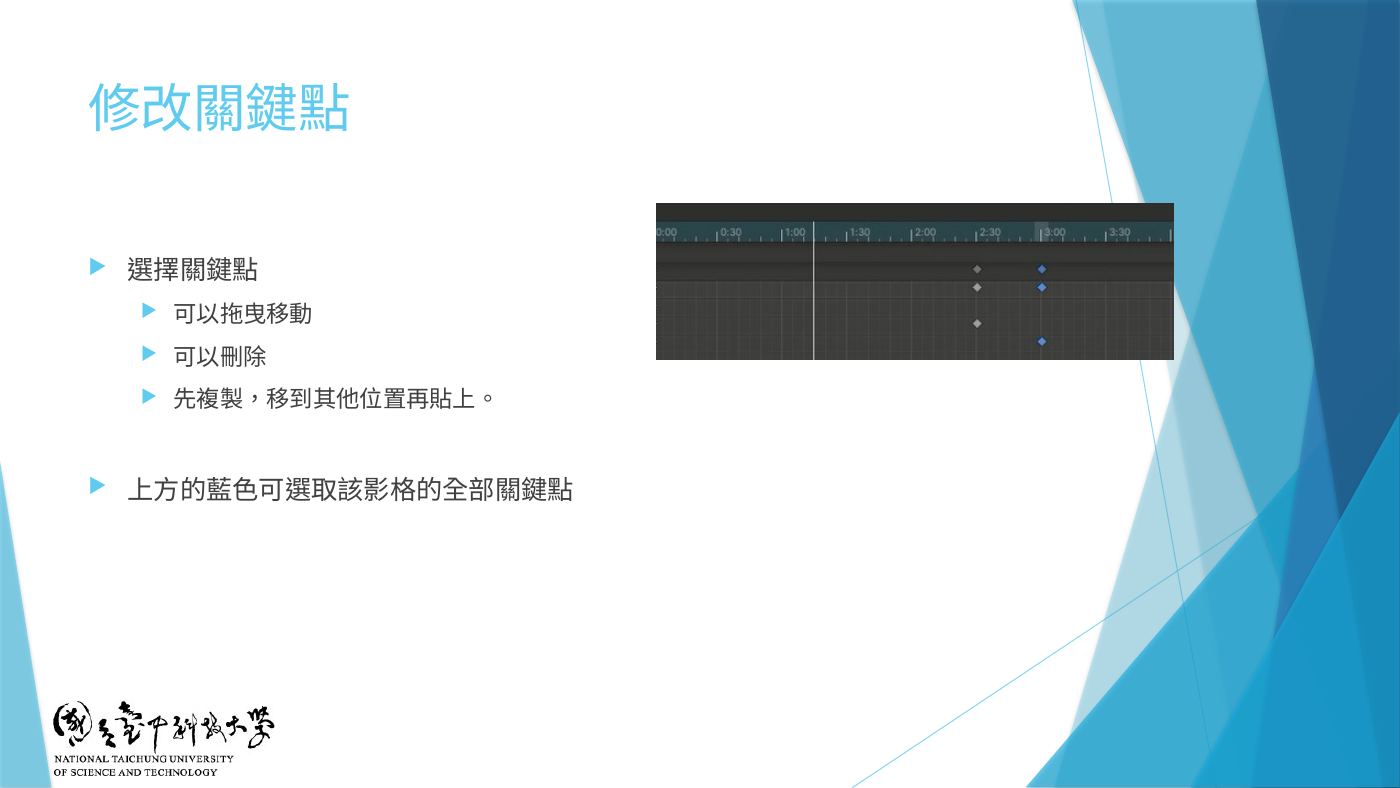
W3-16 修改關鍵點:拖曳、刪除、複製貼上 - 地雷⚠️ Project 點
BoyAnimation.anim→ Inspector Loop Time ✔(顏色要 重複不斷 變化,預設就是勾的,確認一下)。▶ 測試看到衣服顏色一直循環。 - (選做,非考題)範例專案附的
Boymove.cs:掛在 Boy 上,Play 時讓 Boy 沿 Z 軸移動(MoveSpeed = -1)並繞 Z 軸慢慢轉(RotateSpeed = 1)。第 6 題用不到,掛了反而會讓 Boy 跑掉、影響第 7 題鏡頭距離,考試不建議掛。using System.Collections; using System.Collections.Generic; using UnityEngine; public class Boymove : MonoBehaviour { public float MoveSpeed = -1; public float RotateSpeed = 1; // Start is called before the first frame update void Start() { // print("Hello"); } // Update is called once per frame void Update() { // print("update"); transform.Translate(0 ,0, MoveSpeed * Time.deltaTime, Space.World); transform.Rotate(0, 0, RotateSpeed * Time.deltaTime); } }
第 7 題Main Camera 拉遠動畫(不 Loop)+ 3D 距離音效
- 先在 Scene 把視角調到看得到 Boy,選 Main Camera → GameObject → Align With View,把攝影師視角(Main Camera)移到導演視角(Scene Camera)位置(W3-11)。
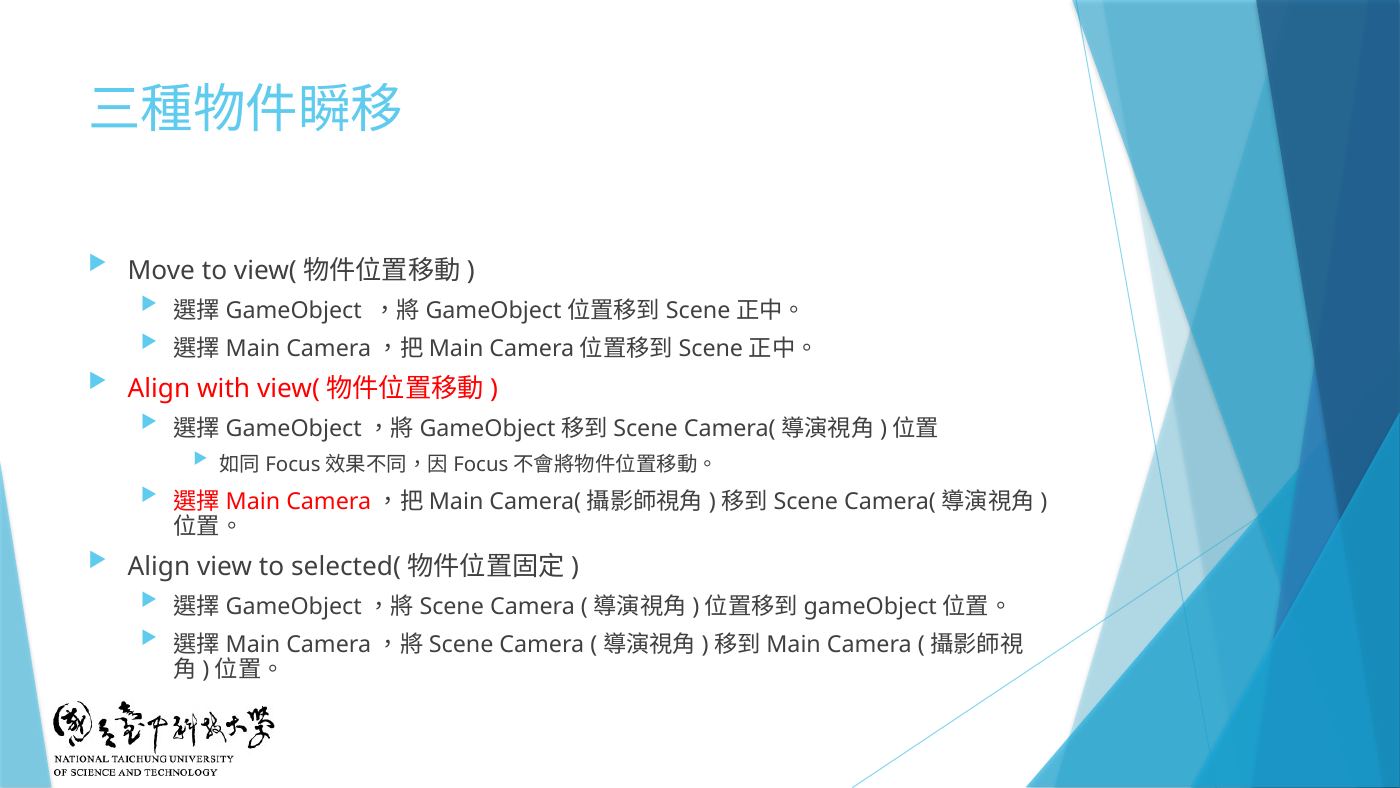
W3-11 三種物件瞬移:Move to view、Align with view、Align view to selected - 選 Main Camera → Animation 視窗 Create → 存到
Animation資料夾,檔名MainCameraAnimation(W3-08)。 - 錄影方式做動畫(W3-14):
1. 按紅色 ● 錄影
2. 在第 0 影格先把 Main Camera 動一下,才會記錄 Position
3. 影格輸入 300 → Enter(60 FPS 下 = 5 秒;考卷 N 秒就輸入 N×60)
4. 把 Main Camera 往遠離 Boy 的方向移(鏡頭正對 Boy 時就是往後退,例 Position Z 從 -10 變 -30)
5. 按 F 讓時間軸縮到合適大小 → 按 ▶ 預覽 → 再按 ● 結束錄影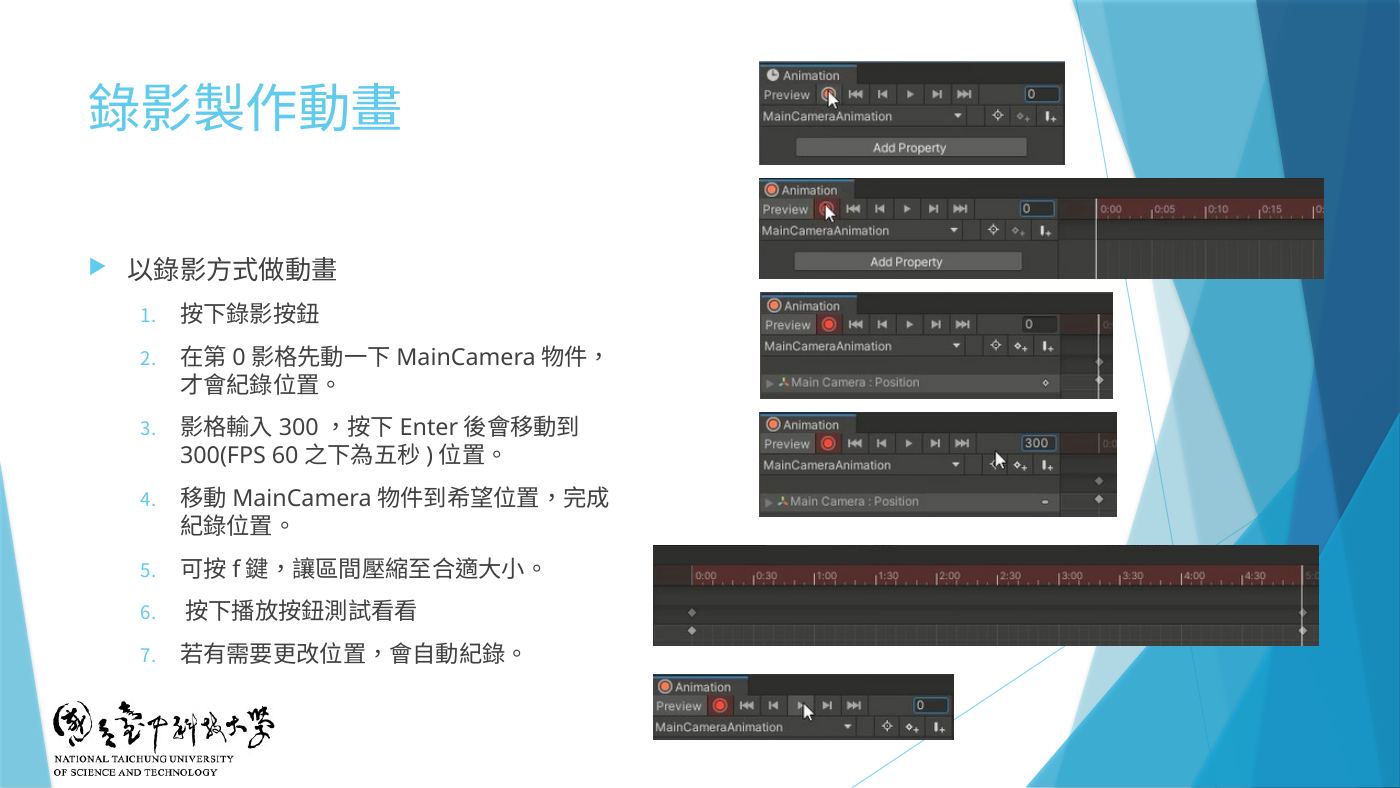
W3-14 錄影製作動畫:錄影鍵、第 0 影格動一下、輸入 300、移動 MainCamera - 地雷⚠️ 是拉遠(距離變大)!做成拉近 = 不給分。▶ 時要看到 Boy 越來越小。
- 要修改:Curves 分頁拖控制點改曲線、MRB 新增關鍵點;Dopesheet 上可拖曳/刪除/複製貼上 key(W3-15、W3-16)。
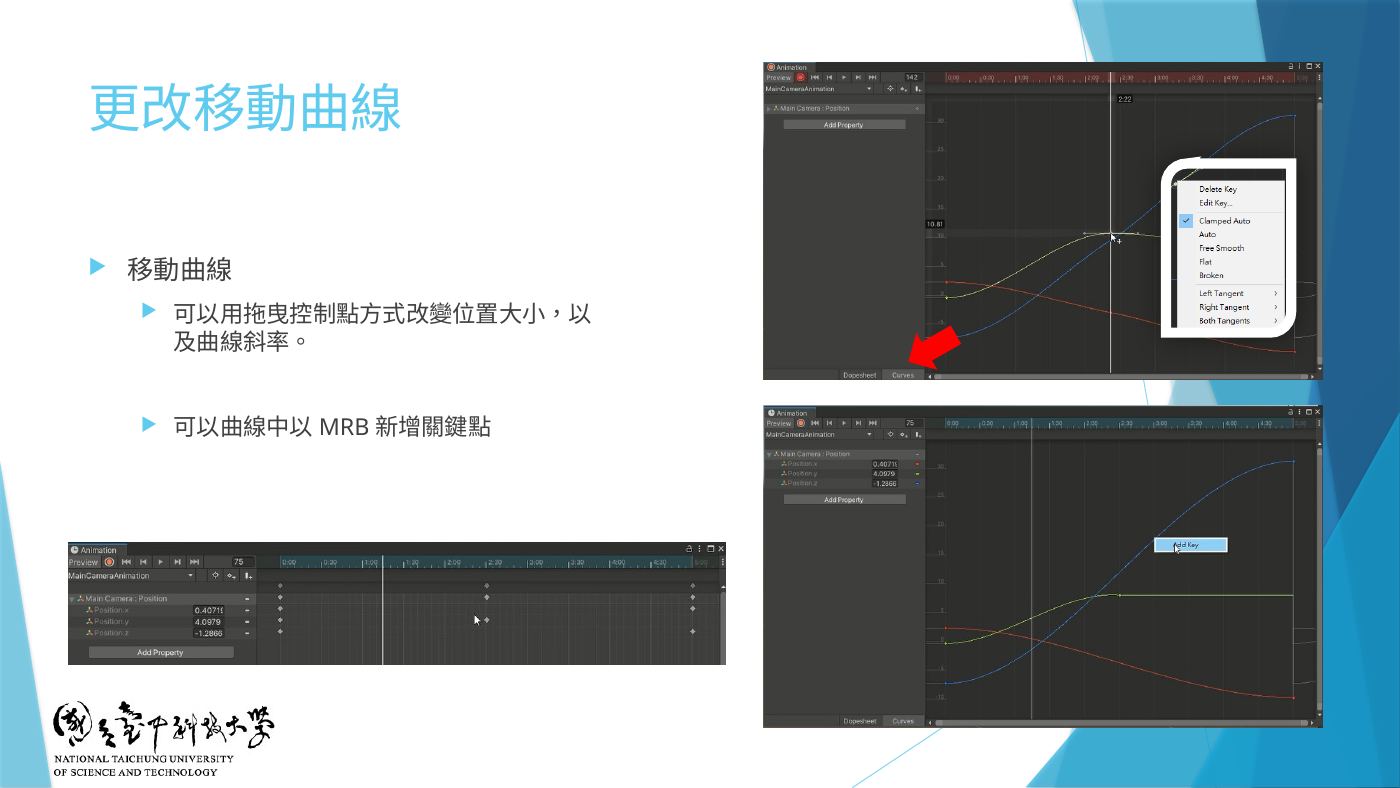
W3-15 更改移動曲線 - 地雷⚠️ 鏡頭不要來回移動:Project 點
MainCameraAnimation.anim→ Inspector 取消 Loop Time(W3-19)。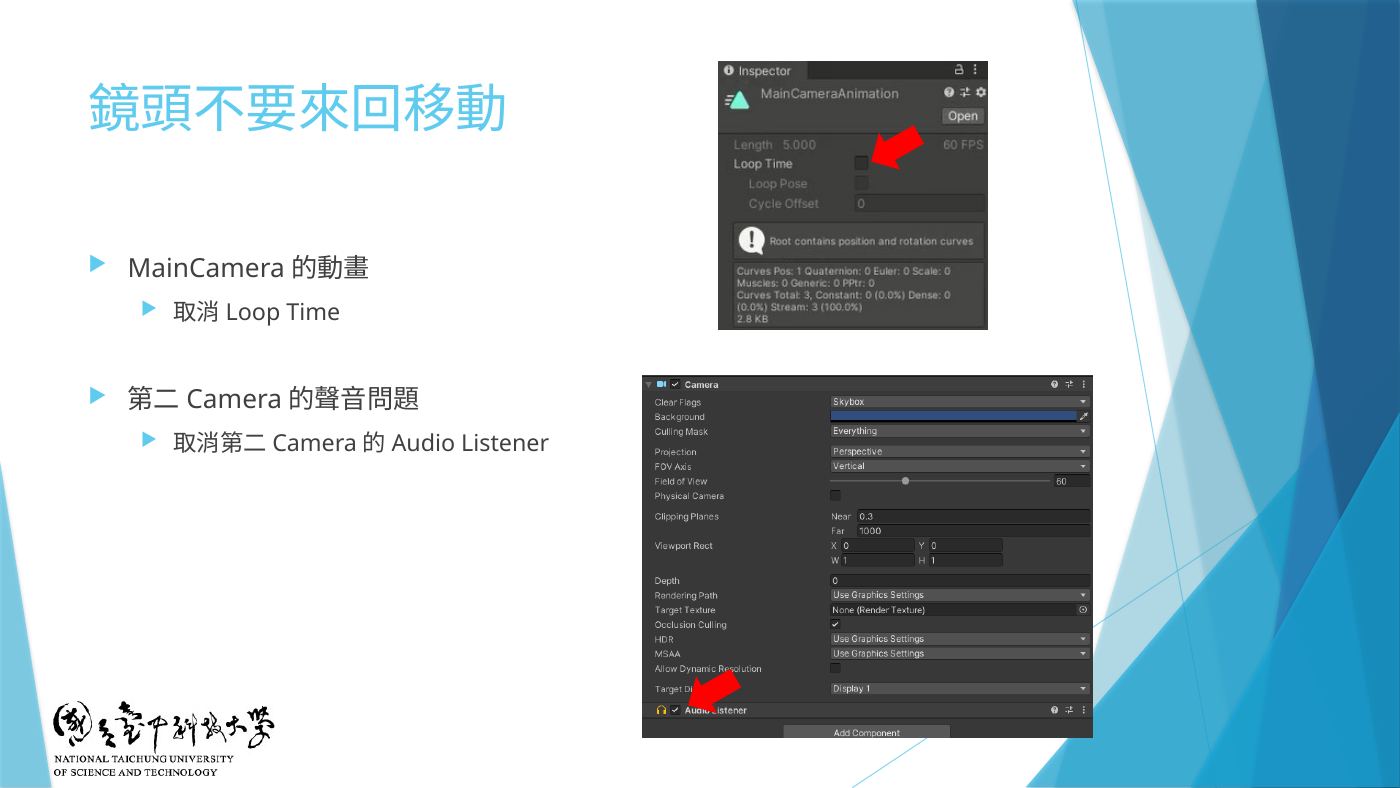
W3-19 鏡頭不要來回移動:取消 Loop Time;第二 Camera 取消 Audio Listener - 加音樂到 Boy(W3-18):mp3 直接拖進 Assets(或 Import New Asset)→ 選 Boy → Add Component → Audio → Audio Source → 把音樂拖到 AudioClip(Play On Awake 預設已勾)。
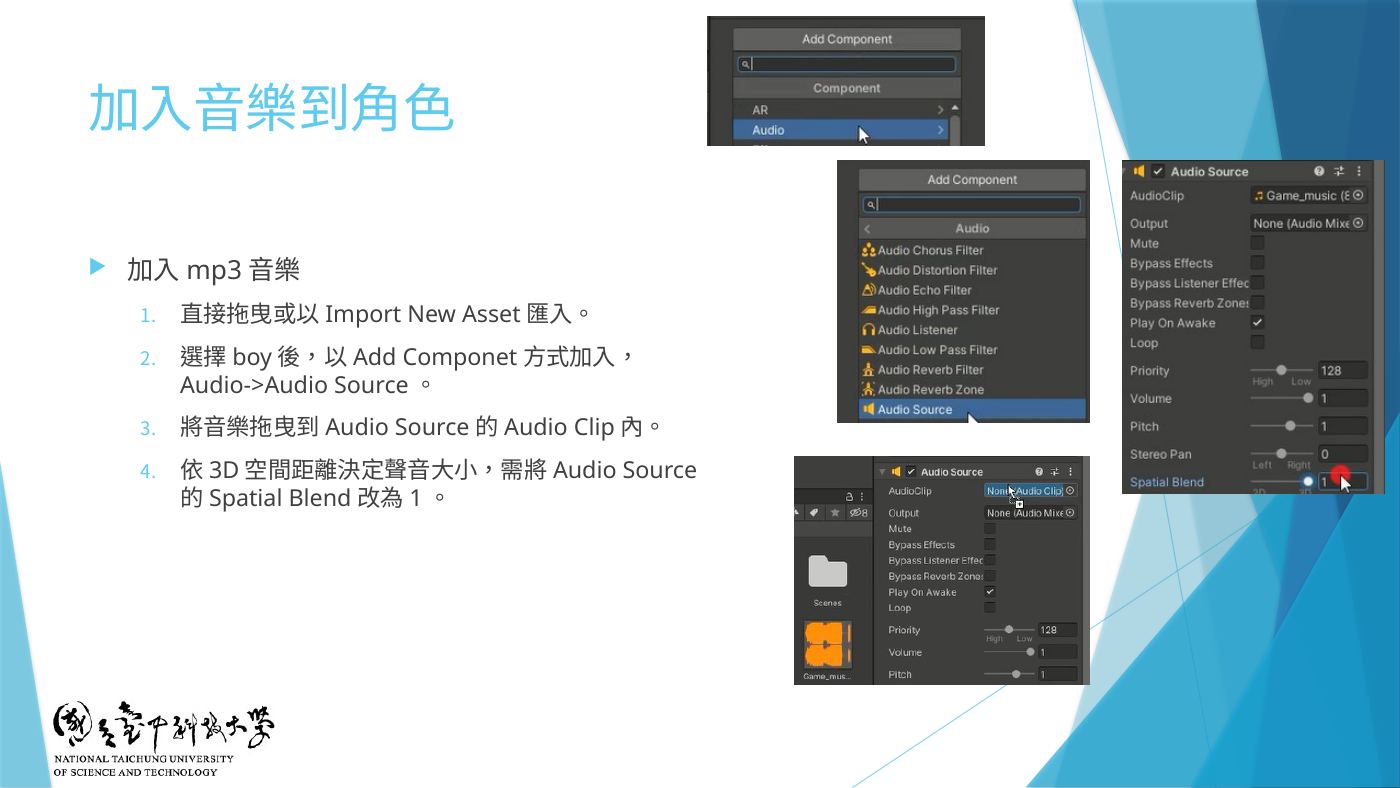
W3-18 加入音樂到角色:Audio Source、Audio Clip、Spatial Blend 改 1 - 地雷⚠️ 依 3D 距離決定大小聲:Audio Source Spatial Blend 改為 1(3D)(W3-18)。
- 補充(補充)拉遠變小聲不明顯時:展開 3D Sound Settings → Volume Rolloff 改
Linear Rolloff、Max Distance 設成跟相機最遠距離差不多(例 30)。 - 地雷⚠️ 場景只能有一個 Audio Listener(Main Camera 預設有)。若有新增第二個 Camera(W3-07、W3-12 的顯示器切換),要 取消第二個 Camera 的 Audio Listener(W3-19)。
- 聲音檢查(W3-20):沒聲音先用外部播放器試聽檔案 → 在 Unity 選音樂檔按 ▶ 試聽 → 還是不行就重開 Unity。▶ 測試:越拉遠聲音越小。
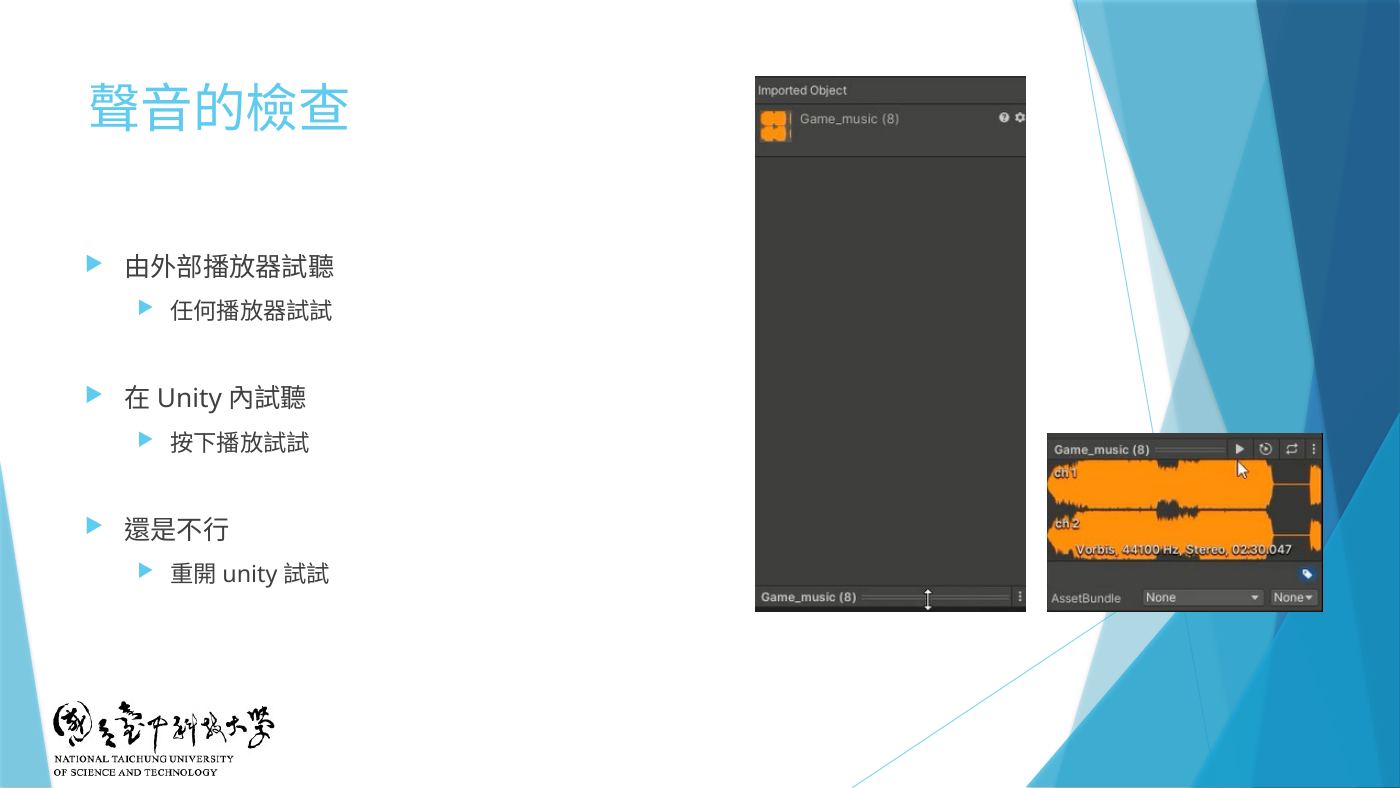
W3-20 聲音的檢查
第 8 題(10 分)Mixamo 下載指定人物 + 原材質配色
- mixamo.com 用 Adobe 帳號登入 → 左上 Characters → Search 打考卷給的人物名字 → 點人物 → USE THIS CHARACTER。
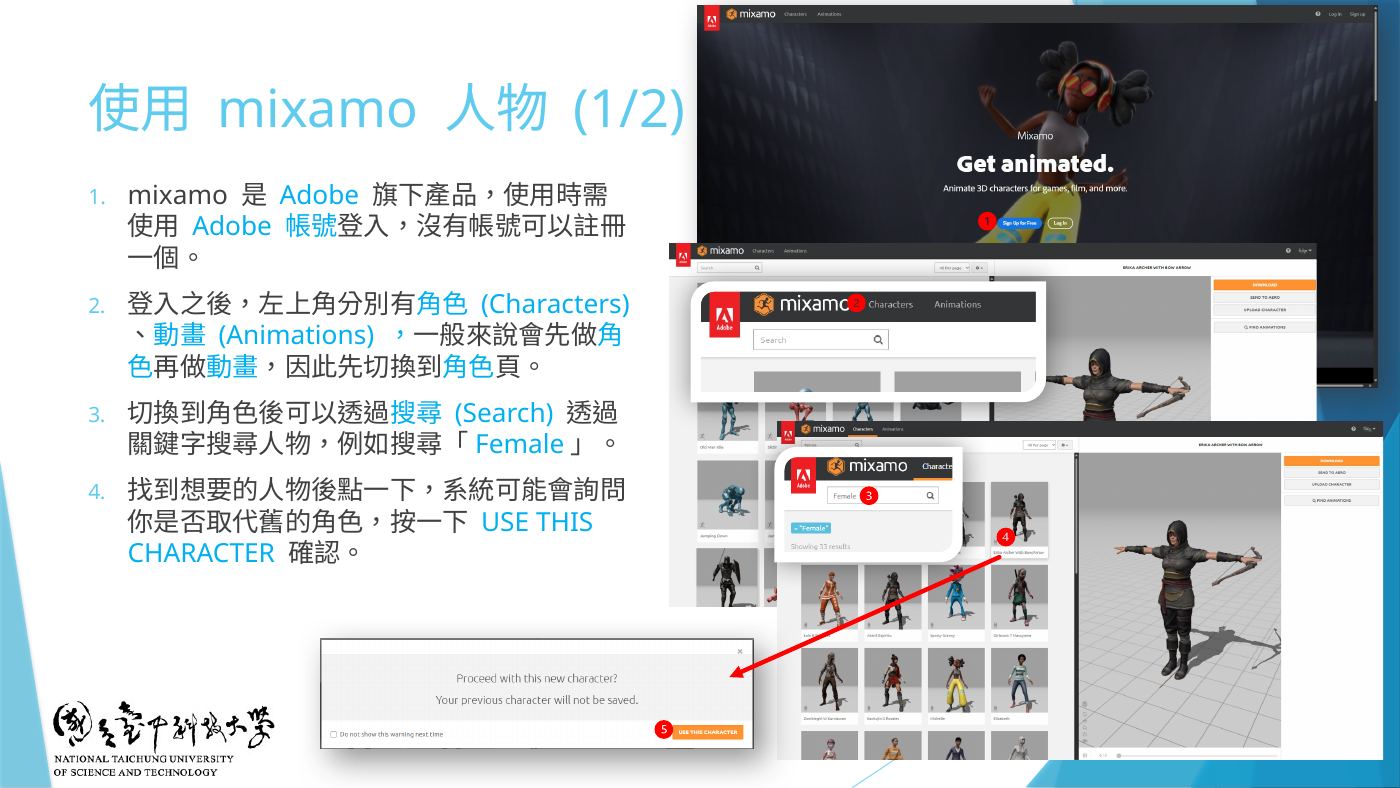
W6-30 使用 mixamo 人物:Characters、Search、USE THIS CHARACTER - 要下載沒動作的模型:動畫旁邊按 ✕ 移除動畫,恢復 T-Pose → DOWNLOAD → Format 改
FBX for Unity(.fbx)→ DOWNLOAD。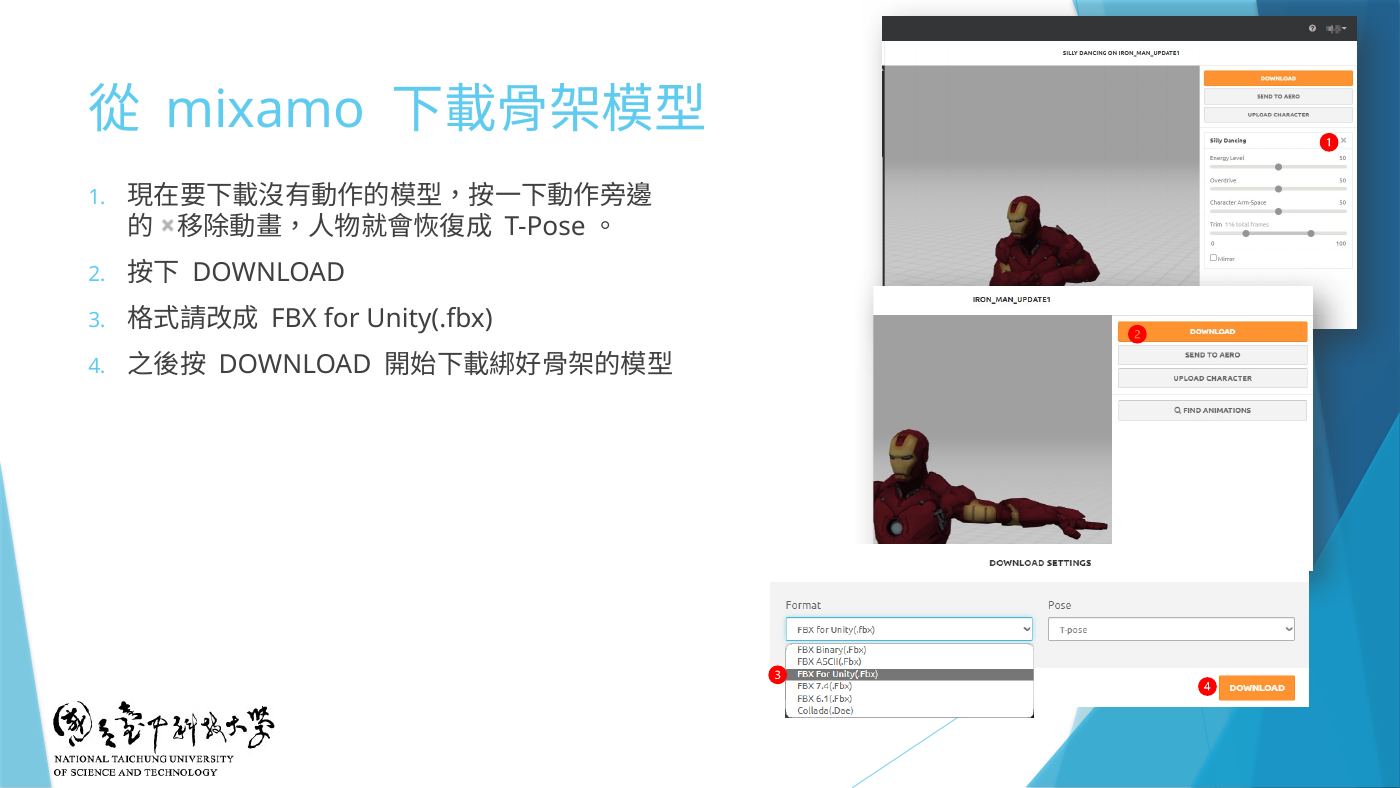
W6-33 從 mixamo 下載骨架模型:移除動畫 → DOWNLOAD → FBX for Unity - Unity Project 右鍵 Import New Asset(或直接拖)選 fbx → 拖到場景;看不到就在 Hierarchy 雙擊它聚焦。
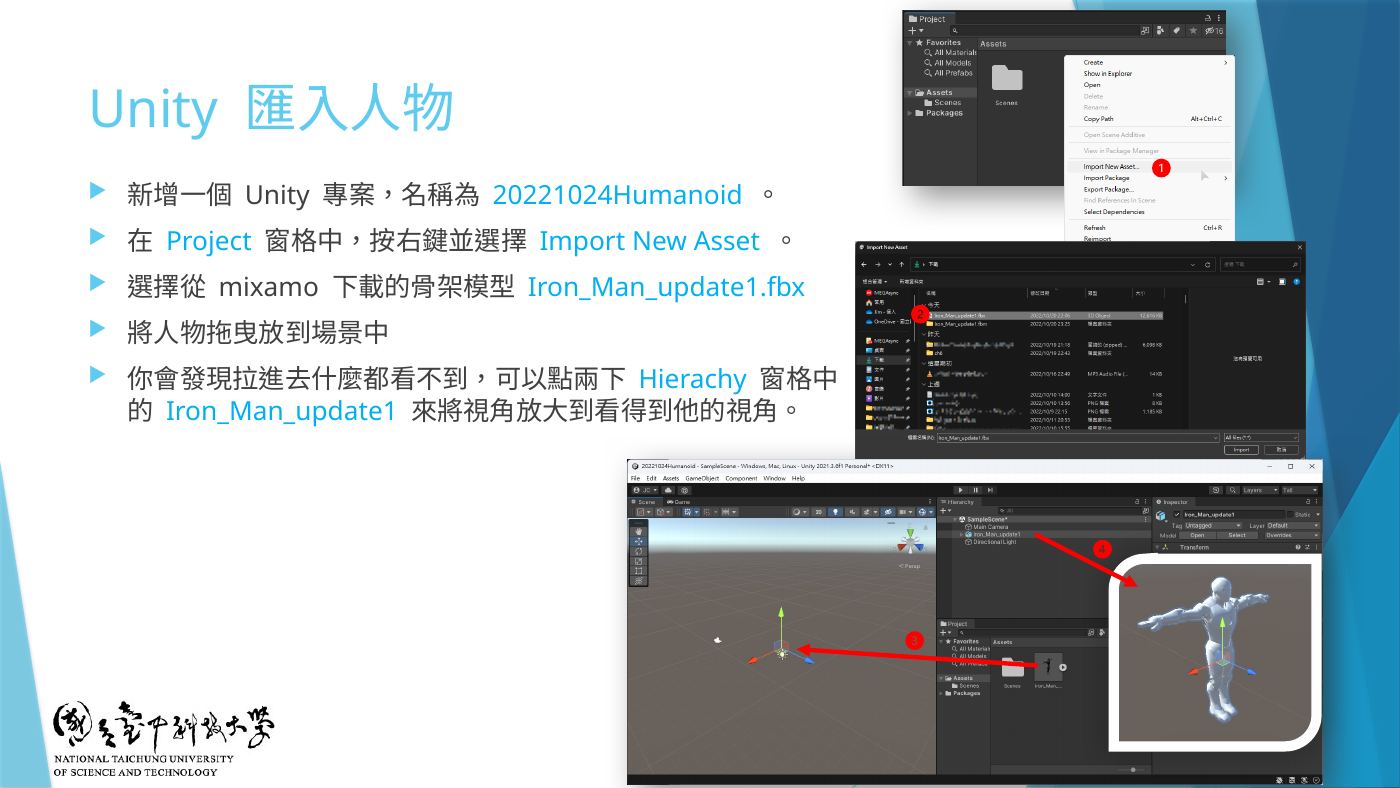
W6-34 Unity 匯入人物 - 地雷⚠️ 原材質配色:Project 點模型 → Inspector Materials 分頁 → Location =
Use External Materials (Legacy)→ Apply → 場景中的模型就有顏色了(W6-35 做法)。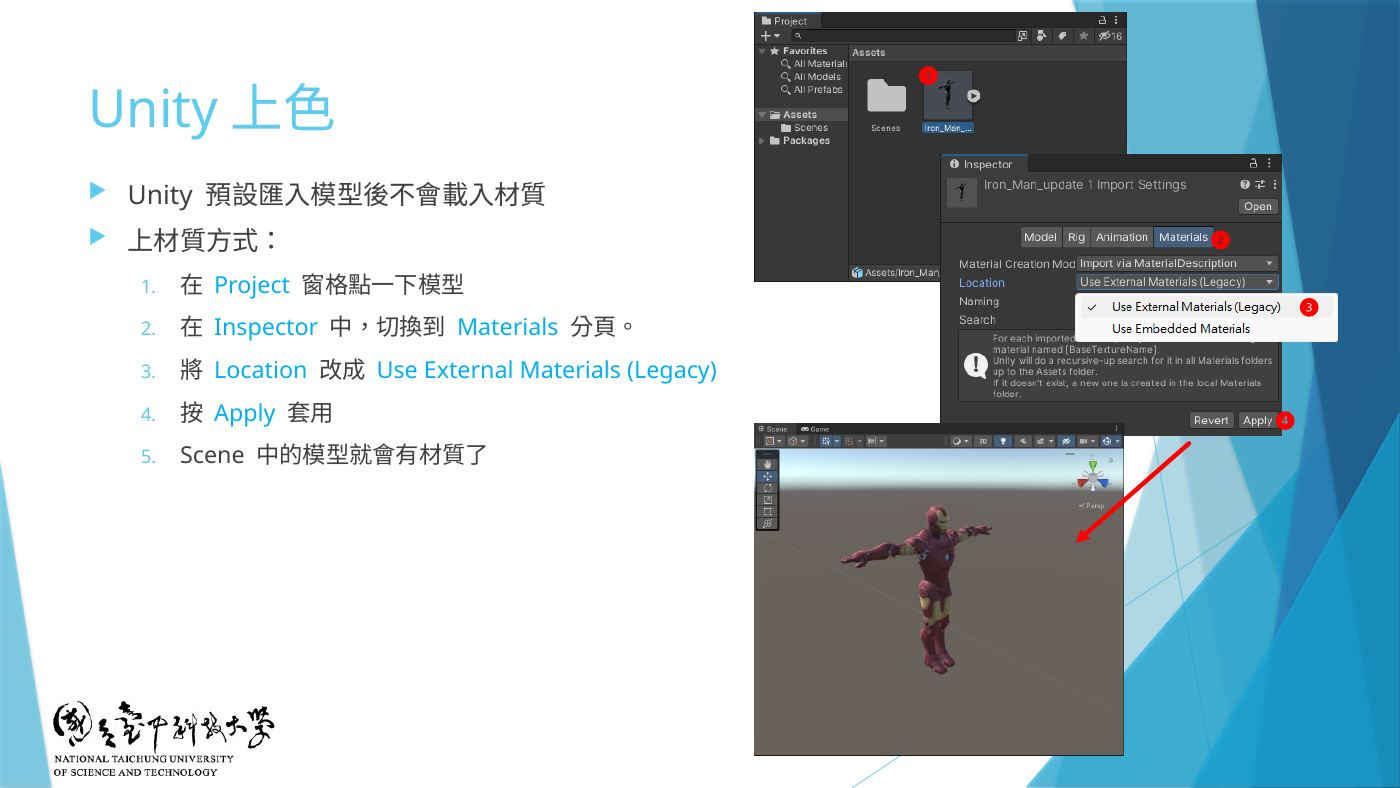
W6-35 Unity 上色:Materials 分頁 → Use External Materials (Legacy) → Apply - 補充另一種做法(補充):Location 保持
Use Embedded Materials→ 按 Extract Textures… 選資料夾(跳 Normal map 提示按 Fix now)→ 再按 Extract Materials…。任一做法有正確顏色即可。 - 地雷(下一題要用)Inspector Rig 分頁 → Animation Type 從
Generic改Humanoid→ Apply(W6-39)。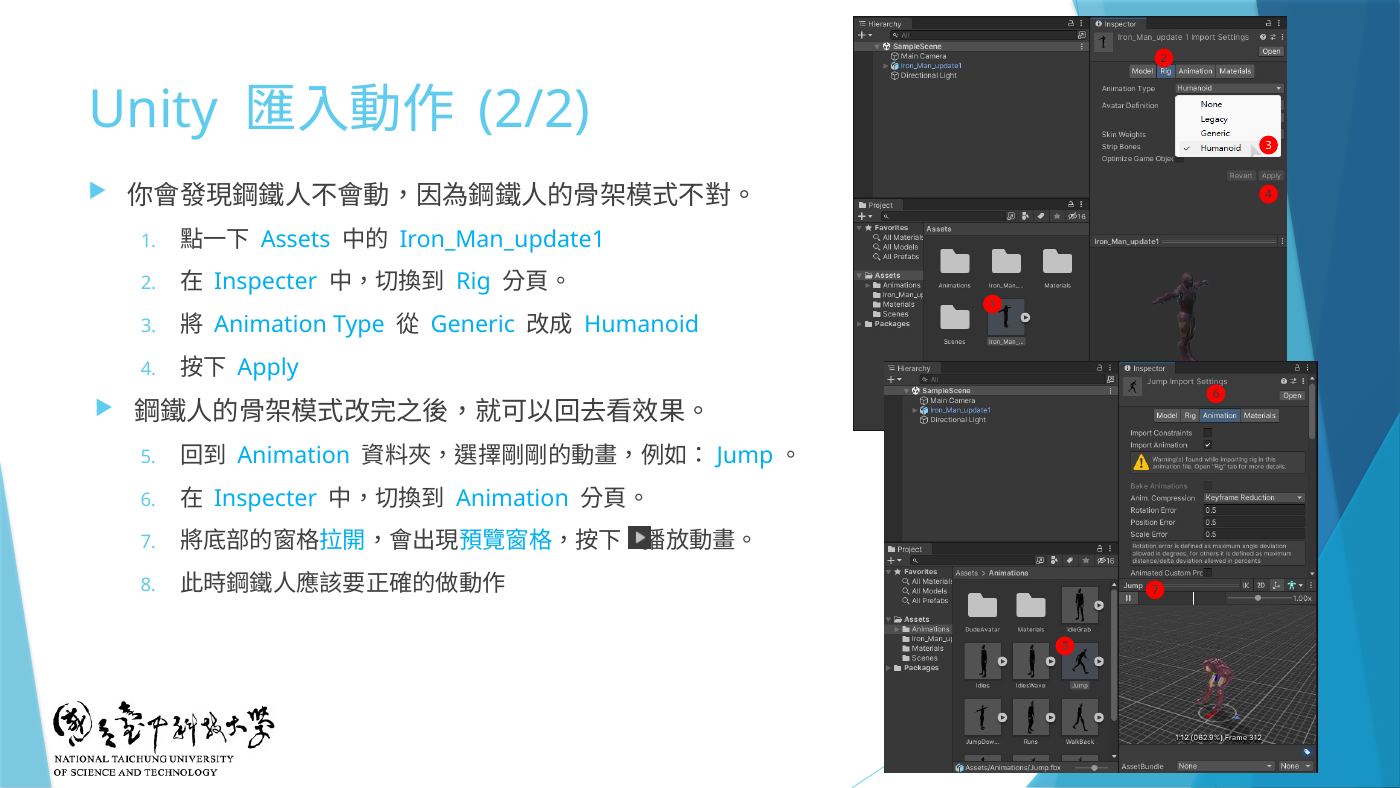
W6-39 Rig 分頁:Generic 改 Humanoid → Apply - (選做)人物高度約 1.5 公尺(W6-36 用 1.5 倍 Cube 對齊)。
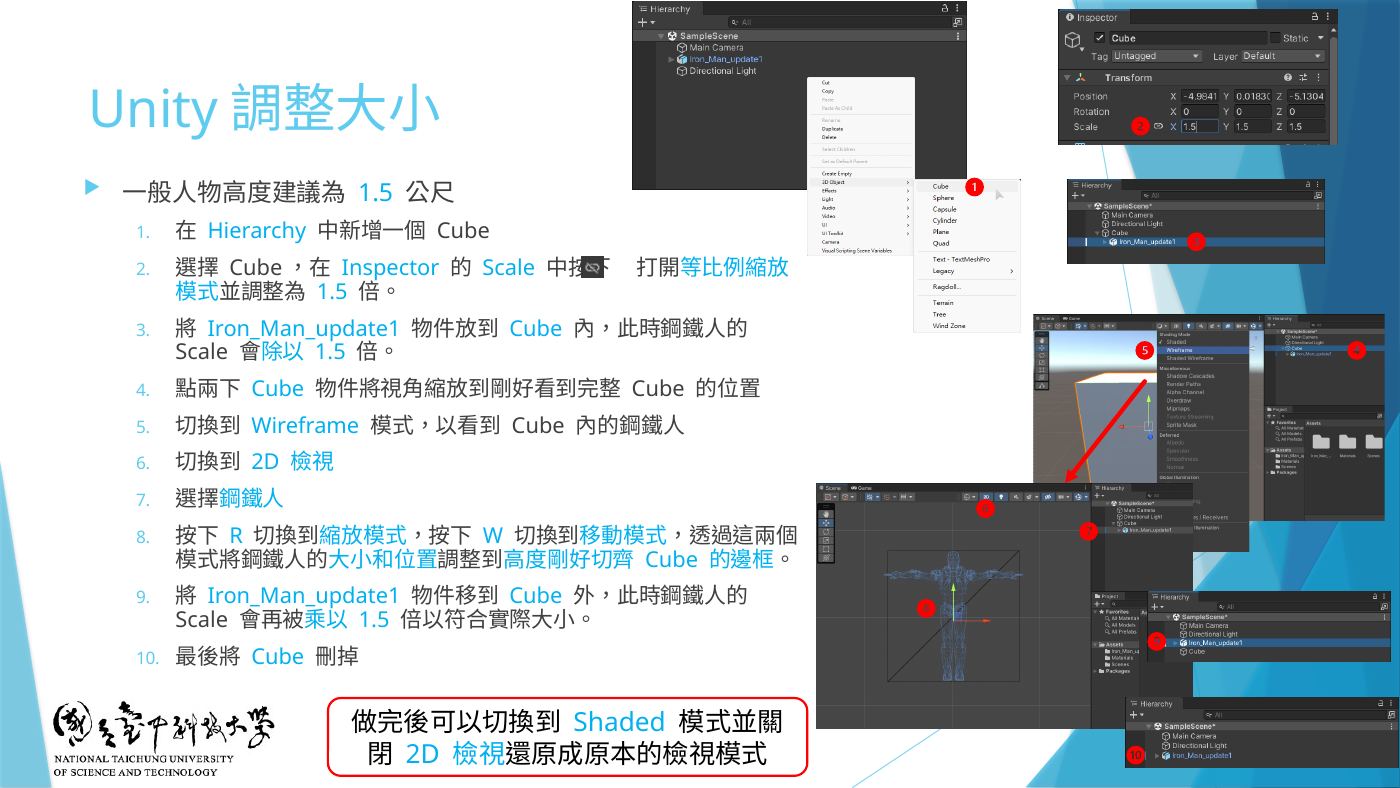
W6-36 Unity 調整大小
第 9 題地板 + 控制腳本 + 兩個 1D Blend Tree(idle、MoveBack)
以下照你自己做好、能動的 Animator 設定:參數 Speed、Direction;3 個 Blend Tree 狀態 idle(預設)、MoveBack、MoveFront;4 條轉換。動作來自 Standard Assets(Humanoid*、Stand*)和 W6 的 Animations.zip(WalkBack*)。
⚠️ 老師口述第 9 題的 1D(向後走)還包含「死掉 Dying」,你的設定沒有放 Dying,請跟老師確認是否一定要加。
⚠️ 老師口述第 9 題的 1D(向後走)還包含「死掉 Dying」,你的設定沒有放 Dying,請跟老師確認是否一定要加。
- 地板:Hierarchy 右鍵 3D Object → Plane → Inspector Position 按 ⋮ Reset → Scale 10×10×10(沒地板人物會一直往下掉)。
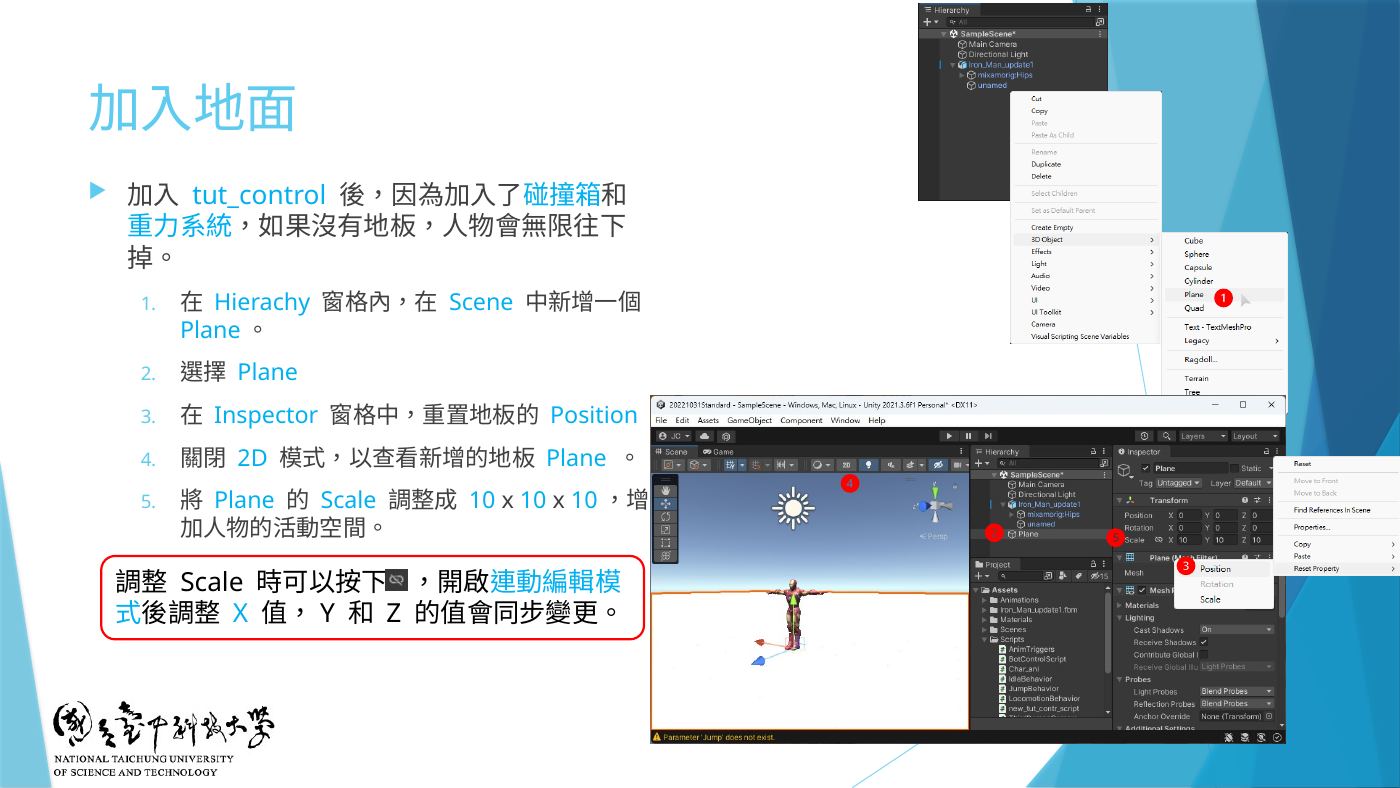
W7-12 加入地面:Plane、Reset Position、Scale 10x10x10 - 動作素材:Window → Package Manager → My Assets 匯入 Standard Assets 的 Characters(W7-05,提供 HumanoidIdle/Walk/Run、HumanoidWalkLeft/Right、HumanoidRunLeft/Right、StandHalfTurnLeft/Right);再把 W6 的 Animations 資料夾拖進 Project(提供 WalkBack、WalkBackTurnLeft/Right)。
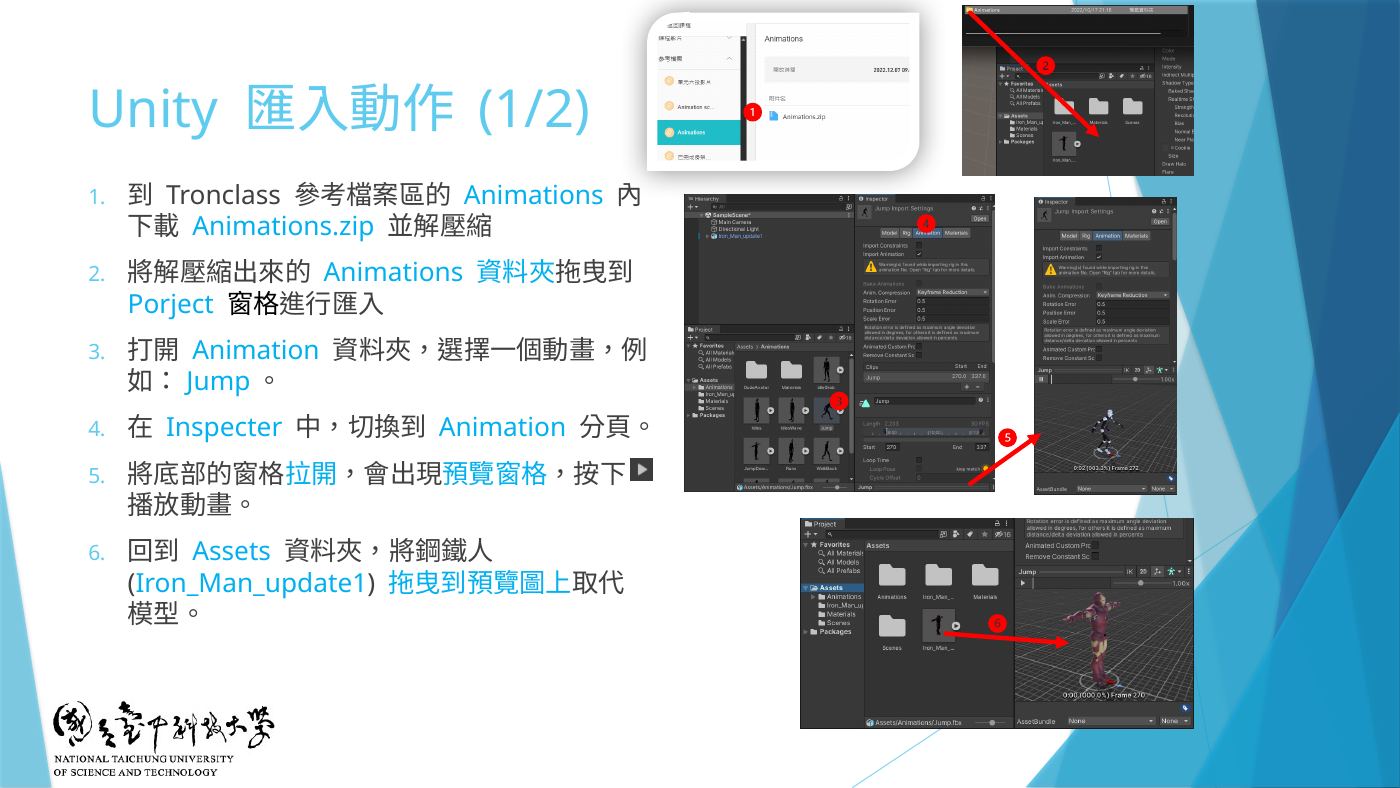
W6-38 Unity 匯入動作:Animations 資料夾、Animation 分頁預覽 - 人物模型 Rig → Animation Type = Humanoid → Apply(第 8 題已做就跳過,W6-39)。
- 把課程
tut_contr_script拖到 Hierarchy 的人物上 → 會自動加 Animator、Capsule Collider、Rigidbody(綠色膠囊)。這支腳本每幀把 ↑↓ 送進Speed、←→ 送進Direction。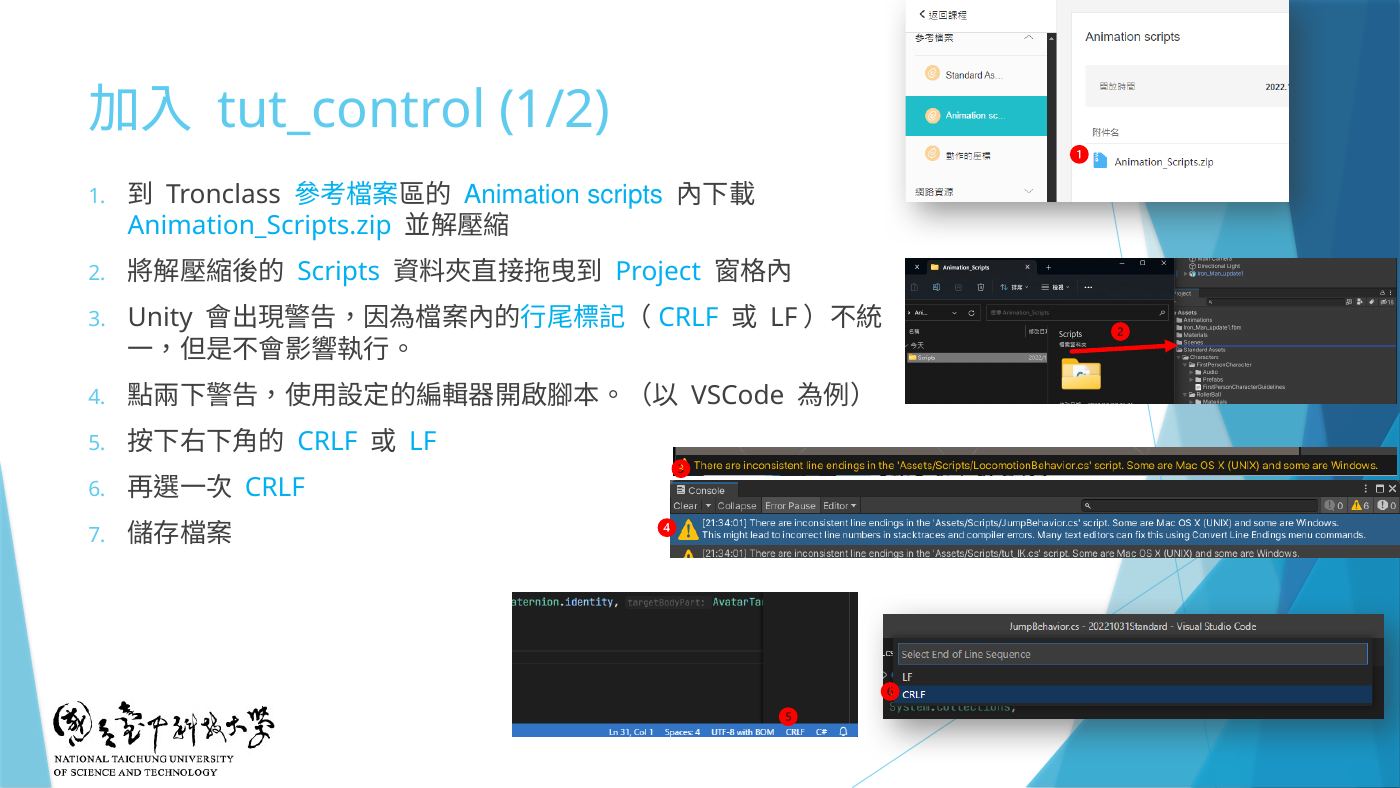
W7-08 匯入 Scripts、CRLF/LF 警告處理 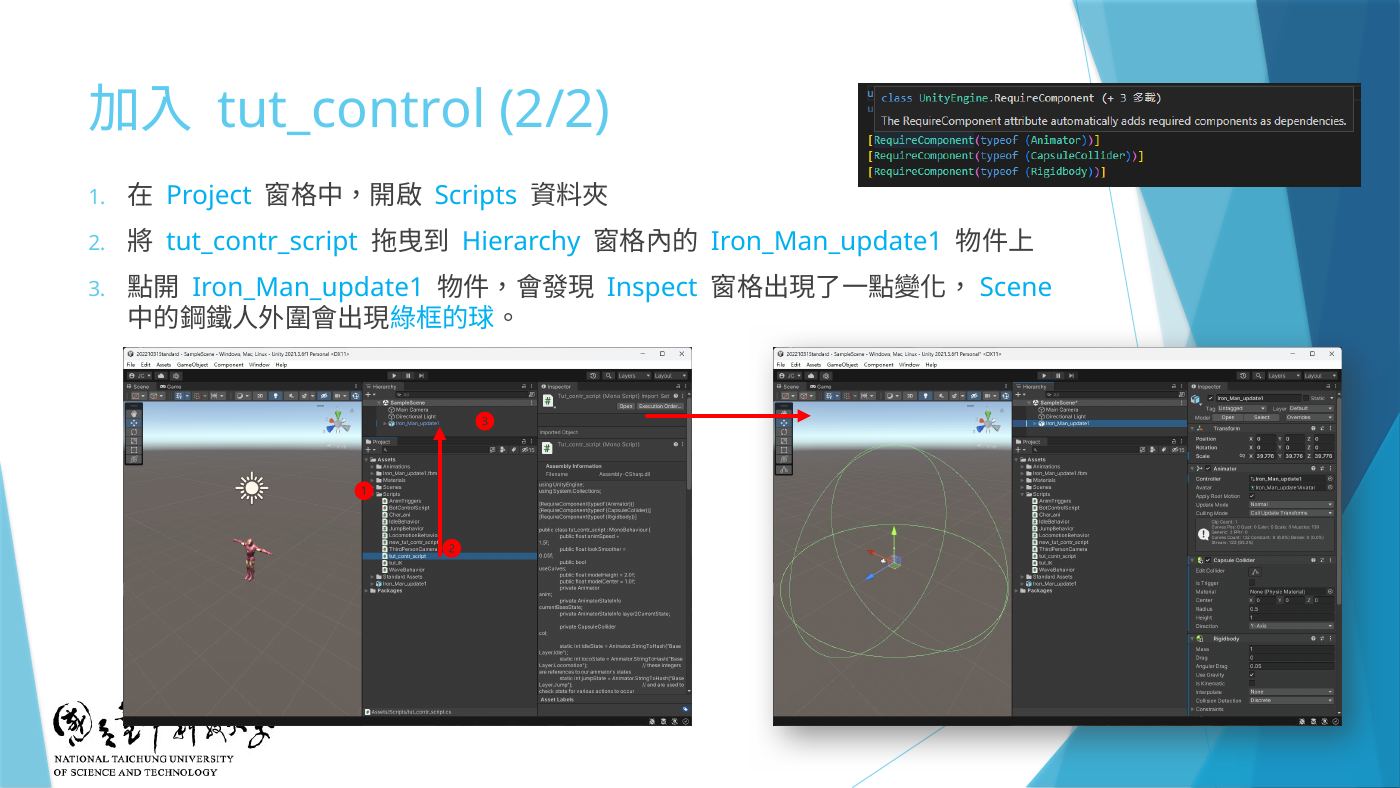
W7-09 tut_contr_script 拖到人物上 using UnityEngine; using System.Collections; [RequireComponent(typeof (Animator))] [RequireComponent(typeof (CapsuleCollider))] [RequireComponent(typeof (Rigidbody))] public class tut_contr_script : MonoBehaviour { public float animSpeed = 1.5f; public float lookSmoother = 0.05f; public bool useCurves; public float modelHeight = 2.0f; public float modelCenter = 1.0f; private Animator anim; private AnimatorStateInfo currentBaseState; private AnimatorStateInfo layer2CurrentState; private CapsuleCollider col; static int idleState = Animator.StringToHash("Base Layer.Idle"); static int locoState = Animator.StringToHash("Base Layer.Locomotion"); // these integers are references to our animator's states static int jumpState = Animator.StringToHash("Base Layer.Jump"); // and are used to check state for various actions to occur static int waveState = Animator.StringToHash("Layer2.Wave"); void Start () { anim = GetComponent<Animator>(); col = GetComponent<CapsuleCollider>(); if(anim.layerCount ==2) anim.SetLayerWeight(1, 1); } void Update () { float h = Input.GetAxis("Horizontal"); // setup h variable as our horizontal input axis float v = Input.GetAxis("Vertical"); // setup v variables as our vertical input axis anim.SetFloat("Speed", v); // set our animator's float parameter 'Speed' equal to the vertical input axis anim.SetFloat("Direction", h, lookSmoother, Time.deltaTime); // set our animator's float parameter 'Direction' equal to the horizontal input axis anim.speed = animSpeed; // set the speed of our animator to the public variable 'animSpeed' currentBaseState = anim.GetCurrentAnimatorStateInfo(0); // set our currentState variable to the current state of the Base Layer (0) of animation if(anim.layerCount ==2) layer2CurrentState = anim.GetCurrentAnimatorStateInfo(1); // set our layer2CurrentState variable to the current state of the second Layer (1) of animation if (currentBaseState.fullPathHash == locoState) { if(Input.GetButtonDown("Jump")) anim.SetBool("Jump", true); } else if(currentBaseState.fullPathHash == jumpState) { if(!anim.IsInTransition(0)) { if(useCurves) col.height = anim.GetFloat("ColliderHeight")/2.0f * modelHeight; anim.SetBool("Jump", false); } Ray ray = new Ray(transform.position + Vector3.up, -Vector3.up); RaycastHit hitInfo = new RaycastHit(); if (Physics.Raycast(ray, out hitInfo)) { if (hitInfo.distance > 1.75f) anim.MatchTarget(hitInfo.point, Quaternion.identity, AvatarTarget.Root, new MatchTargetWeightMask(new Vector3(0, 1, 0), 0), 0.35f, 0.5f); } } else if (currentBaseState.fullPathHash == idleState) { if(Input.GetButtonUp("Jump")) { anim.SetBool("Wave", true); } } if(layer2CurrentState.fullPathHash == waveState) { anim.SetBool("Wave", false); } } } - 地雷Rigidbody → Constraints → Freeze Rotation X Y Z 全勾(防摔倒)、Mass = 60(防浮起);Capsule Collider 的 Height/Center Y 複製到腳本的 Model Height/Model Center。
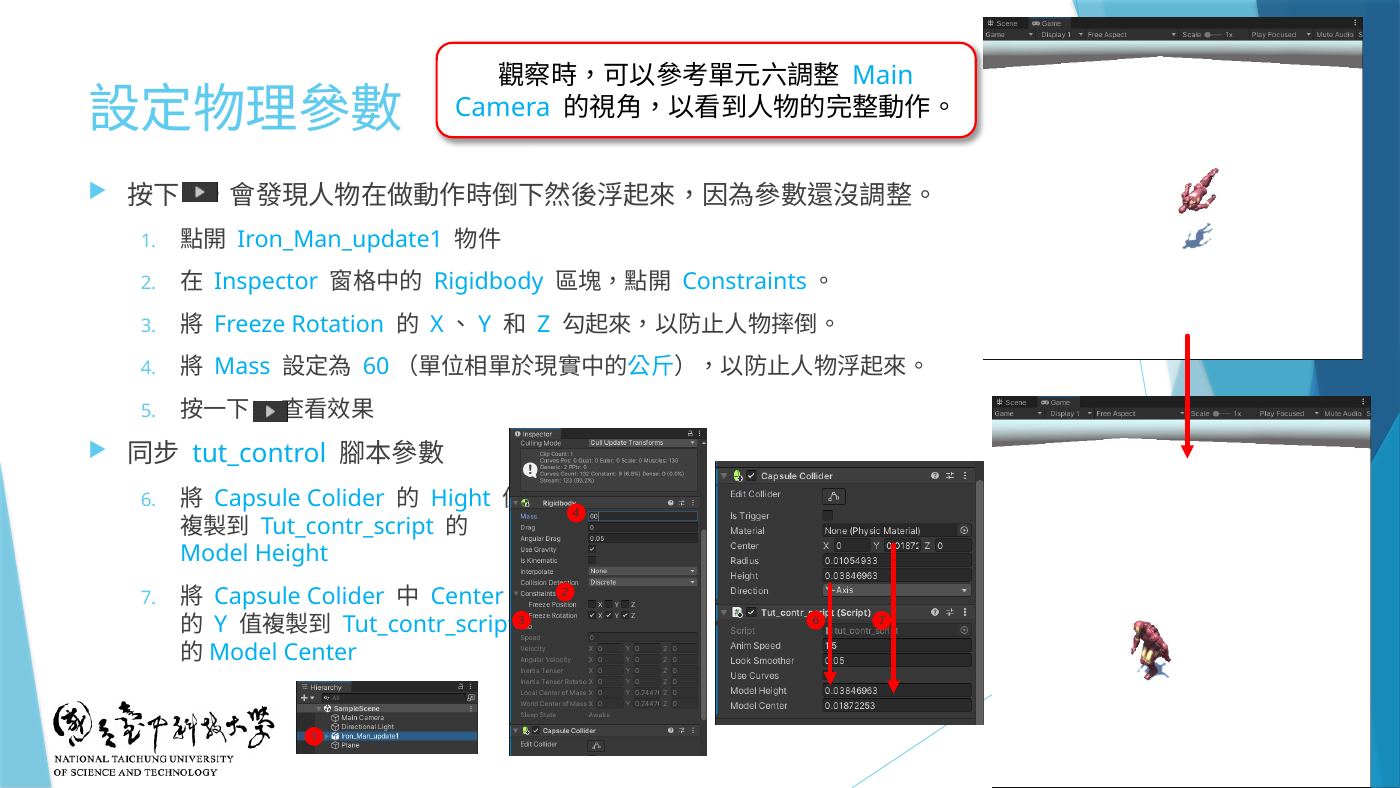
W7-13 設定物理參數:Freeze Rotation、Mass 60、同步 Model Height/Center - 地雷雙擊 Animator 的 Controller 打開 Animator 視窗 → Parameters 分頁建 2 個 Float:
Speed、Direction。⚠️ 大小寫要一模一樣、不能多空格,腳本靠名稱抓。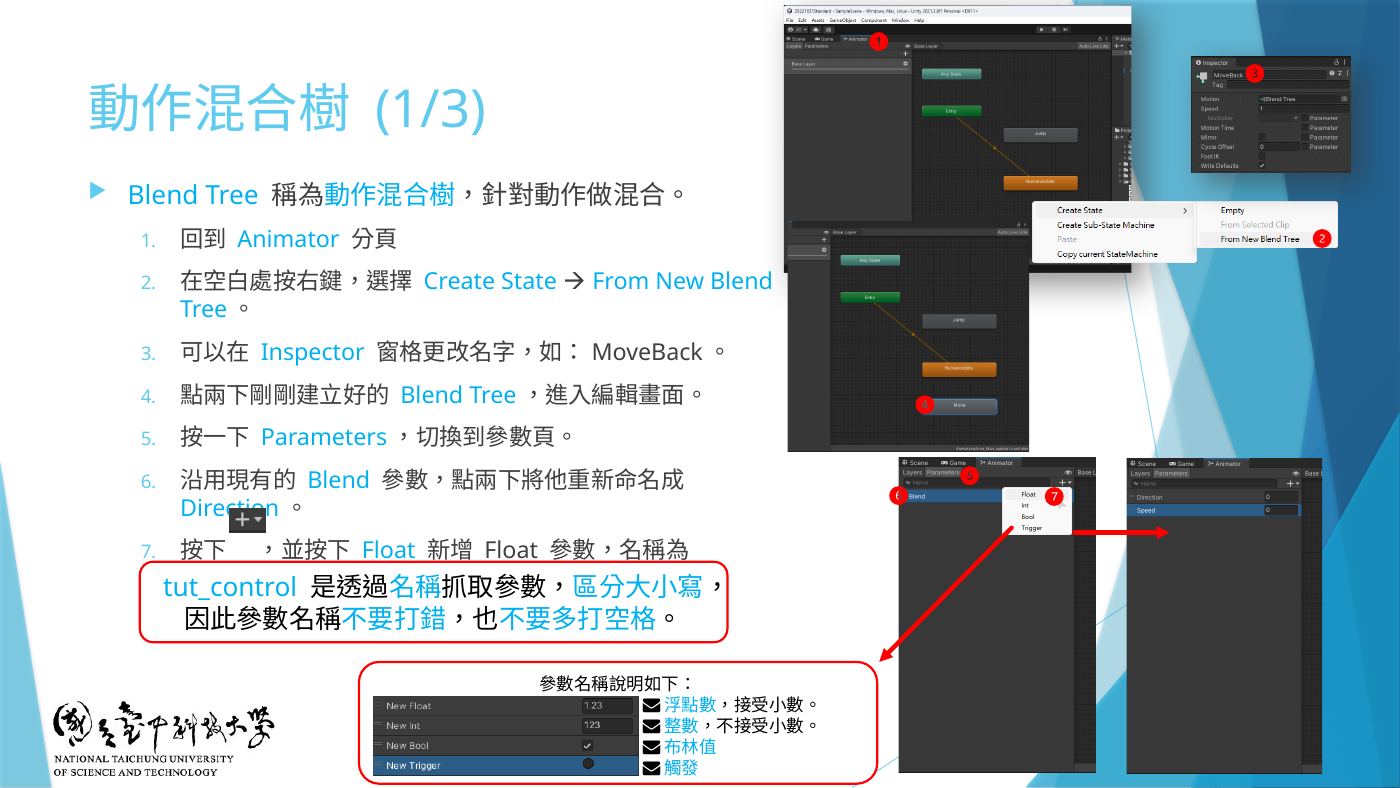
W7-15 Create State → From New Blend Tree、Parameters 改 Direction、新增 Speed - 地雷1D Blend Tree「idle」(原地左轉、Idle、原地右轉):Base Layer 空白處右鍵 Create State → From New Blend Tree → 名稱改
idle→ 雙擊進入 → 點 Blend Tree → Inspector:
• Blend Type = 1D、Parameter = Direction
• + Add Motion Field ×3,取消勾選 Automate Thresholds
•StandHalfTurnLeft= -1
•HumanoidIdle= 0
•StandHalfTurnRight= 1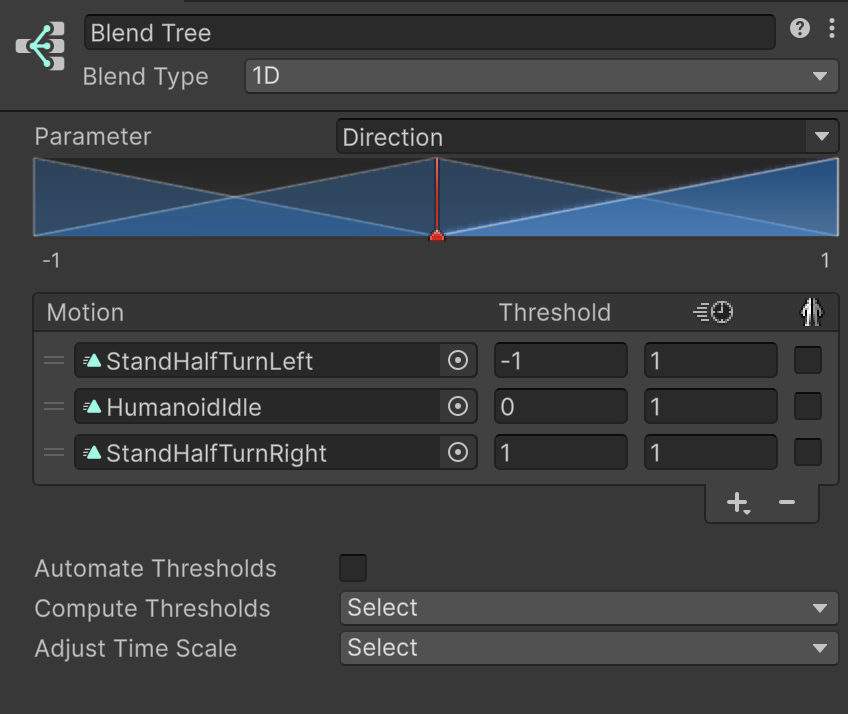
你的截圖:idle Blend Tree — 1D、Direction、StandHalfTurnLeft -1 / HumanoidIdle 0 / StandHalfTurnRight 1 - 回 Base Layer → 對 idle 按右鍵 → Set as Layer Default State(變橘色,Entry 箭頭指向它,W7-14)。
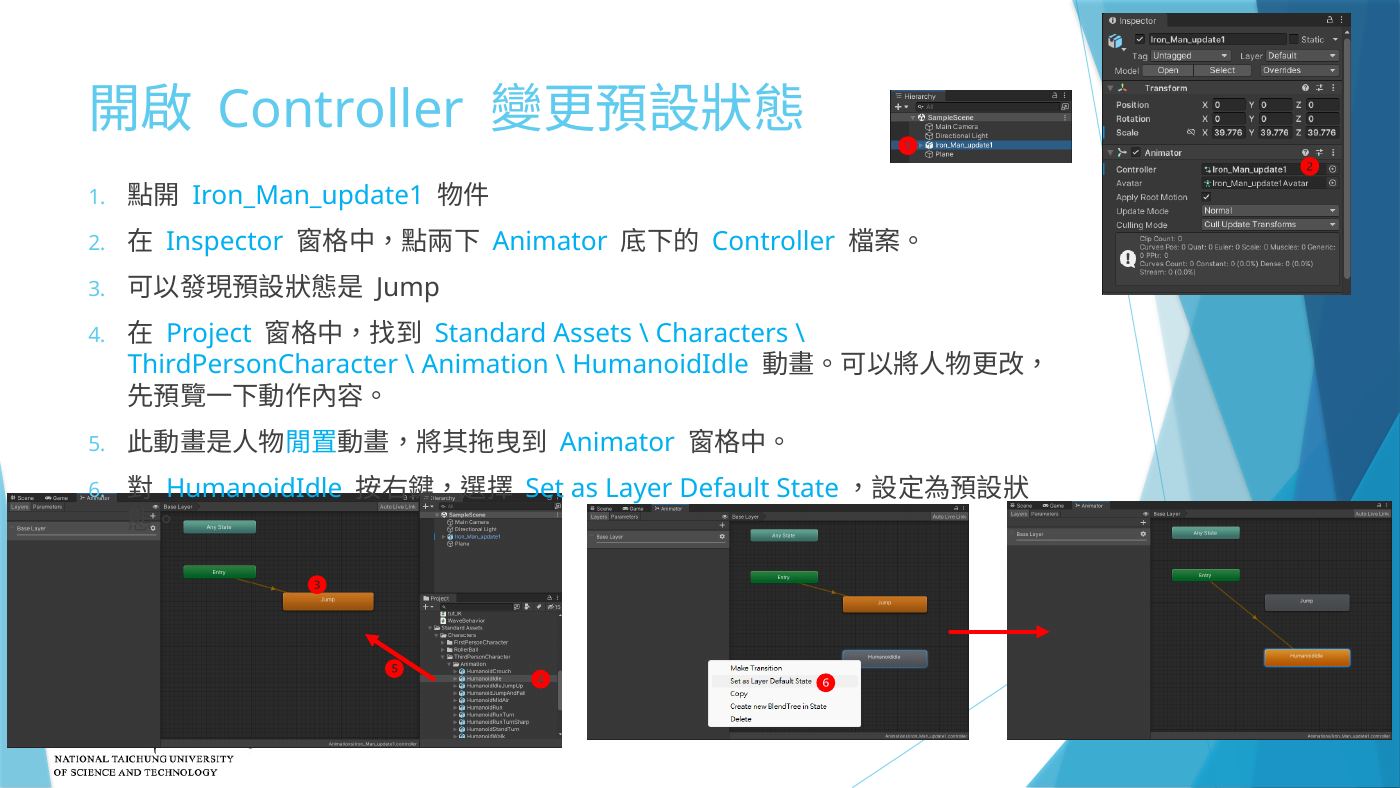
W7-14 Set as Layer Default State - 地雷1D Blend Tree「MoveBack」(向後走、後退左轉、後退右轉):再 Create State → From New Blend Tree → 名稱
MoveBack→ 雙擊進入 → Inspector:
• Blend Type = 1D、Parameter = Direction
• Add Motion Field ×3,取消勾選 Automate Thresholds(預設 0~1 不適合 -1~1 的左右鍵)
•WalkBackTurnLeft= -1
•WalkBack= 0
•WalkBackTurnRight= 1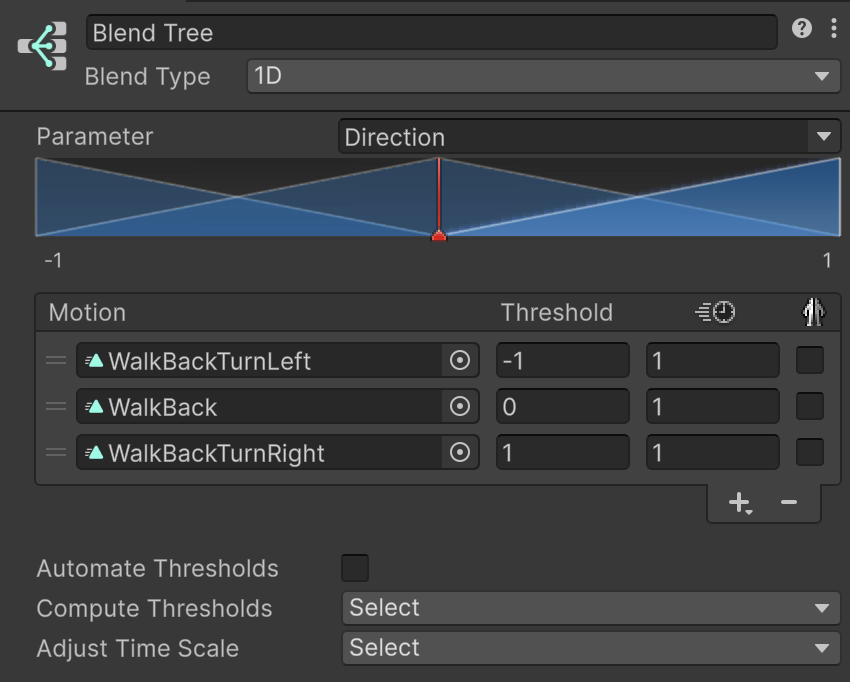
你的截圖:MoveBack Blend Tree — 1D、Direction、WalkBackTurnLeft -1 / WalkBack 0 / WalkBackTurnRight 1,Automate Thresholds 未勾 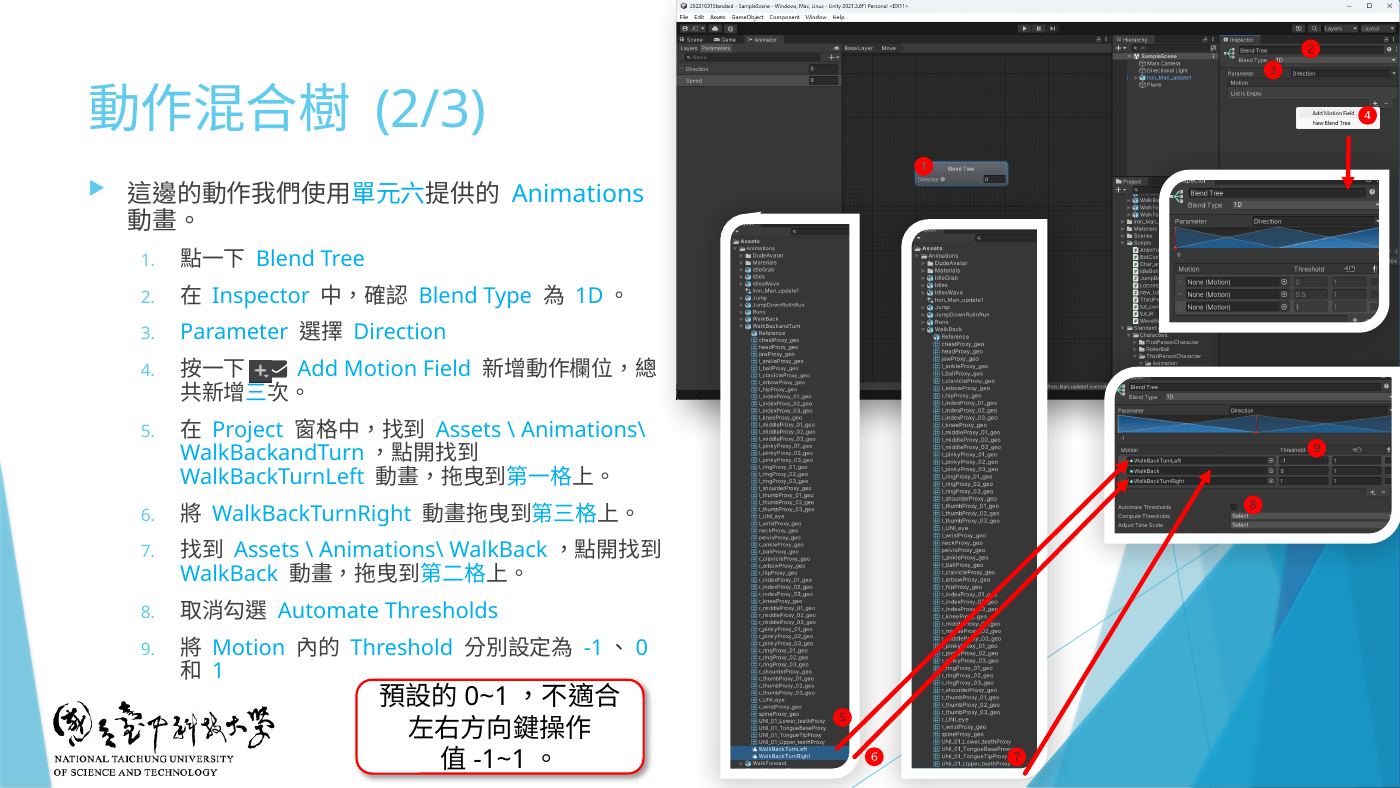
W7-16 動作混合樹 (2/3):課堂同樣的 MoveBack 設定 - 預覽:Blend Tree 畫面右下預覽 ▶(可選 Unity Model),拉 Direction 拉桿看動作變化(W7-17)。
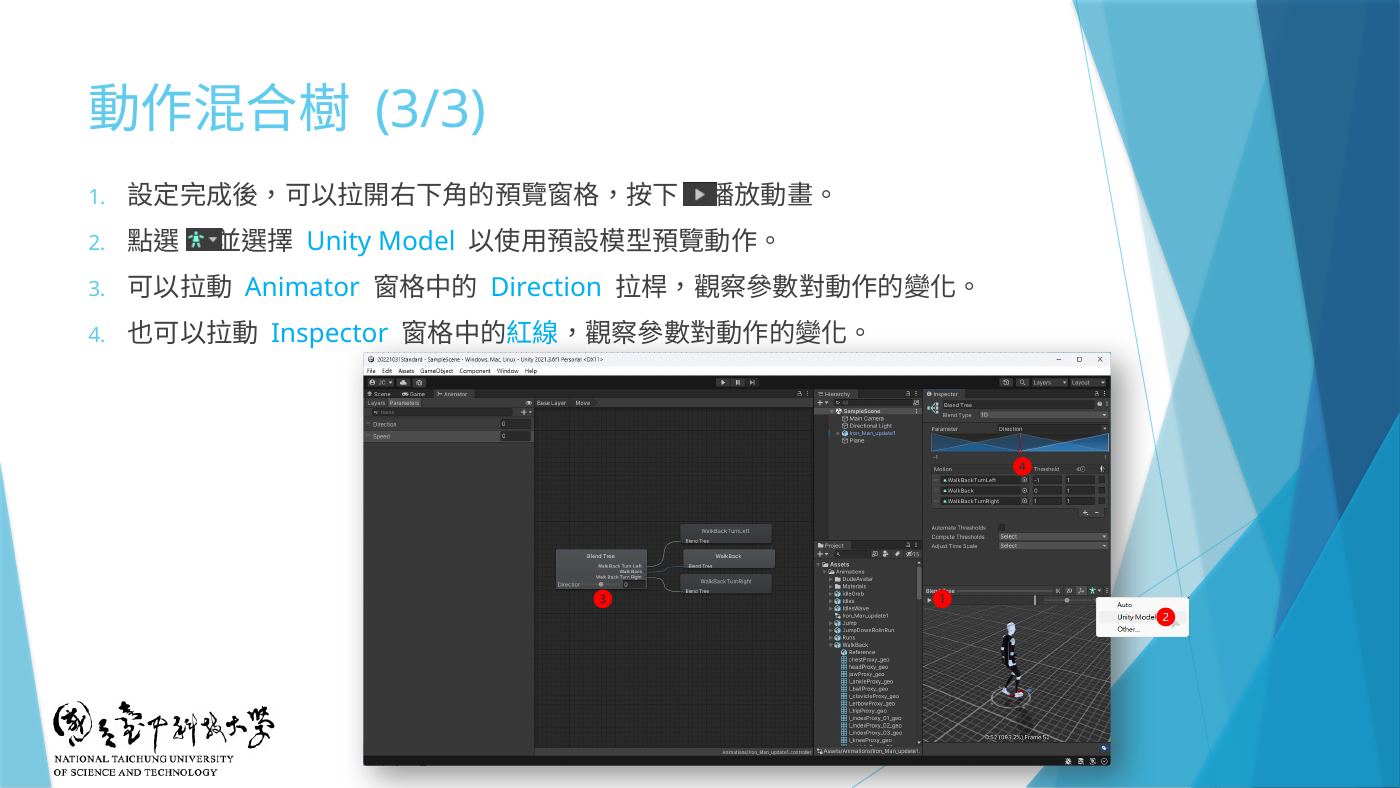
W7-17 預覽 Blend Tree - 地雷轉換 idle → MoveBack:對 idle 右鍵 Make Transition → 點 MoveBack → 點白色箭頭 → Has Exit Time 取消勾選 → Conditions + →
SpeedLess-0.1。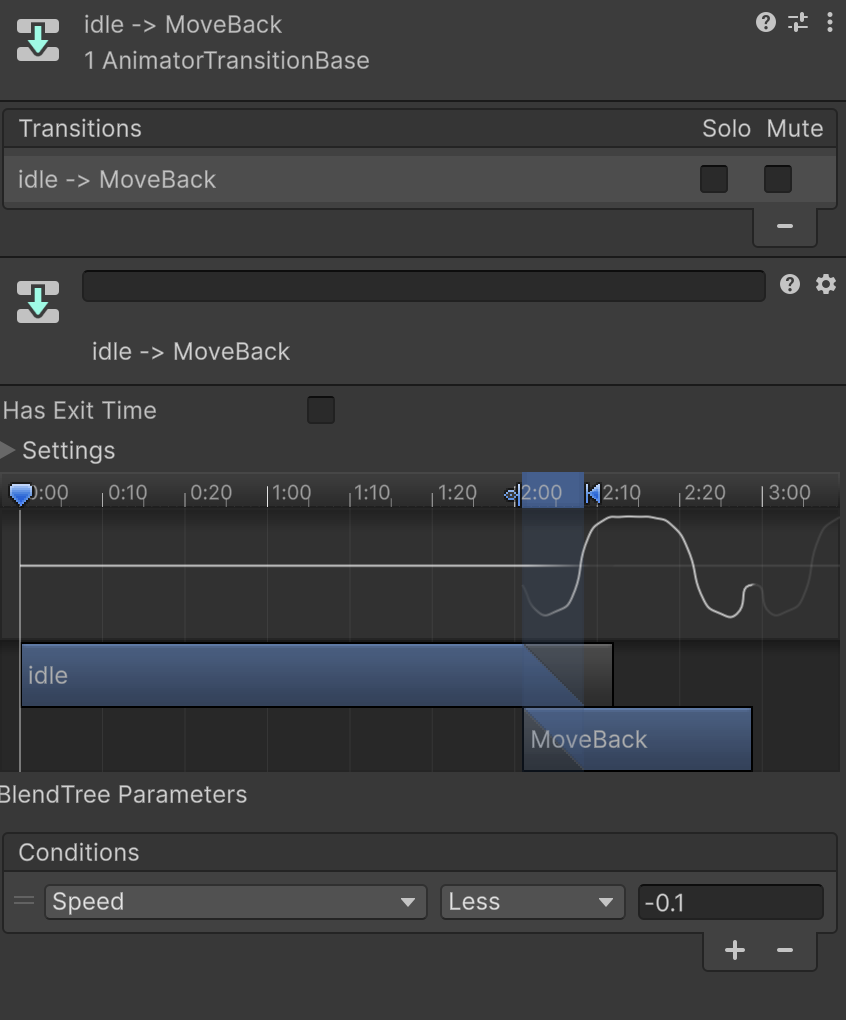
你的截圖:idle -> MoveBack,Has Exit Time 未勾,Speed Less -0.1 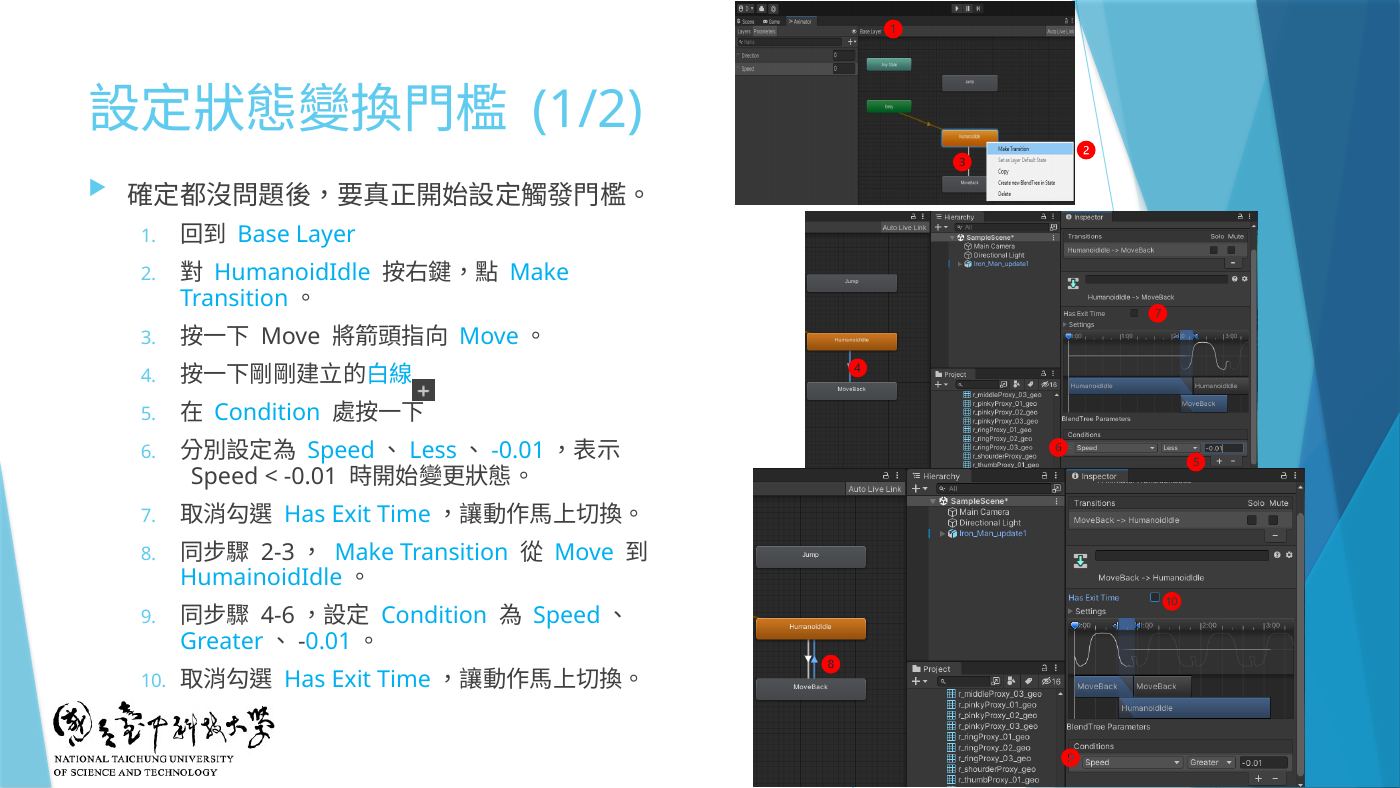
W7-18 設定狀態變換門檻:Make Transition、Condition、取消 Has Exit Time - 地雷轉換 MoveBack → idle:對 MoveBack 右鍵 Make Transition → idle → Has Exit Time 取消勾選 →
SpeedGreater-0.1。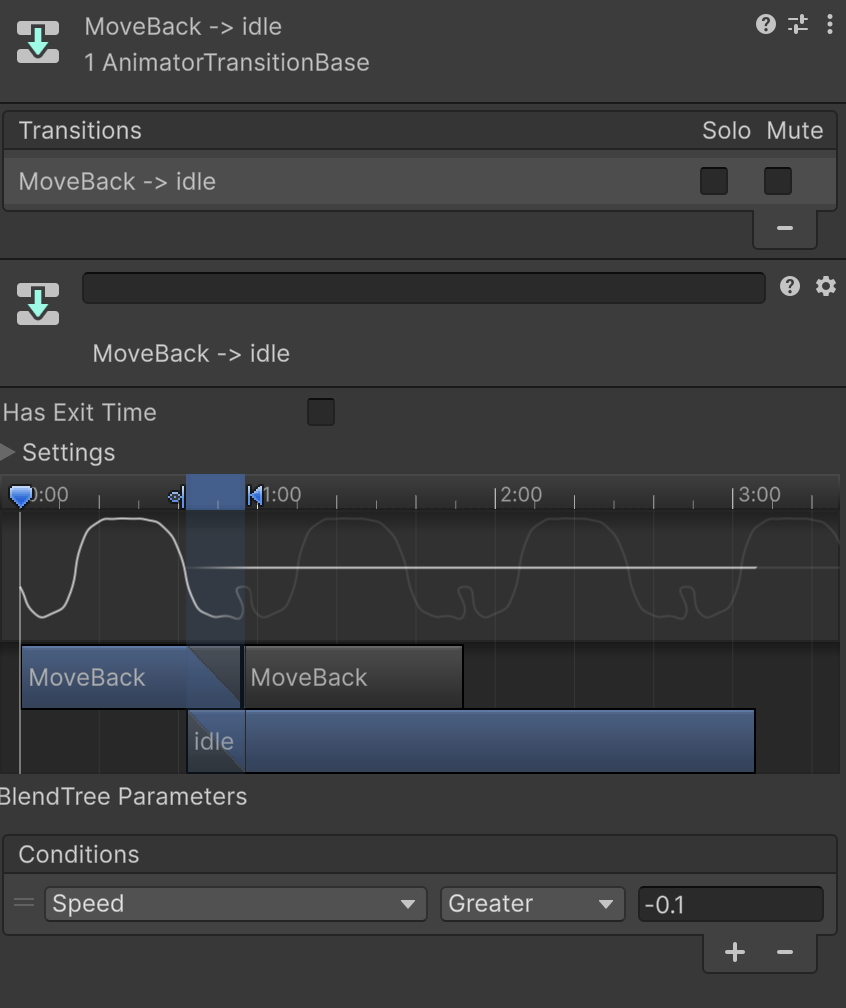
你的截圖:MoveBack -> idle,Has Exit Time 未勾,Speed Greater -0.1 - ▶ 測試:不按鍵 Idle;← → 原地轉;↓ 向後走;↓+←/→ 後退轉彎(W7-19)。Main Camera 視角可用 GameObject → Align With View 調(W3-11)。
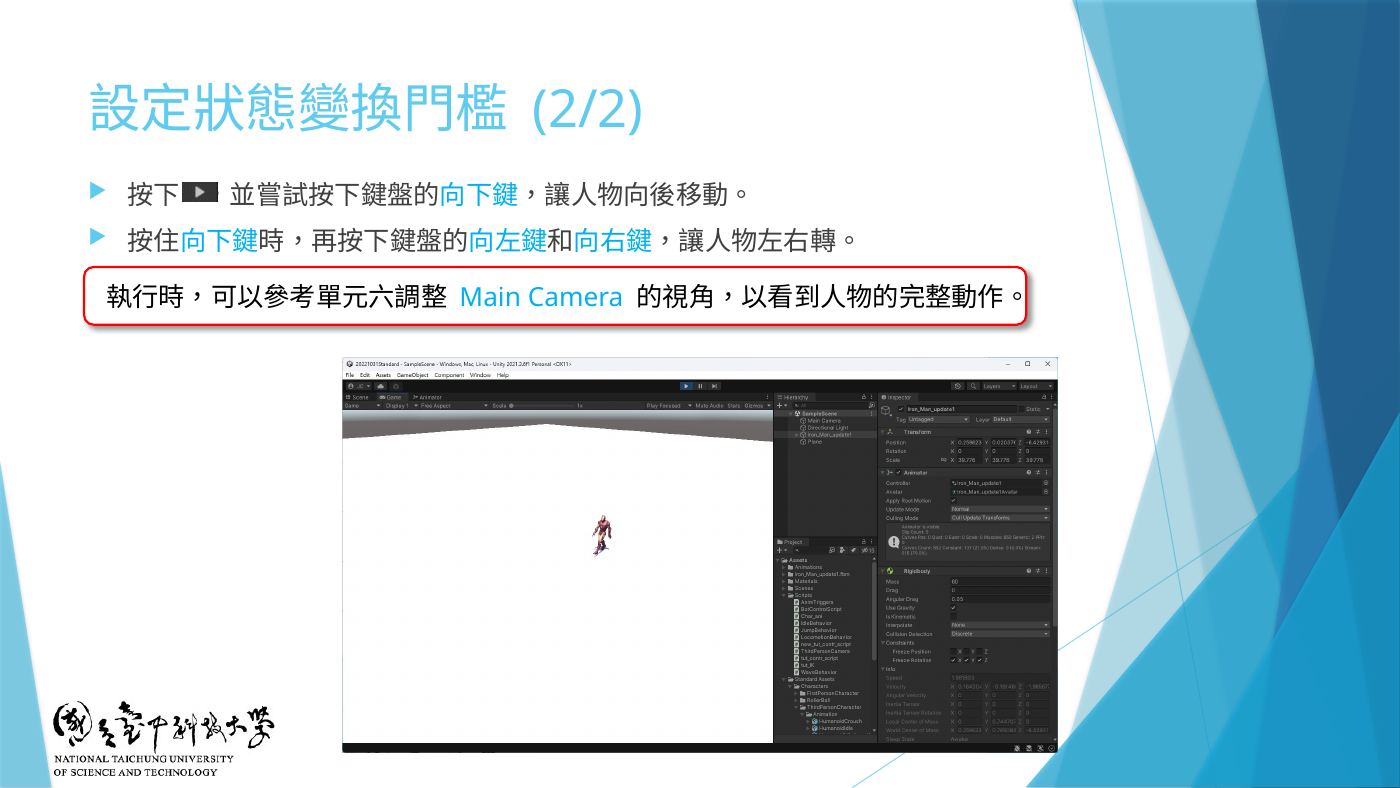
W7-19 Play 測試向下鍵與左右鍵 - 補充若 Console 出現 You are trying to read Input using the UnityEngine.Input class…:Edit → Project Settings → Player → Active Input Handling = Both,重開 Unity。
第 10 題(10 分)一個 2D Blend Tree「MoveFront」:向前走、左轉、右轉、向前跑
- Base Layer 空白處右鍵 Create State → From New Blend Tree → 名稱
MoveFront→ 雙擊進入。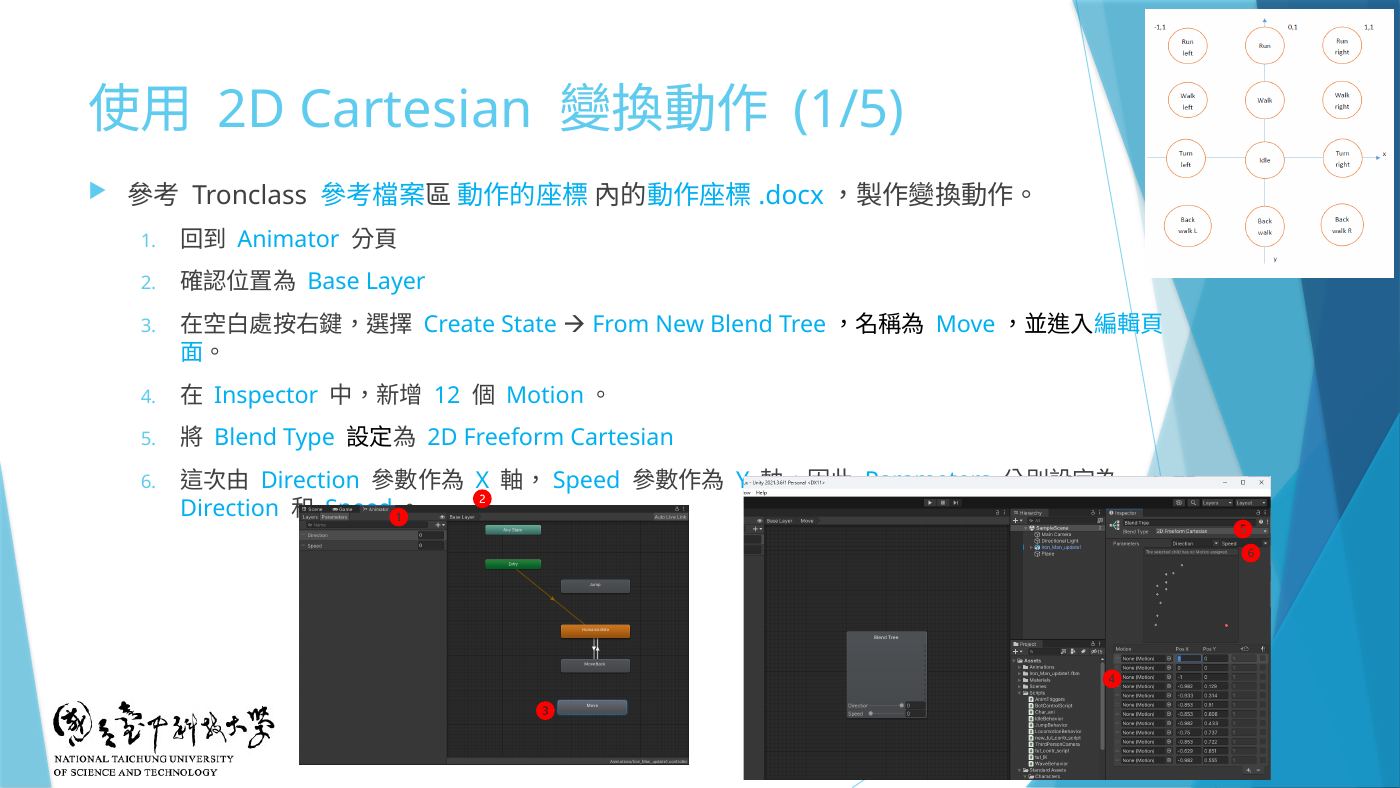
W7-20 Create State → From New Blend Tree、2D Freeform Cartesian、Parameters Direction / Speed - 地雷⚠️ 點 Blend Tree → Inspector Blend Type =
2D Freeform Cartesian,Parameters:左邊 Direction(X)、右邊 Speed(Y)。 - 地雷+ Add Motion Field ×6,填 Pos X/Pos Y:
•HumanoidRunLeft(-1, 1) •HumanoidRun(0, 1) •HumanoidRunRight(1, 1)
•HumanoidWalkLeft(-1, 0.5) •HumanoidWalk(0, 0.5) •HumanoidWalkRight(1, 0.5)
(Y=0.5 走、Y=1 跑;X=-1 左轉、0 直走、1 右轉)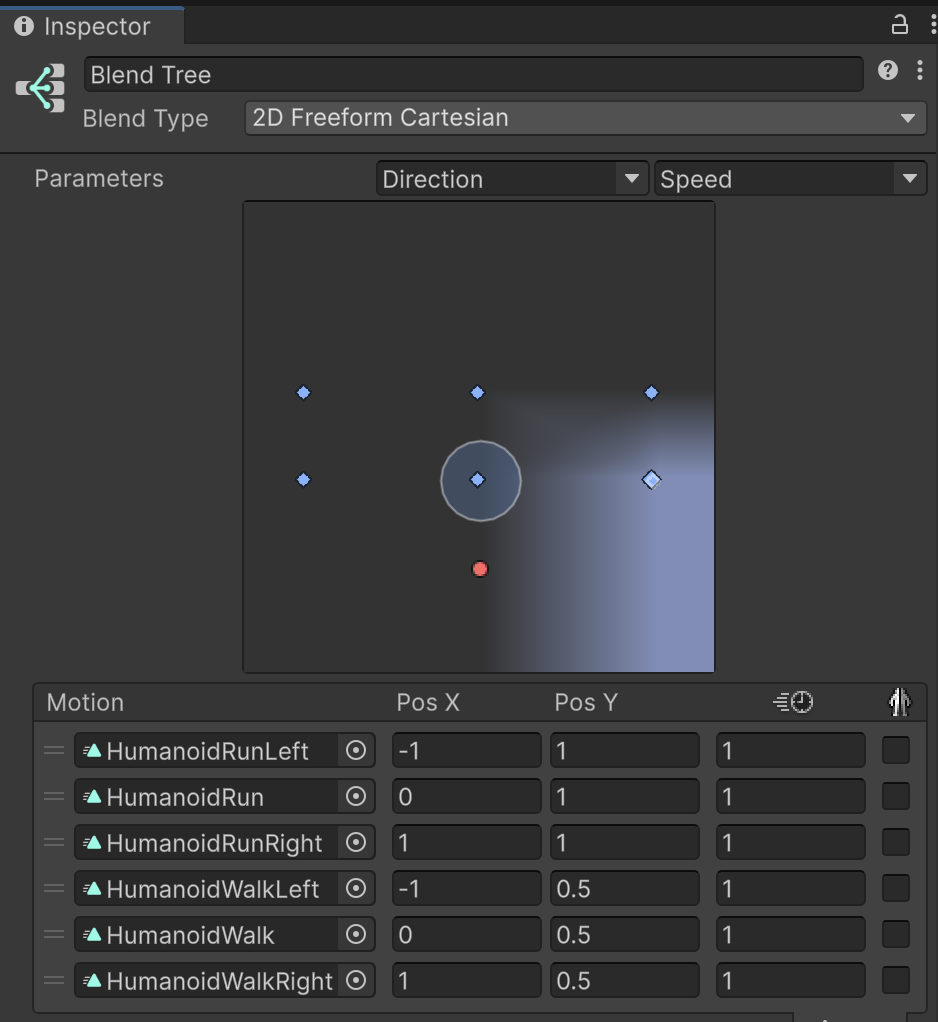
你的截圖:MoveFront — 2D Freeform Cartesian、Direction / Speed、6 個 Motion 座標 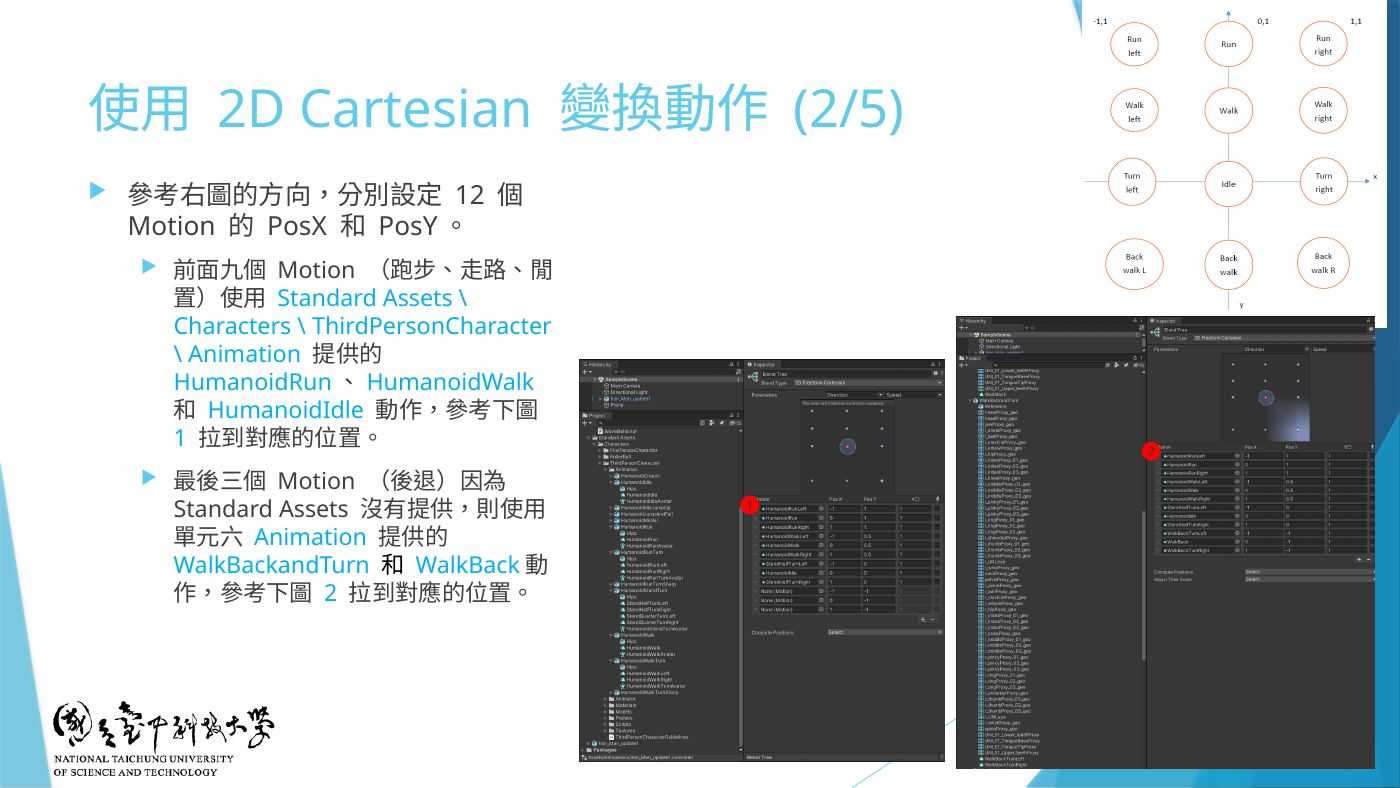
W7-21 課堂版 12 個 Motion 座標圖(參考) - 預覽:右下預覽 ▶,拖 Inspector 圖上的紅點看走/跑/左右轉(W7-22)。
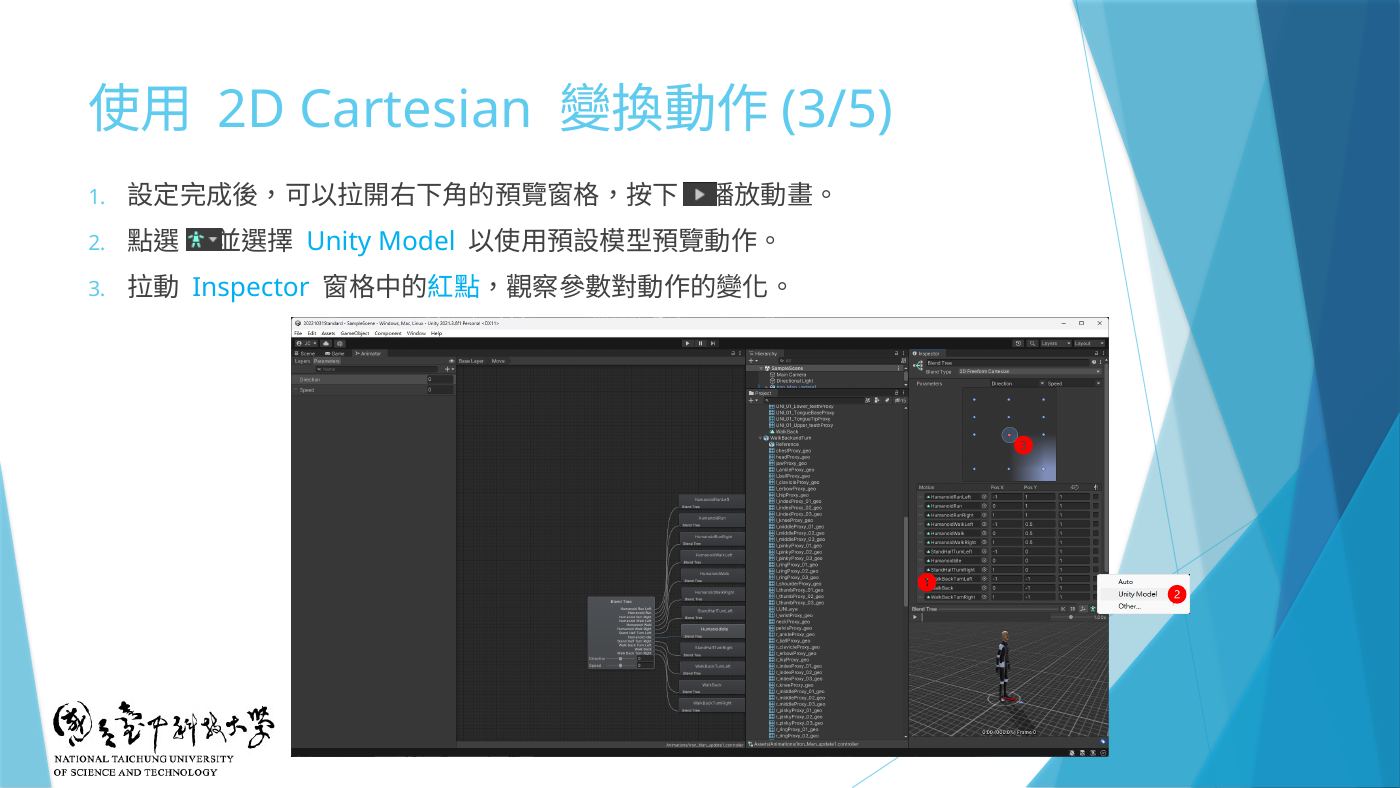
W7-22 拉動紅點預覽 - 地雷轉換 idle → MoveFront:回 Base Layer → 對 idle 右鍵 Make Transition → MoveFront → Has Exit Time 取消勾選 →
SpeedGreater0.1。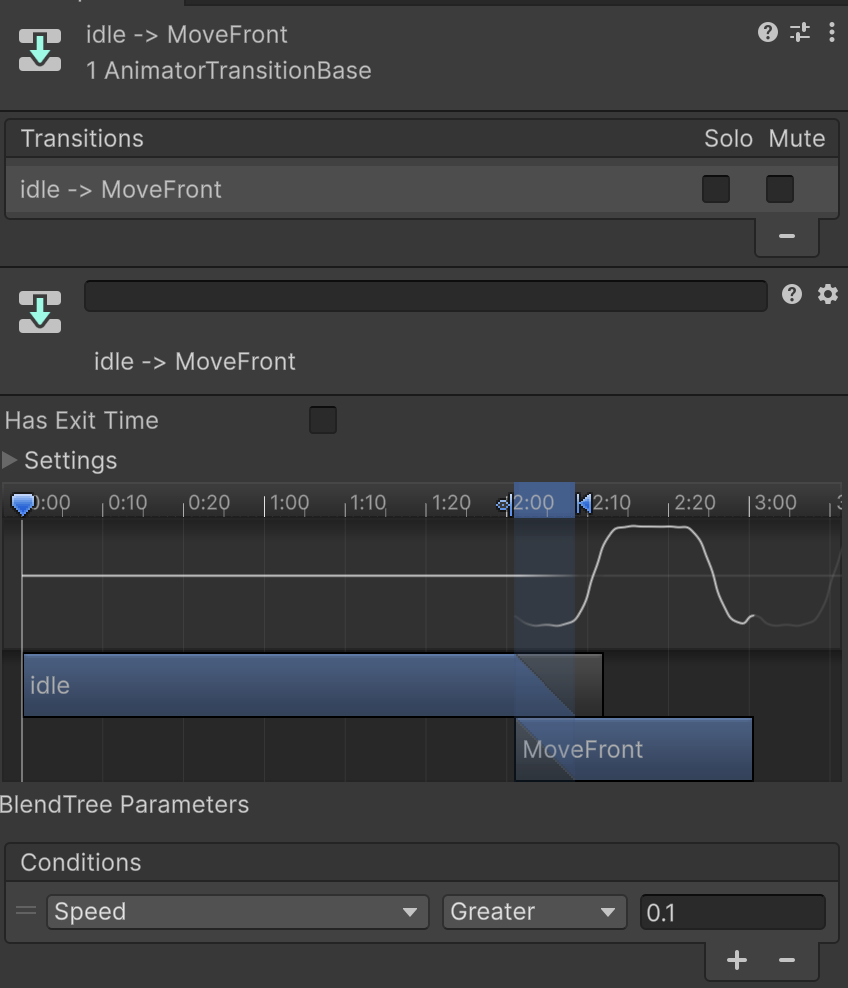
你的截圖:idle -> MoveFront,Has Exit Time 未勾,Speed Greater 0.1 - 地雷轉換 MoveFront → idle:對 MoveFront 右鍵 Make Transition → idle → Has Exit Time 取消勾選 →
SpeedLess0.1。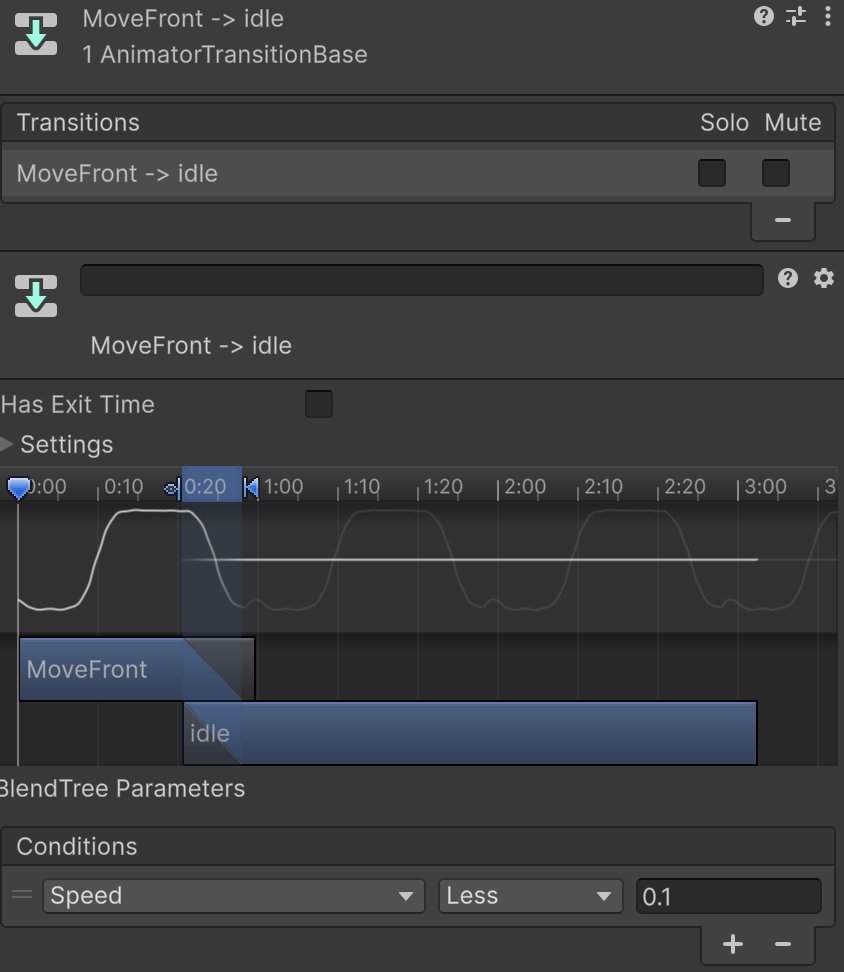
你的截圖:MoveFront -> idle,Has Exit Time 未勾,Speed Less 0.1 - 完成後 Base Layer 應該長這樣:Entry → idle(橘色預設),idle ⇅ MoveFront、idle ⇅ MoveBack,共 4 條箭頭。
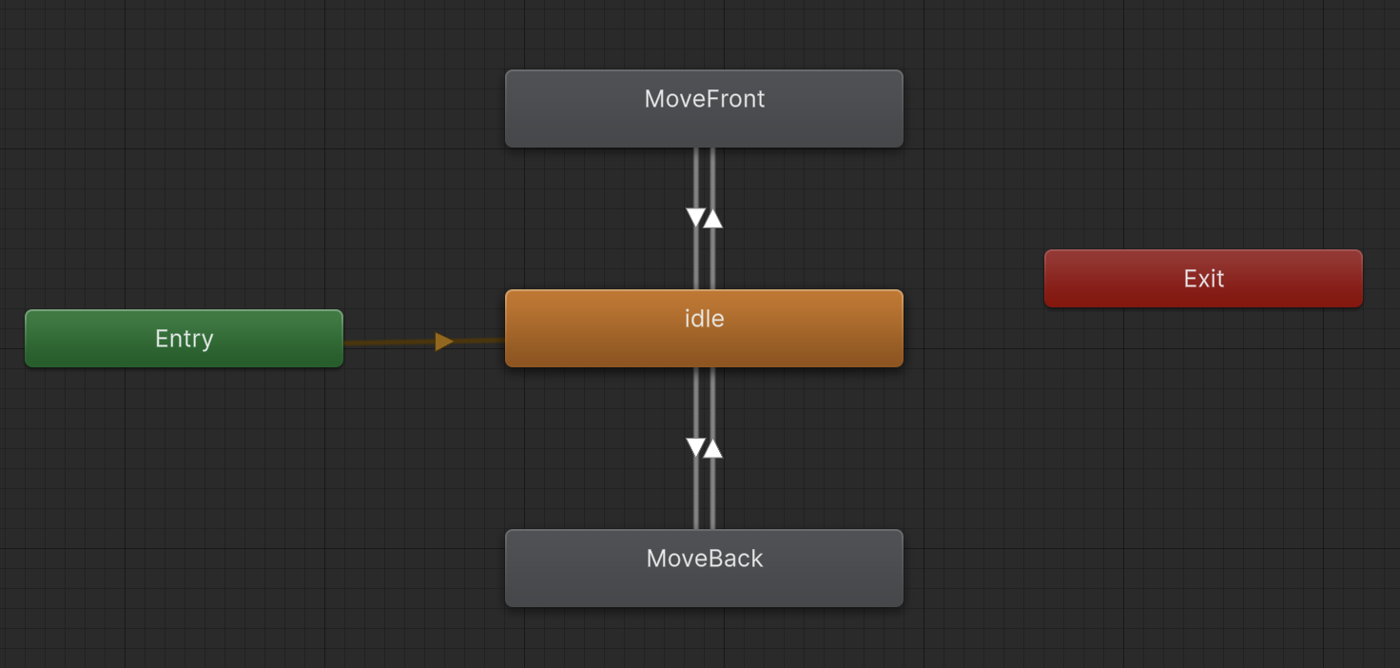
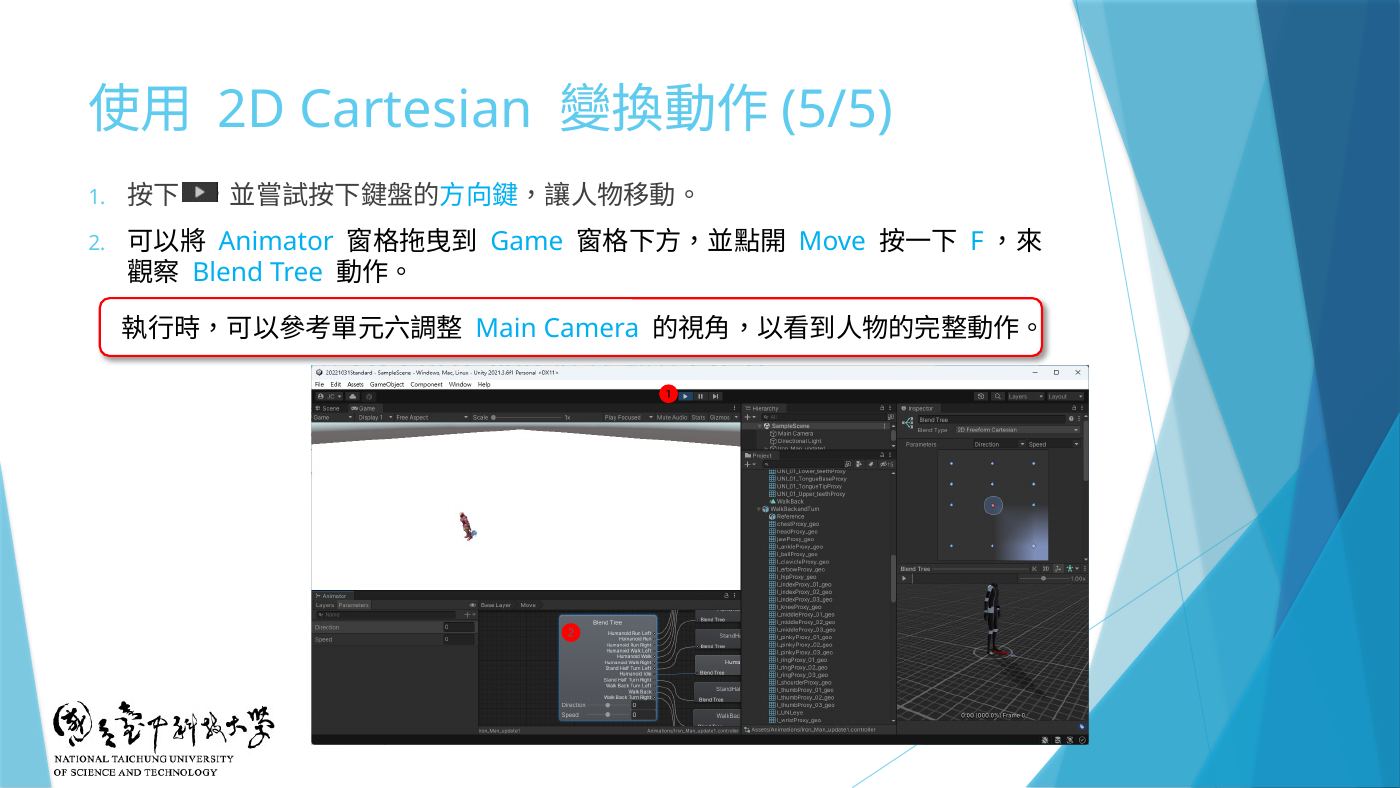
你的截圖:Base Layer — Entry → idle(預設),idle ⇅ MoveFront、idle ⇅ MoveBack - ▶ 測試:↑ 走→跑(GetAxis 約 0.3 秒就到 1,所以會很快從走變跑;用 Inspector 紅點確認兩者都有)、↑+←/→ 轉彎,放開回 idle。可把 Animator 視窗拖到 Game 下方觀察(W7-24)。
W7-24 Play 測試方向鍵、觀察 Blend Tree